22
1
BEFORE WEIGHING
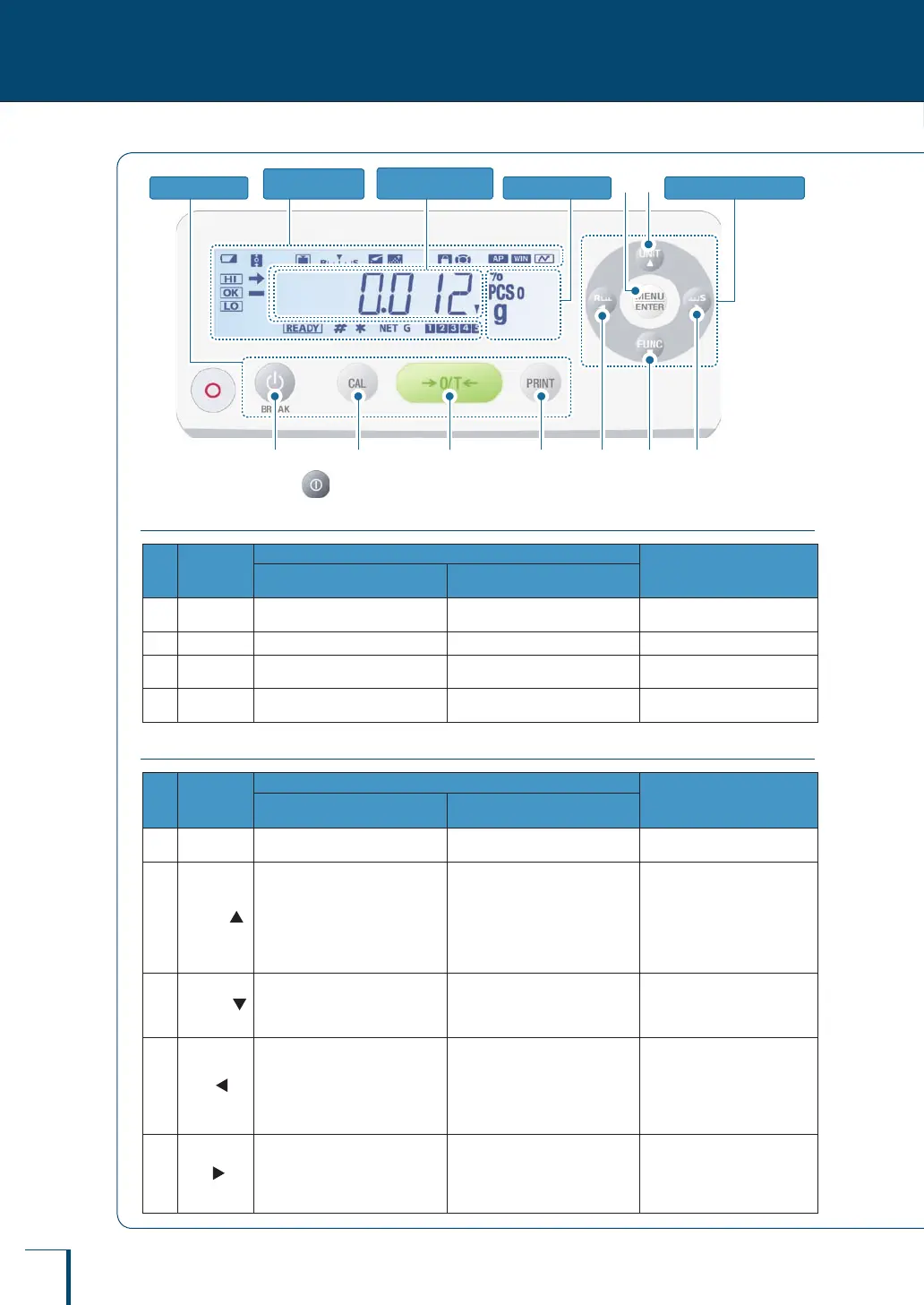
Name and Function of Components
Unit display area Menu operation keys
Symbol display
area
Operation keys
Numeric value /
menu display area
1 2 3 4 8 7 9
65
∗1
∗1
With the TXB series, is provided.
Operation Keys
No. Key
During Weighing
During Menu Operation
Press Once and Release ...
Press and Hold for About
3 Seconds ...
1
[BREAK]
Switch between the operation
and standby modes
-
Suspends calibration /
numerical value entry.
2
[CAL] Performs calibration Enters the calibration menu -
3
[O/T]
Tares the balance (setting it to
zero)
Opens the zero / tare menu -
4
[PRINT]
Outputs the weight reading to a
peripheral device (printer or PC)
Opens the data output menu -
Menu Operation Keys
No. Key
During Weighing
During Menu Operation
Press Once and Release ...
Press and Hold for About
3 Seconds ...
5
[MENU/
ENTER]
Displays the main menu Shows the menu displayed last
Conrms and sets the
displayed entry
6
[UNIT]
In the weighing mode: Used
to select the unit
When piece counting:
Displays the unit weight
When performing percentage
weighing: Displays the
reference weight
•
•
•
In the weighing mode: Opens
the unit setting menu
When piece counting: Used to
select the item number
When performing percentage
weighing: Used to select the
percentage reference
•
•
•
Scrolls backward through
menu options
When entering numerical
values: Increases the value
•
•
7
[FUNC]
Switches between the weighing
mode and the application
function mode
Selects the minimum number of
displayed digits
Scrolls forward through
menu options
When entering numerical
values: Reduces the value
•
•
8
[Res]
The response of the display is
increased.
-
Takes you to a higher level
in the menu hierarchy
When entering numerical
values: Moves the focus
one digit to the left
Suspends menu operation
•
•
•
9
[Stb]
The stability of the display is
increased.
-
Takes you to a lower level
in the menu hierarchy
When entering numerical
values: Moves the focus
one digit to the right
•
•



 To Next Page