114
REINSTALLING CONTROLLER SOFTWARE (USING USB
FLASH DRIVE)
The controller software can be reinstalled using a USB flash drive supplied by Stratasys. All systems ship with a
USB flash drive containing the controller software which was current at the time of system manufacture. As
such, it is important that controller software be updated as appropriate following software reinstallation using the
USB flash drive.
1. Unload materials and remove the canisters from the system.
2
. If the Dynamic IP address is set to OFF, record the specific network parameters (IP Address,
N
etwork Mask and Gateway) found on the Administration screen of the system's touchscreen
display. However, if the network configuration for Dynamic IP is set to ON, a network server or
PC will automatically generate an IP address for the system and no action is required by the
user.
3. Power OFF the system and allow the UPS to complete its delayed power down cycle.
4
. Insert the USB flash drive into a USB port of the system’s controller.
5
. Press the green start button to power the system ON. (The green button will start to flash on and
o
ff at a slower rate.)
6. The computer will boot from the USB flash drive and the following message will appear:
P
ress OK to download the software or C
ancel to abandon the operation.
7. Press
OK on the touchscreen. The software transfer process will begin.
8. When installation is complete, the screen will display the following message:
R
emove the USB flash drive from the computer port before pressing OK
to exit.
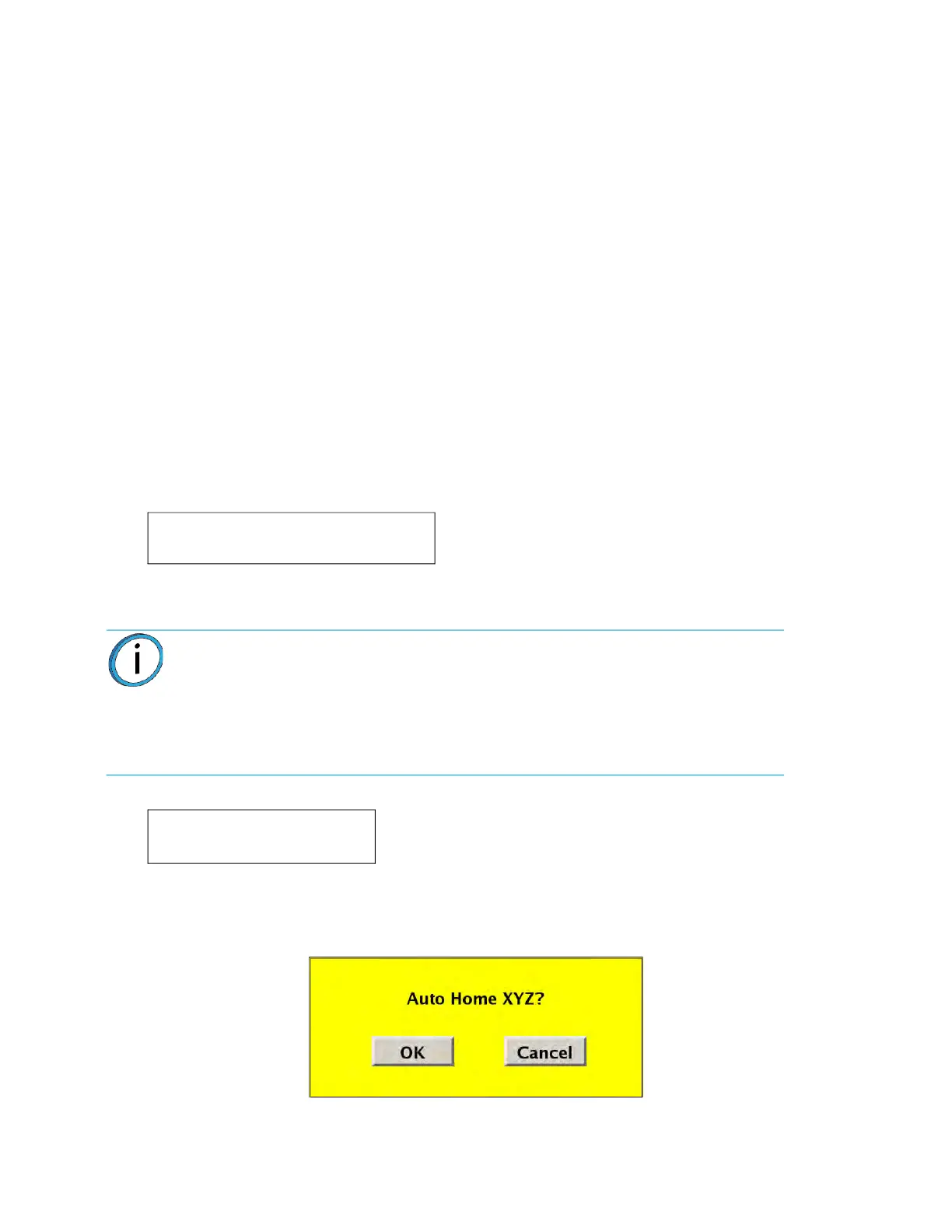
9. The following screen will appear after the system reboots. Press O
K to Auto Home XYZ the
system using the downloaded software.
10. Check for Controller software updates using the Control Center application. (See “
Web Method
(preferred method)” on page 111.)
Note: During the software transfer and subsequent automatic boot processes,
various scripts will be seen on the touchscreen display.
DO NOT shutoff the system during the software downloading process.
D
O NOT press any screen access buttons unless instructed to do so (i.e., the
R
elease Notes button is non-functional at this release).
This will erase all data on the drive.
Are you sure you want to continue?
Installation complete.
Remove installation media.














 To Next Page