76
SELECT A JOB TO BUILD
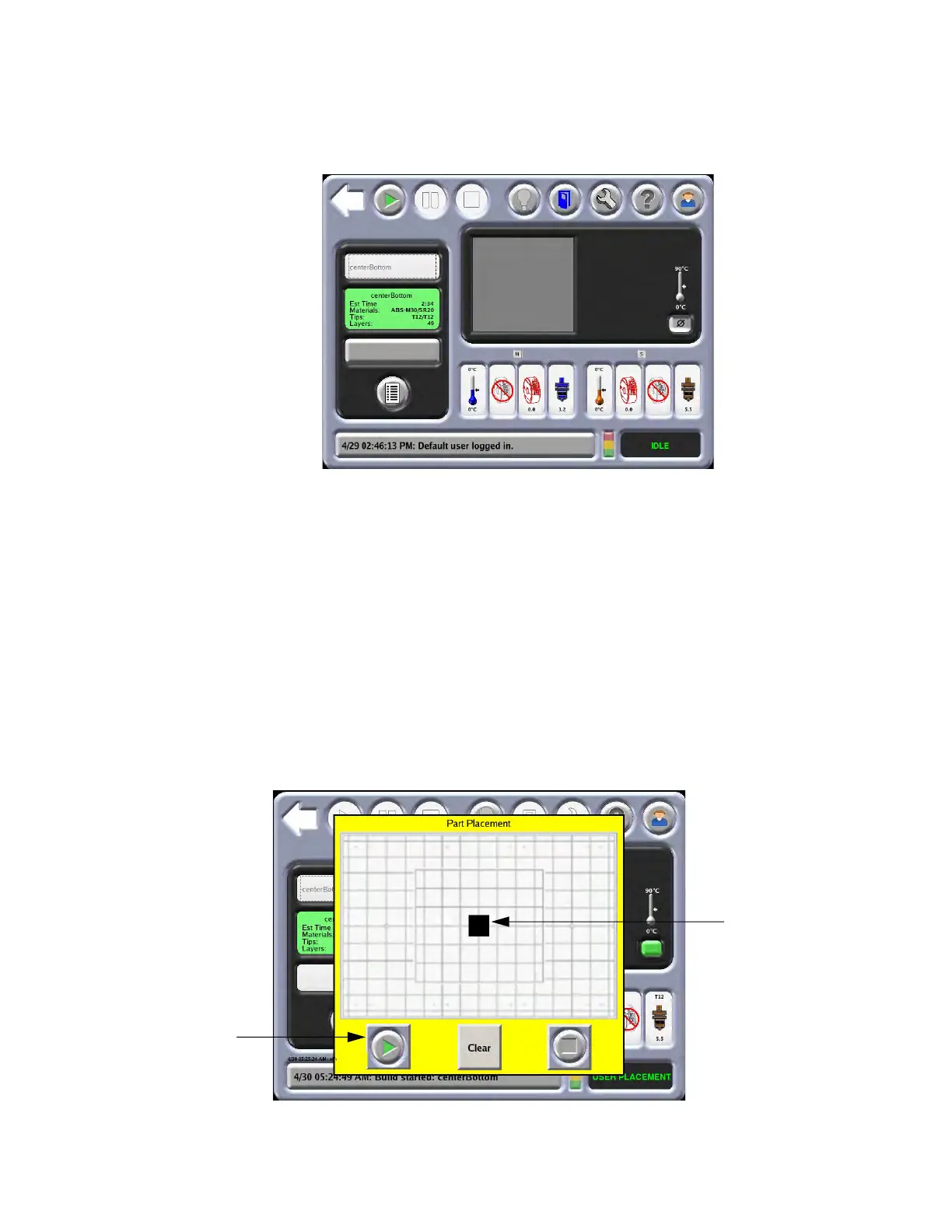
From the Building screen, select one of the following job build options:
Figure 4-25: Se
lecting a Job
1.
Next Job
• Selects the first job in the job queue for build.
2.
Previous Job - builds the last job completed.
• The previous job built by the system will be selected for build.
•
If a previous job does not exist, the screen will show
No Previous Job.
3.
Queue Window
• The job queue is displayed.
• Select a specific job in the queue.
•
For more information on the Job Queue, see “
Working with the Job Queues” on page 99.
4. If the User Placement option is set to on, the following screen will appear.
Fi
gure 4-26: Po
sitioning a Part
5. Using the touchscreen, position the part on the displayed platen.
Build
Queue
Next Job
Selected Job
Previous Job
Window
Build
Position Part














 To Next Page