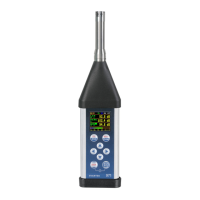
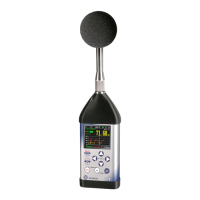
9 PRINTING REPORTS – Report
The Report section allows you to print reports
of the Sound or Vibration Summary results for
the last measurement cycle in the predefined
format on the printers directly connected to
the SV 977D instrument.
This position becomes active after the first
measurement.
To obtain a report, connect the instrument to the printer’s RS 232 port using the SP 75 interface. This hardware
interface is hidden in the Cannon type, 9-pin RS 232 plug-in. On the other end of the SP 75 interface, which itself
looks like a cable, there is the USB-C plug-in. This plug-in should be placed in the USB-C socket of the instrument.
Note: The SP 75 converter serves as the RS 232 interface. The SP 75 connection to the USB socket
is detected and after successful detection the blue “RS232” icon appears on the display.
Note: Before printing, be sure that the RS232 port is activated and properly configured (path: <Menu>
/ Instrument / Communication Ports).
To activate the RS232 port, in the
Communication Ports list (path: <Menu> /
Instrument / Communication Ports), select the
RS232 in the Serial Port position, select
proper speed of the transmission (Baud Rate)
and the time limit during which the
communication operation should be
performed (Time Out).
The RS 232 interface transmission speed (Baud Rate) can be selected from the following available values: 1200,
2400, 4800, 9600, 19200, 38000, 57600 or 115200 bits/s. The transmission speed should be the same as in the
connected printer to ensure successful data transfer.
The default value of the Time Out parameter is equal to one second, but this may be too short for the printers,
which are not fast enough. In such cases, the Time Out parameter should be increased.
Printers, which have only a USB interface, are currently not driven by the instrument.
Note: Switch the power off before connecting the instrument to any external device (e.g. a printer or a
PC).
Note: All reports are printed in the character format using the ASCII set on either A4 or A5 size paper.
After selecting the Report position and
pressing <ENTER> the instrument starts
printing the report and displays the message
“Print results, printing…”.
The data are transferred from the instrument
to the attached printer, while the message is
displaying. The instrument returns to the
Menu list after transferring all data.
The message about the time limit is displayed if a printer is not connected or there is any other reason that it
does not receive the data. The instrument waits for the reaction of the user (any key should be pressed except
<Shift> and <Alt>) and after pressing a key it returns to the Menu list.
Below is the example of the report:
SVANTEK (C) 2012
SVAN 977 v.1.41.3
S/N:45456


 To Next Page