14
COMPONENTS
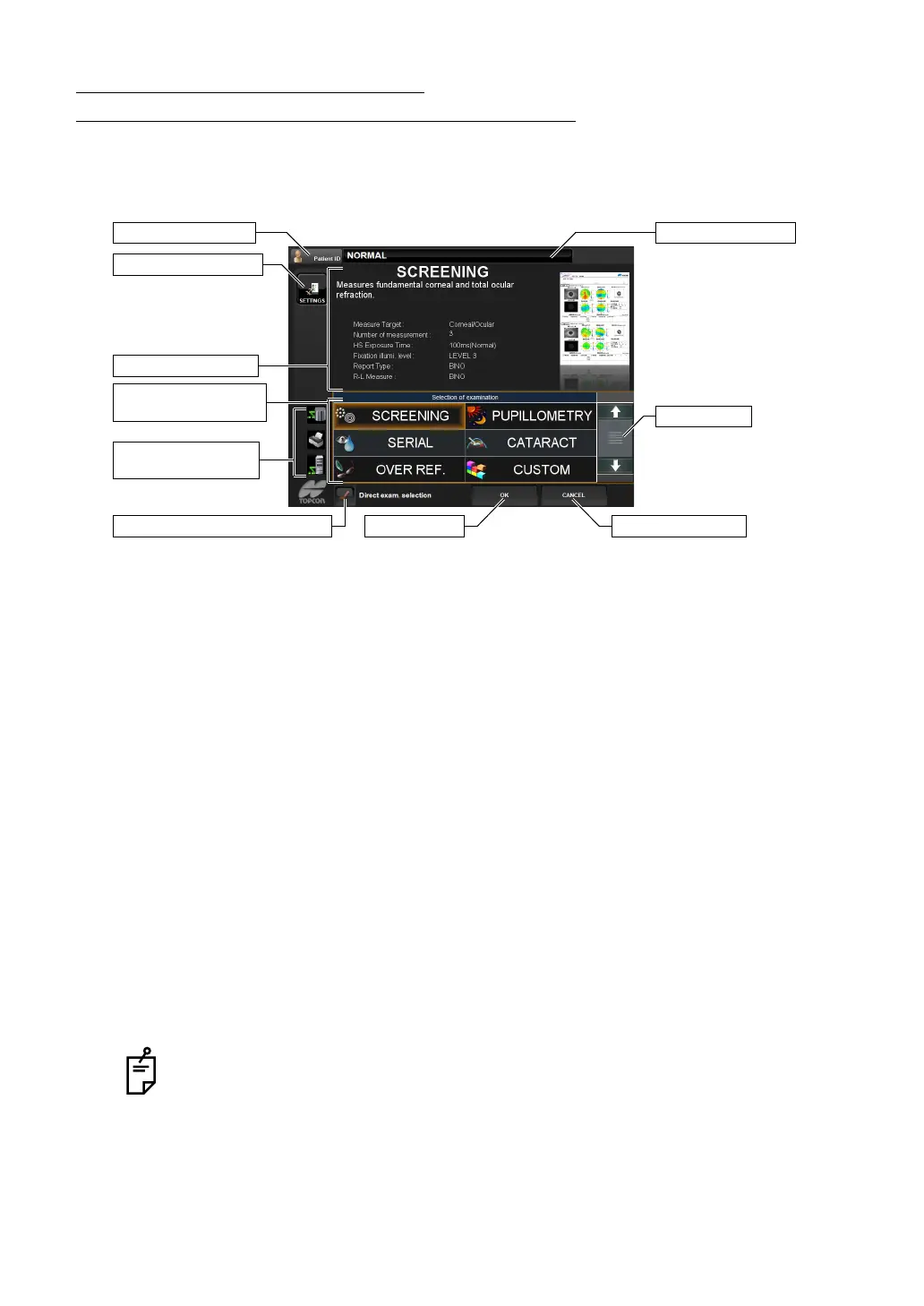
CONTROL PANEL COMPONENTS
(EXAMINATION PURPOSE SELECTION SCREEN)
This is the screen to select the measurement course provided according to the examination
purpose after turning the instrument on.
(1) SETTINGS button Used to change the setting details of each measurement course
by examination purpose.
(2) Setting conditions Displays the currently selected measurement course and its set-
ting conditions.
(3) Patient ID button The Patient ID INPUT screen is displayed. The patient ID is dis-
played on the right.
(4) Selection of examination button
Used to select the measurement course according to the exami-
nation purpose.
(5) Scroll bar If some measurement courses are not displayed, the next mea-
surement course can be displayed by dragging the scroll bar.
(6) OK button Confirms the selected measurement course and shifts to the
measurement screen.
(7) CANCEL button Cancels the change of the measurement course and returns to
the measurement screen with the setting before the change.
(8) Connection status icons
If any PCs and printers are connected to this instrument, they will
be displayed as icons.
(9) Direct exam. selection button
If checked, the screen switches to the measurement screen right
after tapping the measurement mode name.
After started, the examination purpose selection screen will not be displayed and
can be set to display the measurement screen directly instead. For more details,
refer to page
37, "SELECTION OF EXAMINATION INTERFACE AND ARBI-
TRARY OPERATION INTERFACE".
(5) Scroll bar
(7) CANCEL button
Display of patient ID
(6) OK button(9) Direct exam. selection button
(3) Patient ID button
(1) SETTINGS button
(2) Setting conditions
(4) Selection of
examination button
(8) Connection status
icons


 To Next Page