167
FUNCTION SETTING USING SETTINGS
SETTING OF EXTERNAL PRINTER (PRINT EXT)
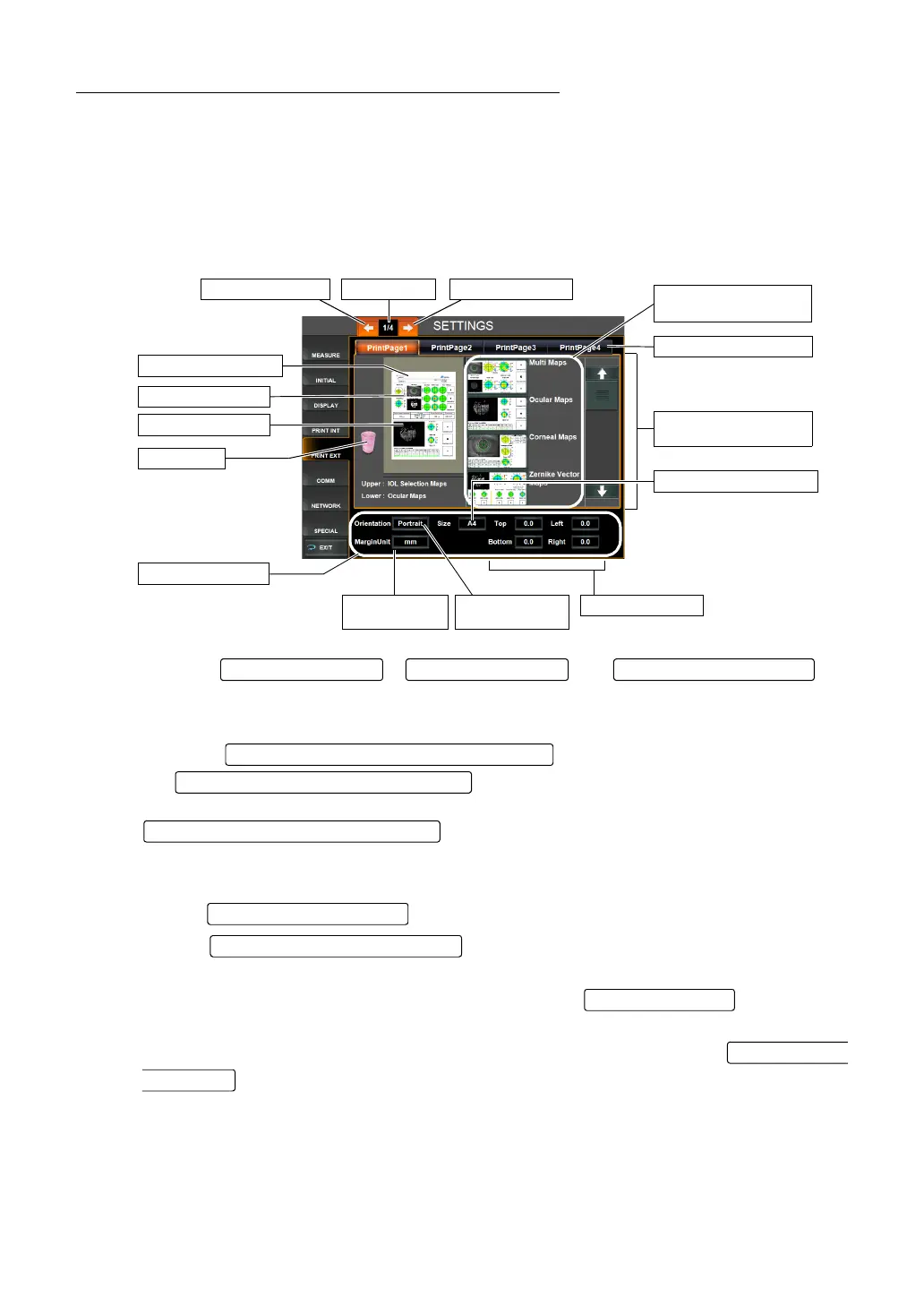
PRINT EXT menu contains settings related to output layout of the external printer. The output
layout can be registered up to 4 types. Before shipment, Multi map is placed at the upper
stage and Component map is placed at the lower stage.
1 Tap the index "PRINT EXT" of the "SETTTINGS screen." The SETTTINGS screen for
external printer is displayed.
2 Tap the , or as
needed, till the page to be registered is displayed.
3 Select the maps to be placed at the upper stage and lower stage of the paper.
Touch the and display the items to be placed in
the . Place the items to be placed onto the Paper
upper stage or Paper lower stage of the Print preview display by direct tap & drag from the
.
4 To delete the placed item, carry by tap & drag the placed item from the Print preview dis-
play to the Recycle bin.
5 Tap the and select paper seize "A4" or "B5".
6 Tap the and select the orientation of paper "Portrait" or
"Landscape."
7 To adjust the margin, press the numerical display of the and enter the
number by the ten-key display.
• The margin set unit can be selected from "mm" or "inch" by tapping the
.
8 Setting is complete.
Layout candidate item
display scroll bar
Print page select button
Layout candidate item
display area
Paper setting area
Page feed buttonPage displayPage return button
Margin setting
unit button
Margin set buttonPage orientation
select button
Paper size select button
Paper upper stage
Paper lower stage
Recycle bin
Print preview display
Page Feed button Page Return butto
Print Page Select butto
Layout candidate item display scroll ba
Layout candidate item display area
Layout candidate item display area
Paper size select butto
Page orientation select button
Margin set button
unit button


 To Next Page