74
DISPLAYING THE MEASUREMENT RESULT
DISPLAYING THE MEASUREMENT RESULT
MEASUREMENT RESULT LIST SCREEN
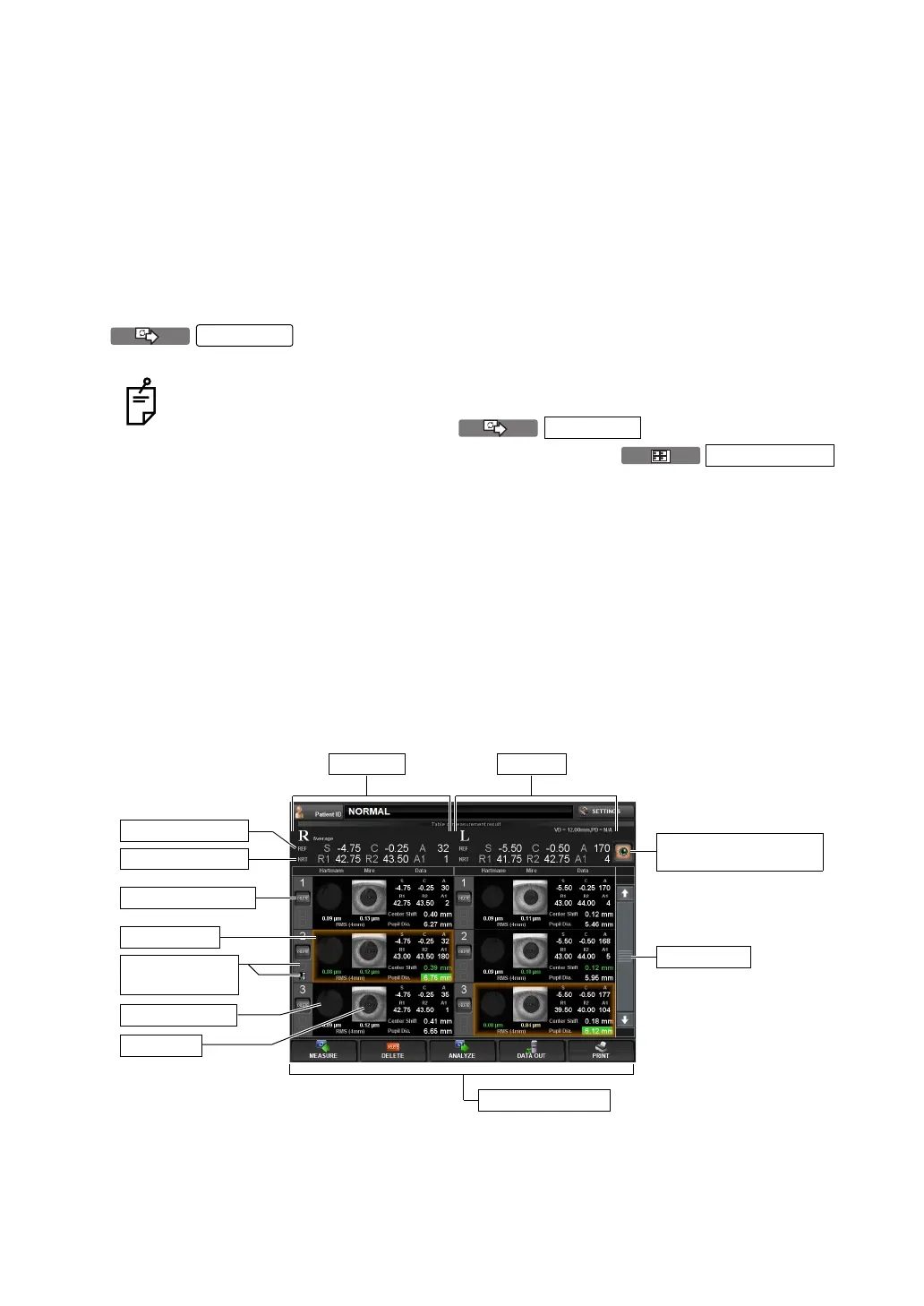
On the Measurement Result List screen, a list of measurement results can be confirmed. By
selecting the data to be displayed, data output to the external PC, printing data, initial display
on the Analysis screen, and clearing data can be done.
When plural measurements are performed under Auto mode, the screen is changed automat-
ically to the Measurement Result List screen.
In the case of Manual mode or Auto Tracking mode, it is displayed by tapping the
button after the measurement.
• Selected data are displayed in brown. After changing the screen to the Measurement Result
List screen, first the data of the largest pupil diameter are selected automatically.
• On the Measurement Result List screen, typical REF/KRT values are displayed on the
screen. Also, the Hartmann Image, Mire Image, ocular high order aberration, REF/KRT
data, center shift and pupil diameter are displayed for each eye.
• When plural measurements are done, the result of which the corneal high order aberration
and center shift are the smallest is displayed in green. With regard to the pupil diameter, the
largest result is displayed with a green background.
In case of the serial measurement, the screen does not go automatically to the
Table of measurement result screen after finishing the measurement.
After the measurement, tap the button and display the
Summary map or the Pupillometry map, and tap the
button of the displayed map to display the Measurement Result List screen.
In case of Pupillometry, the screen does not go automatically to the Table of mea-
surement result screen after finishing the measurement.
ANALYZE
ANALYZE
RESULT LIST
(3) Function button
(1) Scroll bar
Right eye
Typical REF value
Typical KRT value
Selected data
(5) Recommended data
selection button
Left eye
Mire Image
Hartmann Image
(2) DELETE button
(4) Printed icon/
output icon


 To Next Page