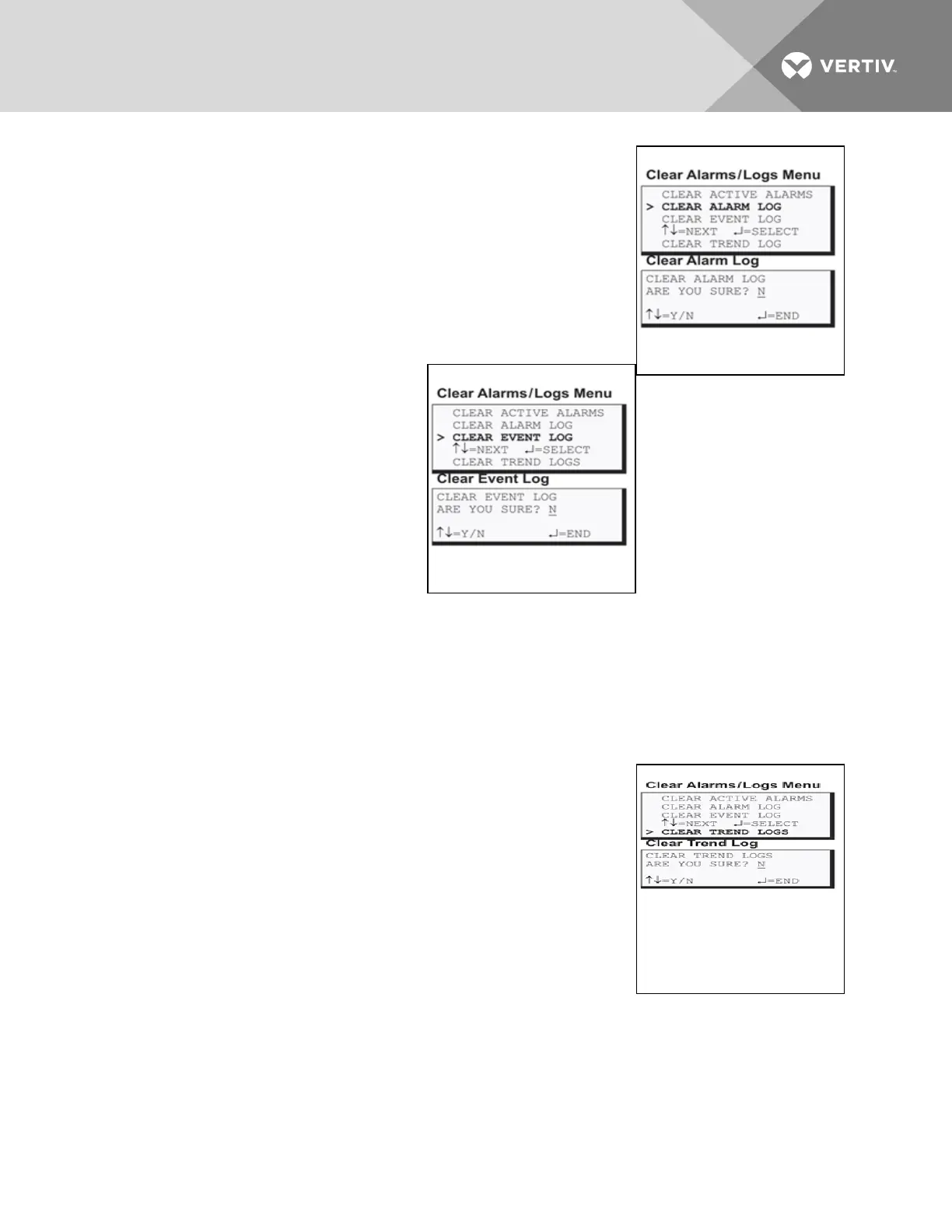
To delete all records from the alarm log:
• From the Clear Alarms/Logs Menu, use the arrows to choose
Clear Alarm Log, then press Enter.
• Use the arrows to choose Y (Yes - clear the alarm log) or N
(No-do not clear the alarm log), then press Enter.
NOTE: Clear active alarms is the only means to reset Latched alarms. This
action must be taken to return Latched points to their normal state.
7.13.3 Clear the Event Log
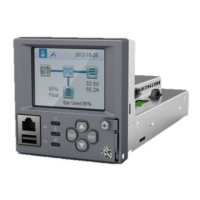
The event log contains up to 99 records of
events detected by the Liebert AC8. You
may want to clear the log after backing up
the file or simply to free up space.
NOTE: Before deleting the records in the
event log, you may want to back up the file
to a remote computer using the Service
Terminal Interface, as described in Back Up
Log Files (Service Terminal Interface only)
on page50.
To delete all records from the event log:
• From the Clear Alarms/Logs Menu, use the arrows to choose Clear Event Log, then press Enter.
• Use the arrows to choose Y (Yes - clear the event log) or N (No - do not clear the event log),
then press Enter.
7.13.4 Clear the Trend Logs
The Liebert AC8 maintains a separate trend log for each configured analog
input sensor. Each log contains up to 100 records of data collected at
regular intervals. You may want to clear the logs after backing up the files
or simply to free up space.
Using the Clear Trend Logs command will clear all four trend logs
maintained by the Liebert AC8. There is no method of clearing records
from individual logs.
NOTE: Before deleting the records in the trend logs, you may want to
back up the files to a remote computer using the Service Terminal
Interface, as described in Back Up Log Files (Service Terminal Interface
only) on page50.
To delete the records from ALL four trend logs:
• From the Clear Alarms/Logs Menu, use the arrows to choose Clear Trend Logs, then press
Enter.
• Use the arrows to choose Y (Yes - clear all trend logs) or N (No - do not clear the trend logs),
then press Enter.
Vertiv | Liebert® AC8 User Manual | 106



 To Next Page