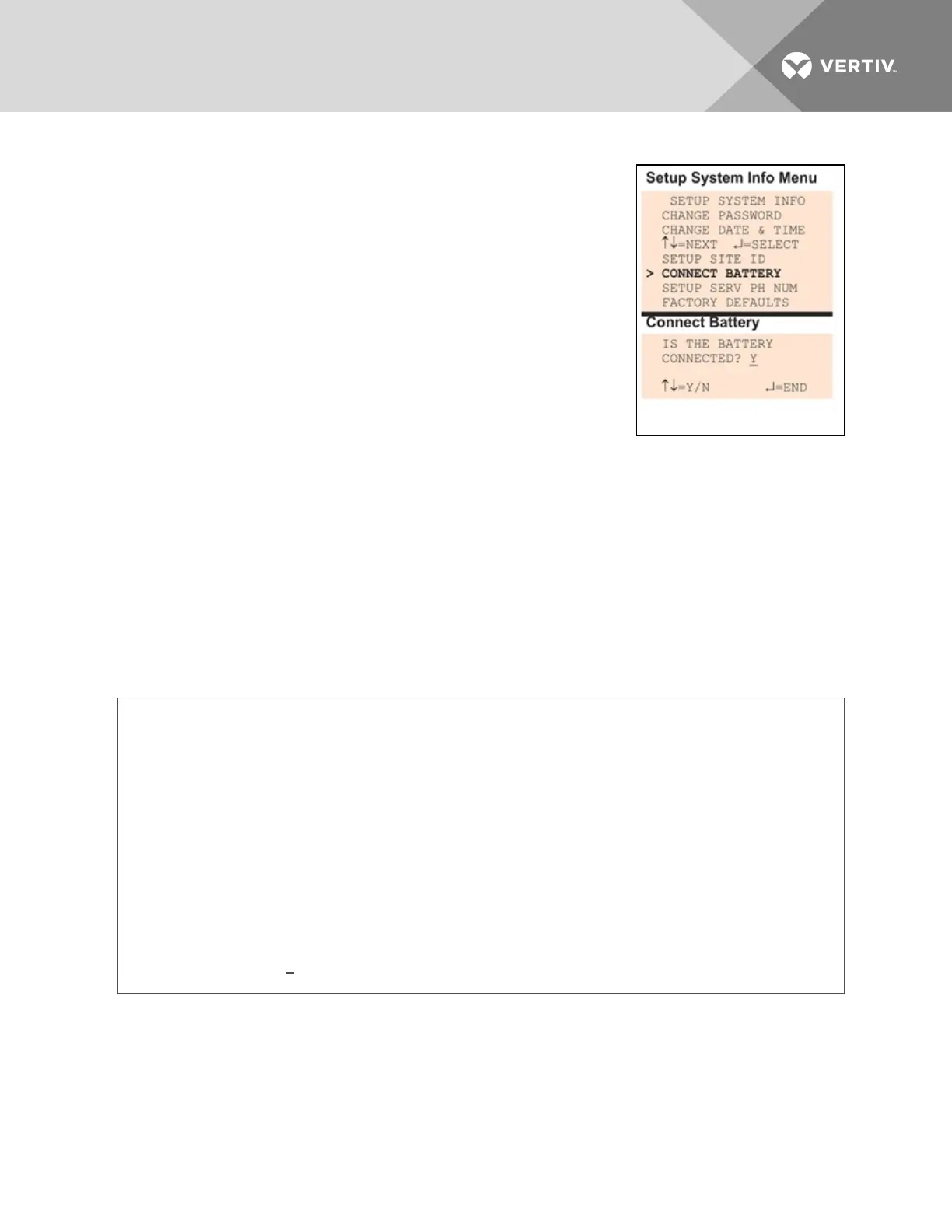
To connect or disconnect the battery:
• From the Setup System Info Menu, use the arrows to choose
Connect Battery, then press Enter.
• Use the arrows to choose Y (Yes - the battery is connected) or N
(No - the battery is not connected), then press Enter.
7.9.5 Backup and Upload Configuration File
(Service Terminal
Interface only)
This operation may be performed only through the Service Terminal
Interface. It permits the user to make a copy of the Liebert AC8
configuration settings and save it as a file on the computer connected
through the RS232 port. Should the need arise, the user can upload the
configuration file from the computer to the Liebert AC8, instead of re-
entering the settings manually.
To access these options:
1. Connect to the Liebert AC8 either from a remote computer or through the RS232 port (see
Connecting to the Service Terminal Interface on page111).
2. At the Main Menu, enter 0 (zero—Setup System - Login Required).
3. At the Login Menu, enter your password, then press the Enter key.
4. At the Setup Menu, enter 7 (Setup System Information).
5. At the Setup System Information Menu, enter 5 (Backup & Upload Configuration File). The
Backup & Upload Configuration File menu appears, shown below:
Backup & Upload Configuration File - Backup
BACKUP AND UPLOAD CONFIGURATION FILE
Backup from panel saves panel configurations
Upload to panel restores panel configurations
Select to backup or upload file
1=BACKUP CONFIGURATION FILE
2=UPLOAD CONFIGURATION FILE
3=RETURN TO SETUP SYSTEM INFO MENU
4=RETURN TO SETUP MENU
5=RETURN TO MAIN MENU
SELECT A NUMBER:1
6. Enter 1 to back up the configuration file from the Liebert AC8 to the computer and proceed to
Step1. on the facing page,
OR
Vertiv | Liebert® AC8 User Manual | 86



 To Next Page