7. Enter 2 to upload the configuration file from the computer to the Liebert AC8 and proceed to
Step1. on the next page. NOTE: This will replace the current configuration settings in the
Liebert AC8 with the most recent backup.
Back Up the Configuration File
1. At the prompt to Initiate a Backup of Configuration File, enter Y (Yes - begin) or N (No -
cancel). The current setting appears in brackets—[N] in the following example.
>INITIATE A BACKUP OF CONFIGURATION FILE-YES(Y) OR NO(N)?
>[N]
>[
2.
NOTE: The following instructions refer to the Microsoft Windows HyperTerminal program. These
steps may vary for other communications programs.
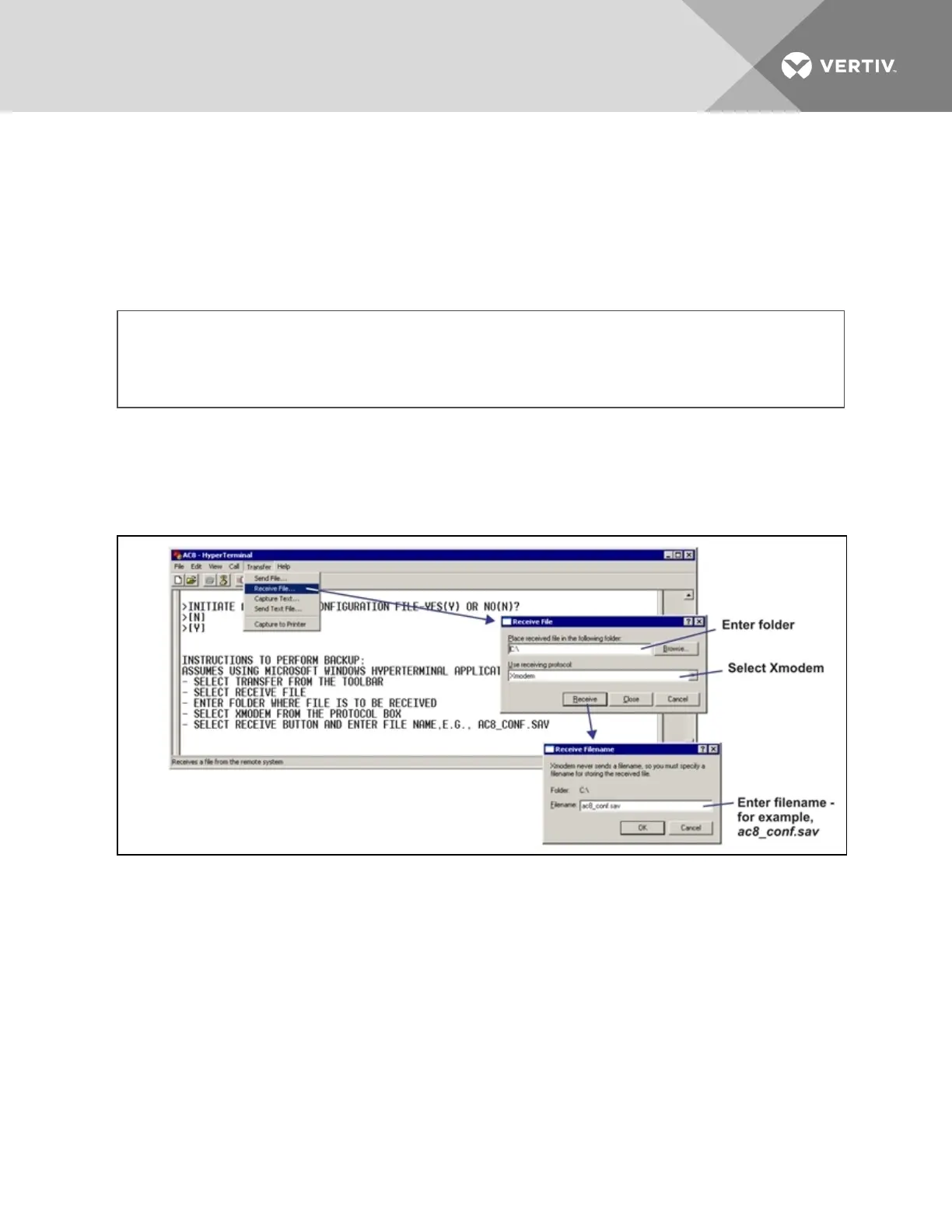
3. At the top of the HyperTerminal window, shown below, click on Transfer, then on Receive File.
4. In the Receive File window, as shown above:
• In the Place Received File in the Following Folder box, enter the name and location of the
folder where the configuration file should be placed—for example, C:\—or click on the
Browse button to locate the folder.
• In the Use Receiving Protocol box, select Xmodem from the drop-down list.
• Click on the Receive button. (To close the window without backing up the file, click on
Close or Cancel.)
5. In the Receive Filename window, enter a name for the file—for example, ac8_conf.sav—and
click OK.
6. When the transfer is complete, a confirmation message appears in the Service Terminal
Interface window: “Backup Successful.”
Vertiv | Liebert® AC8 User Manual | 87



 To Next Page