Operation
4002−2/A1
Winterthur Gas & Diesel Ltd.
33/ 37
3.17 USB Page
3
1
2
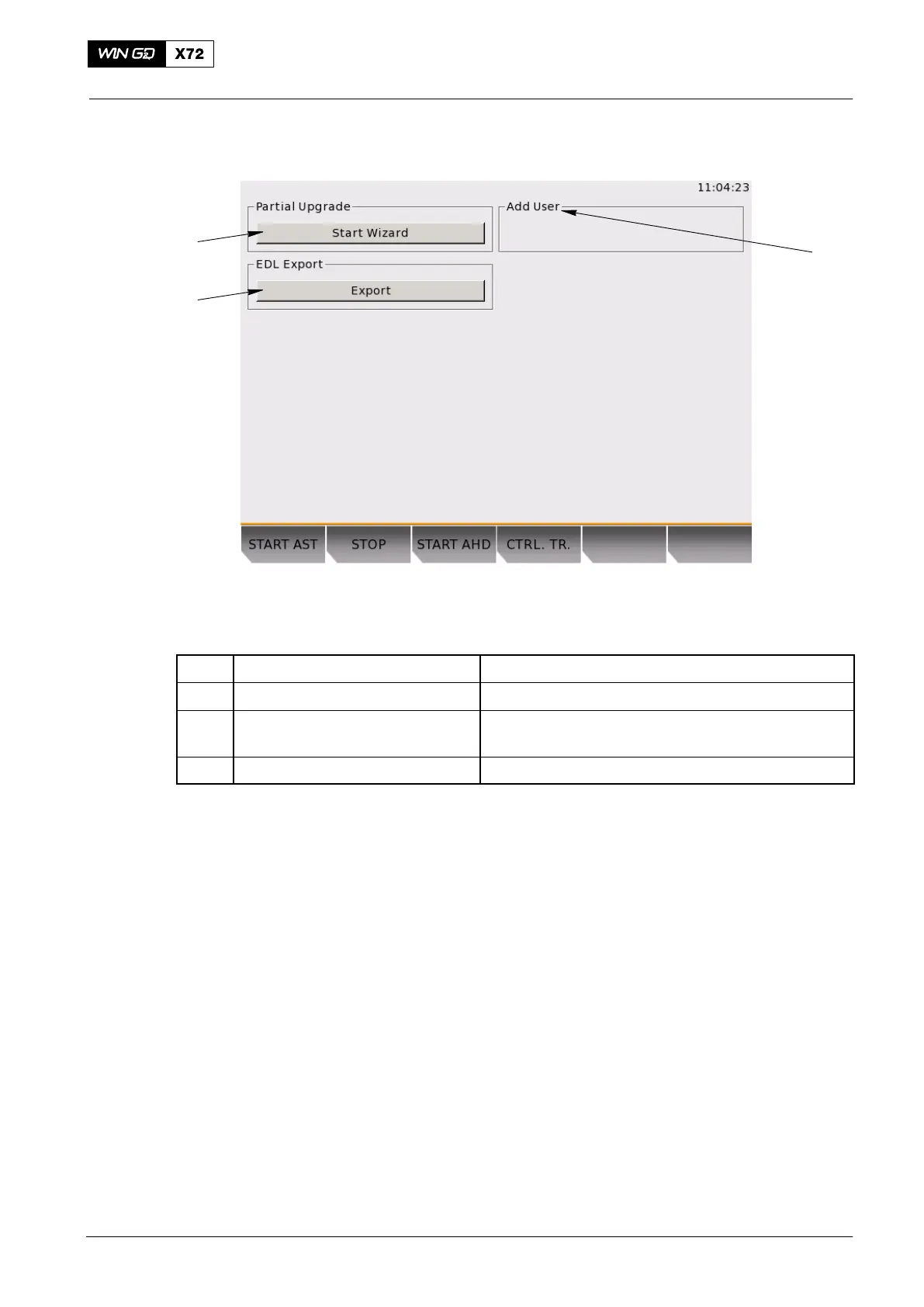
Fig. 20: USB Page
Item Function Effect / Procedure
1 Add User Not used
2 Export button Exports all log messages to a file on a USB drive
(if connected)
3 Start Wizard button Starts the partial upgrade wizard
3.17.1 Procedure − Export All Log Messages
1) Connect a USB drive to the USB port on the rear of the LDU before you select
the Export button (2, Fig. 18).
2) Use the rotary button to put the cursor on the Export button 2. Push the rotary
button to select Export.
The file name EDL Export YYYYMMDD_hhmmss.wxml will be saved to the USB
drive. The timestamp display YYYYMMDD_hhmmss is shown as
year/month/day_hours/minutes/seconds. This file has the full system log and can be
sent to WinGD for troubleshooting.
Note: When the export is done, disconnect the USB drive from the LDU-20. This
prevents an unwanted LDU-20 shutdown because of a too high power
consumption.
You use the partial upgrade wizard to adjust software parameters, which the user
does not usually have access. A file (from WinGD stored on a USB drive is
necessary.
3) To apply the partial upgrade, connect the USB drive to the USB port on the back
of the LDU.
4) Use the rotary button to put the cursor on the Start Wizard button (5).
5) Push the rotary button to select Start Wizard.
Local Control Panel / Local Display Unit (LDU−20)
2015-12


 To Next Page