Configuration Guide
Stratus OCT User Manual PN 2660021134133 A
B-16
5. Write down and save any existing configuration parameters such as IP address,
Subnet mask and Default gateway. You may need these to reestablish a connection to
a preexisting network.
6. Select the Use th
e following IP address radio button, and then type in the IP address.
Note: The first three parts of the review station IP address must match what is used
on the Stratus instrument. The fourth part must be a number between 2 and 255
that is unique to this system among all devices on the same network. In the example
in Figure B-16, the review station's IP address is 1
92.168.100.101. A compatible IP
address on the Stratus instrument would be 1
92.168.100.100.
7. Configure the Subnet mask as in Figure B-16. It should read 25
5.255.255.0. It must
be the same as on the Stratus instrument.
8. Click OK to save yo
ur changes and close the Internet Protocol (TCP/IP) Properties
dialog. Click OK again to save changes and close the Local Area Connection
Properties dialog.
Note: The system may prompt you that the computer must be restarted for the
changes to take effect. Restart the computer if so prompted.
Configure the Stratus OCT
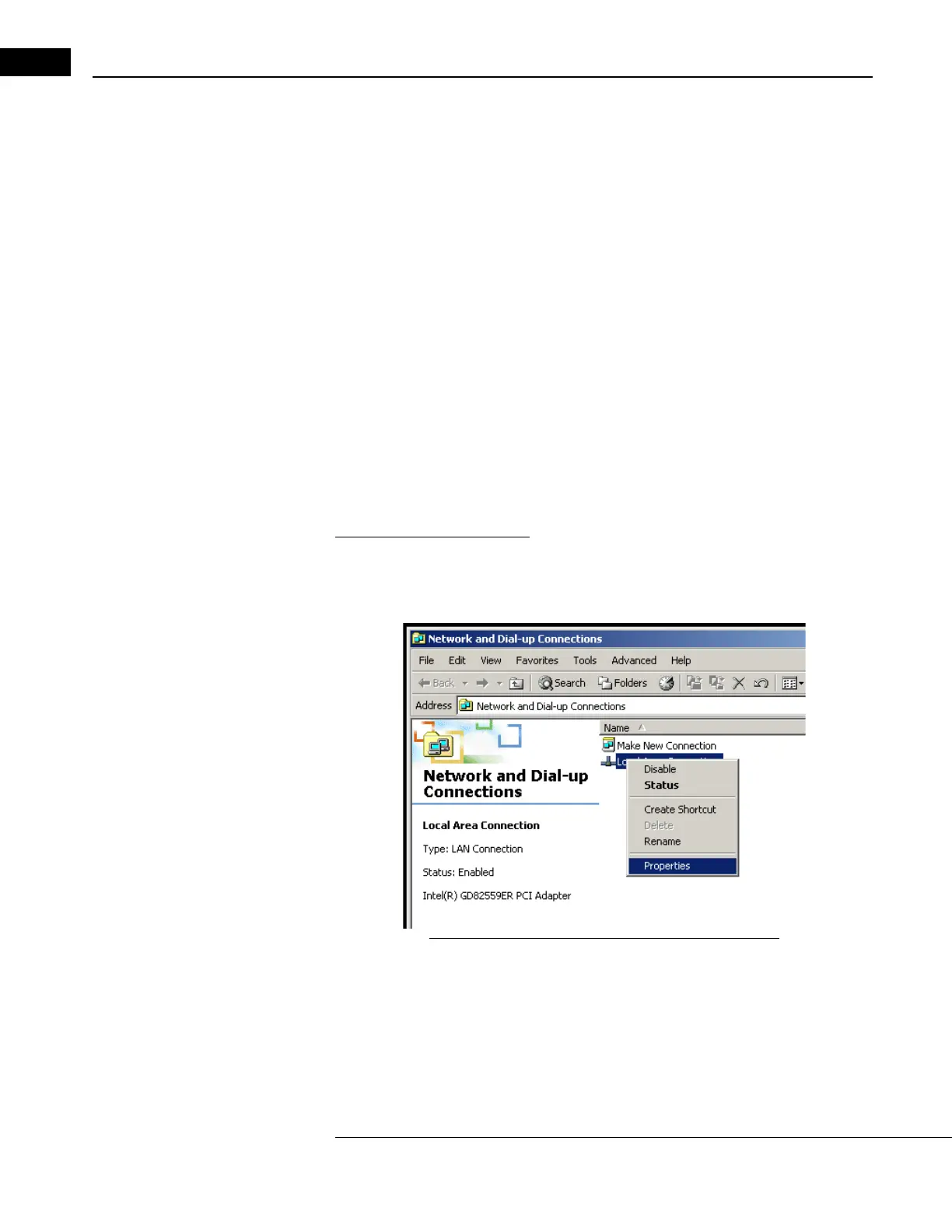
1. Exit the Stratus OCT software and open the Network Connections dialog by selecting
Start > Settings > Network and Dial-up Connections. The Network and Dial-up
Connections dialog appears (Figure B-17).
Figure B-17 Network and Dial-up Connections Dialog


 To Next Page