Analysis Protocols
Stratus OCT User Manual PN 2660021134133 A
6-10
field is empty and white; click in it to select the layers you want to use as the basis for the
edits you are about to make. The Undo button becomes available after you begin editing
layers and remains available until you save the current layer edits.
Adjust the Edit Layer Line Colors
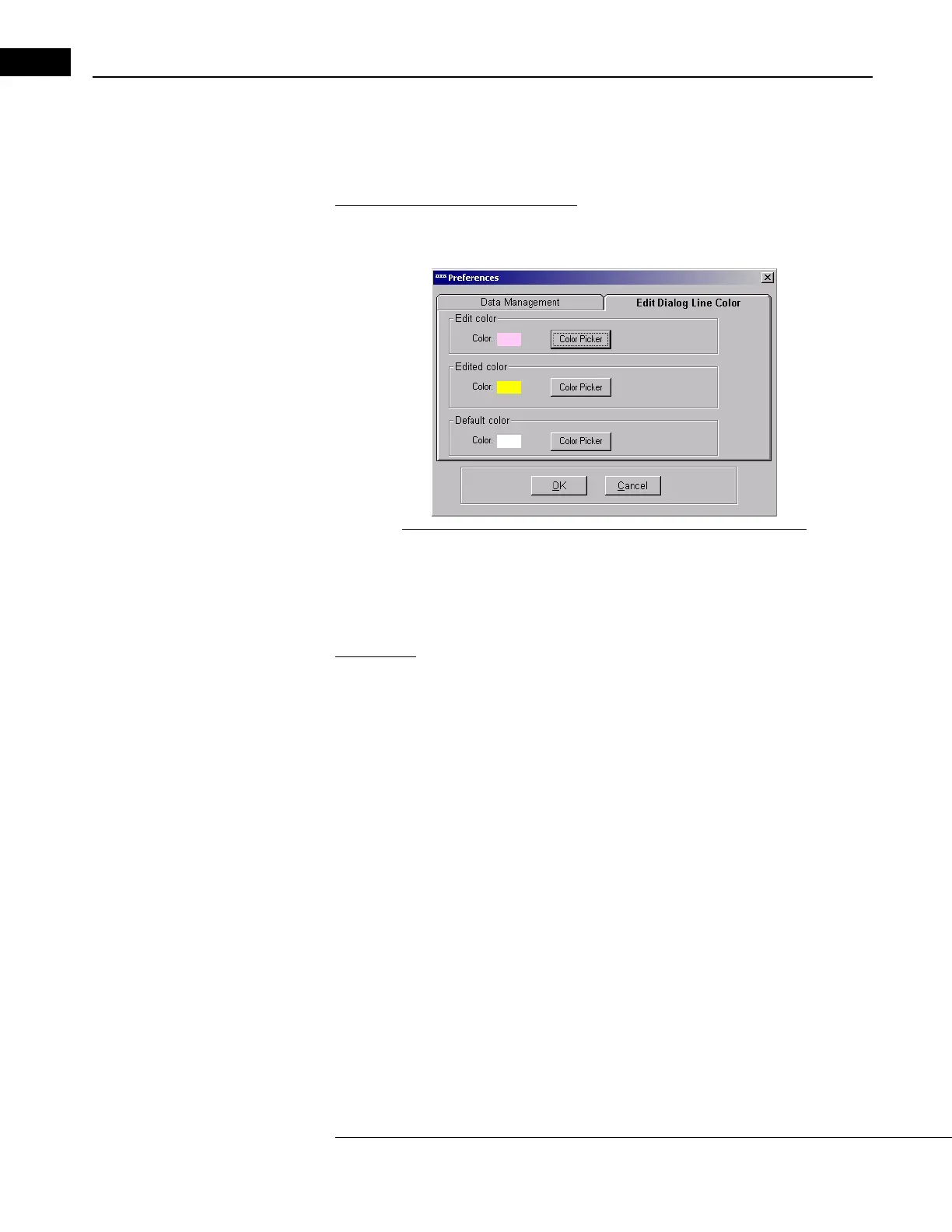
Click Options > Preferences and select the Edit Dialog Line Color tab to adjust the
colors of the lines in the Edit Layer Dialog.
Figure 6-2 Edit Dialog Line Color Tab of the Preferences Dialog
You can click the Color Picker button for the Default Color (original lines before editing),
the Edit Color (line color while editing), and the Edited Color (line color after saving edits).
Click OK to save your changes and exit the Preferences dialog.
Navigation
Within a scan group (or series) you must click on a thumbnail to select it for editing. If
necessary, use the scroll bar to the right of the thumbnails to access all of the thumbnails
in the series. You can navigate to the previous or next series (scan group) by clicking the
Previous or Next arrow buttons in the Series area near the bottom right. When you reach
the last series for the right eye, clicking Next takes you to the first series for the left eye. To
save time, do not click Save until you have completed edits on all scans in a group.
Edit Layers
Editing layers is done manually in a simple click
and drag process. Follow these instructions
to edit layers:
1. Click and drag a layer boundary, shaping and placing it in the
desired location by your
mouse movement. You can draw and redraw the line or any portion of it repeatedly,
selecting any point on a line to start each successive drawing action.
Note that when you mouse over a line, it “pops,” or be
comes thicker. As long as you
hold the left mouse button down, the layer boundary line tracks your cursor as you
move it in the screen, and each time you release the mouse button, it lets go of the
line on screen. Then you can click again at any point on either boundary line and drag
the line from that point. The boundary lines you trace will never break. However, they
will not cross each other.


 To Next Page