14.5 Area Groups
1. Scroll to AREA GROUPS and press SELECT.
2. Scroll to the desired programming option:
ADD Enter the name of the area group.
EDIT GROUP NAME - Rename the group as required.
AREAS - Scroll to an area and select it. Choose ENABLED or DISABLED as
required to add it or remove it from the group. An asterisk (*) indicates if an area
is part of the group.
DELETE Select the area to be deleted.
14.6 X-BUS
1. Scroll to XBUS and press SELECT.
2. Scroll to the desired programming options.
14.6.1 X-BUS Addressing
Expanders, keypads and subsequent zones may be configured, located and monitored, with the steps
provided in this section. X-BUS settings such as type, communication times and retries are also
accessed within this menu.
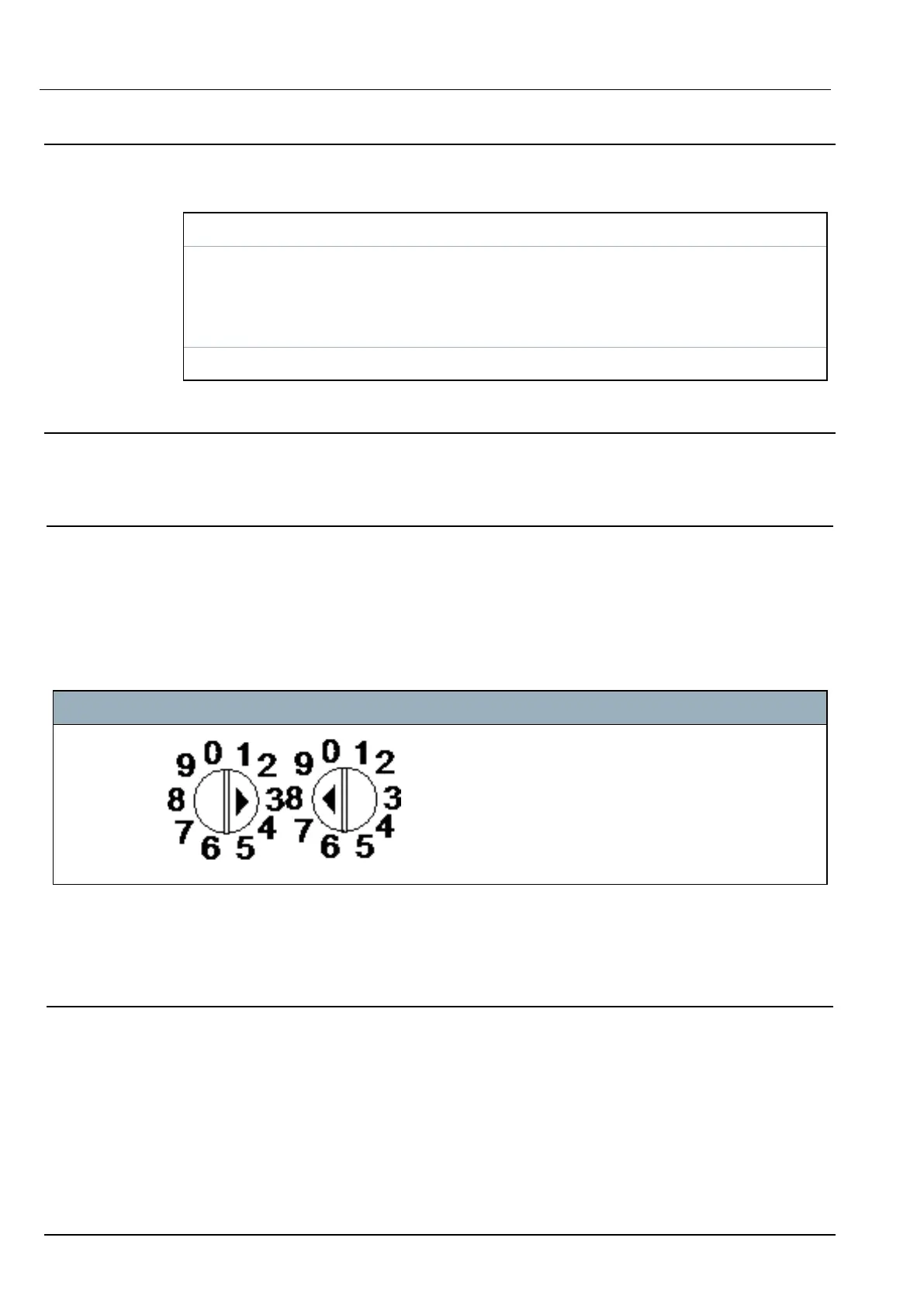
The figures below show the rotary switches, and each rotary switch with an arrow symbol pointing to a
number for identification (that is, 3, 8). The right switch is the first unit digit and the left switch is the 10s
digit. The expander in the figure below is identified as 38.
Rotary switches
Number Description
1
Rotary switches identifying expander as 38.
For a system with automatic addressing, expanders and keypads belong to the same numbering
sequence. For example, expanders and keypads are automatically numbered 01, 02, 03, etc., by the
controller in the order in which they are detected, for example, its relevant location to controller. In this
configuration, zones are allocated to each input expander.
14.6.2 XBUS Refresh
The X-Bus Refresh utility performs a discovery of the current status of the X-Bus and displays the
current X-Bus configuration.
To refresh the X-Bus status:
1. Scroll to XBUS REFRESH.
2. Press SELECT.
The number of online keypads is displayed.
SPC42/52/53/63 – Installation & Configuration Manual Engineer programming via the keypad
© Vanderbilt 2023 77 I-200572
08.12.2023


 To Next Page