Step 2: select the exposure
In the operator room at the NX workstation:
1. Select the thumbnail for the exposure in the Image Overview pane of the
Examination window.
2. Select CR in the Detector Switch.
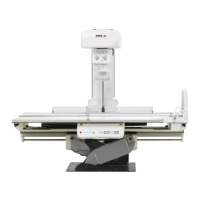
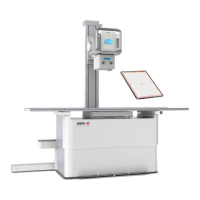
3. Select the Modality Position (radiographic table, wall stand, free
exposure) in the Software Console.
The default X-Ray exposure parameters for the selected exposure are sent
to the modality and displayed on the software console.
The radiographic table or the wall stand lights up in blue, indicating the
selected modality position.
The default X-Ray system position for the selected exposure is sent to the
modality and displayed on the software console and on the tube head
display, for automatic positioning of the X-Ray system.
4. Select the subexposure if more than one image is required for the same
cassette.
If an image thumbnail is configured for multiple exposures on a single
cassette, another set of thumbnails is shown in the image detail pane. Now
you have to select one of these thumbnails to send the proper default X-
Ray exposure parameters to the modality for each exposure.
5. To position the X-Ray system automatically, press and hold the automatic
movement button.
The X-Ray system moves to the default position for the selected exposure.
Note: When working in a PACS environment, the preferred
workflow is to have only one image per cassette. This is needed
for optimal use of hanging protocols. However, in particular
cases (e.g. printing sites) it is supported to make more than one
exposure per cassette.
Related Links
Moving to an Automatic Position on page 163
DR 600 | Basic Workflow | 113
3261K EN 20210708 0808


 To Next Page