2-4 Front Panel Overview Instrument Overview
2-4 PN: 10580-00250 Rev. K Cell Master UG
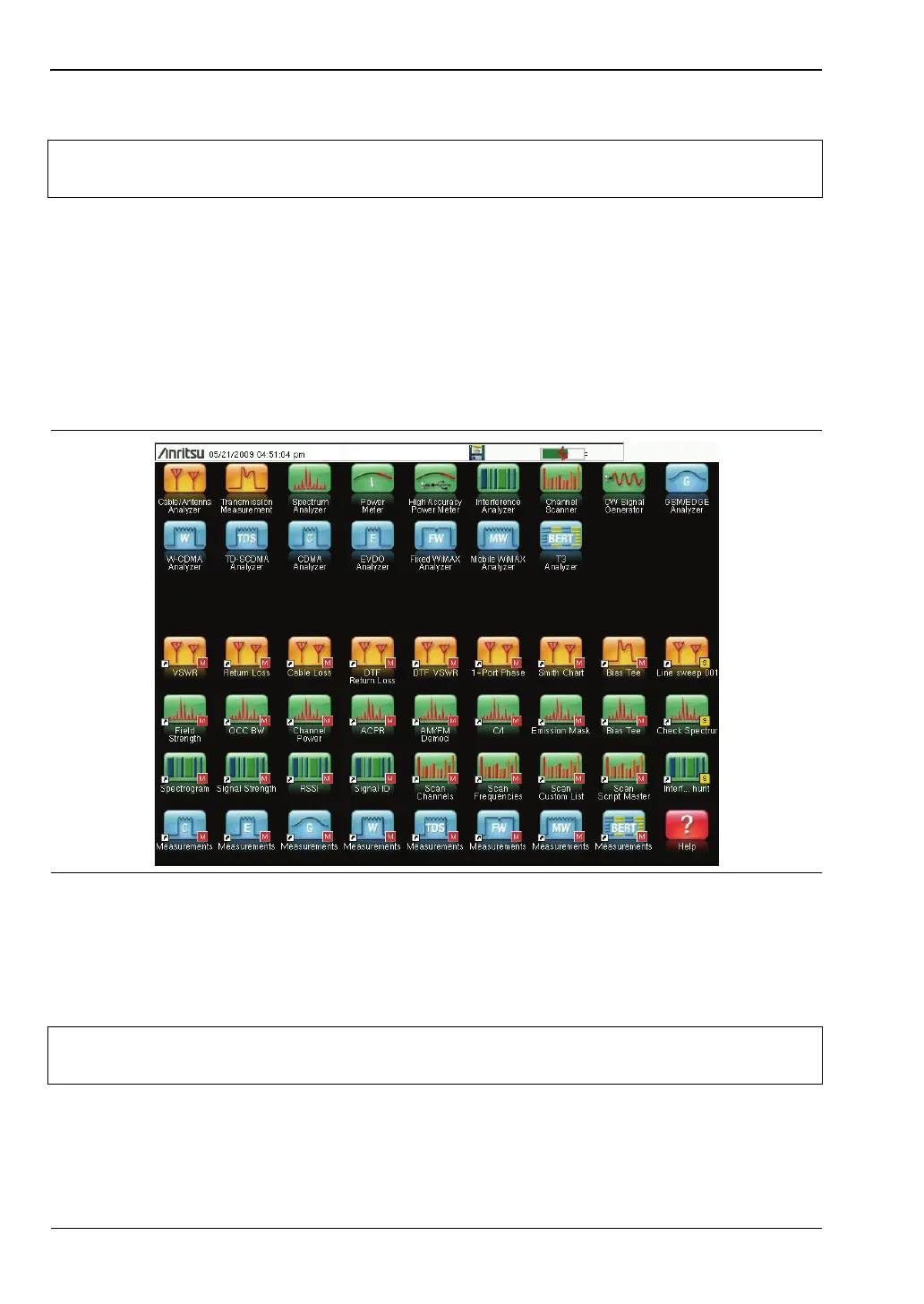
Figure 2-3 shows the Menu key screen with shortcut icons for the installed measurement
modes and four rows of user-defined shortcuts to menus and setup files.
Press and hold down any submenu key or main menu key for a few seconds to add a shortcut
to this screen. After a few seconds the Menu screen is automatically displayed and shows the
available locations for the shortcut. Select an open (unused) location to store the new
shortcut.
To add shortcut setup files (.stp), open the recall menu and hold down on the file name for
several seconds. Then select the location for the shortcut.
User-defined shortcuts will stay in memory until deleted. To delete or move a shortcut button,
press the Menu key then press and hold the shortcut for approximately 3 seconds. The
Customize Button dialog box will open to allow a button to be deleted or moved. Press Esc to
exit the Menu shortcut display.
Help for the Menu shortcut screen is available by pressing the icon in the lower-right corner
of the display.
Note
The display of the Menu screen will vary depending on Cell Master model and
installed options.
Figure 2-3. Menu Key Screen
Note
The Factory Default reset will delete all user created shortcut icons from the Menu
screen. Refer to the “Reset Menu” on page 5-6 for additional information.







 To Next Page