CPS100 SERIES OPERATION MANUAL
SECTION 6:
Front Panel Operation
Entire Contents Copyright 2018 by Adaptive Power Systems, Inc. (APS) • All Rights Reserved • No reproduction without written authorization from APS.
APS CPS100 Series Power Source Operation Manual Page 69 of 231
installed when combined with the
SHIFT key.
ON/OFF Toggles Output on or off
Shift Selects alternate function of other
keys as indicated by silkscreen directly
Allows slewing of Voltage or Frequency while
output is ON or off. Also referred to as ‘rotary
Cursors, Store, Save and Enter
keys
The curser key cluster has an ENTER key at its
center. The Up and Down cursors double as
RECALL and STORE keys for settings when used
A stylus is provided in the front panel to use with
the touch screen. You can use your fingers as well
but the stylus is smaller making it more precise to
use.
To remove the stylus, Pull it FOREWARD towards
you when in front of the unit.
Front Panel Controls
The following sections explain the various key functions available.
• LCD Touch Screen
• Soft Keys
• Decimal Keypad
• Multi-Function Keys
• ADJUST Shuttle
• Cursor Keys
6.4.1 LCD Touch Screen
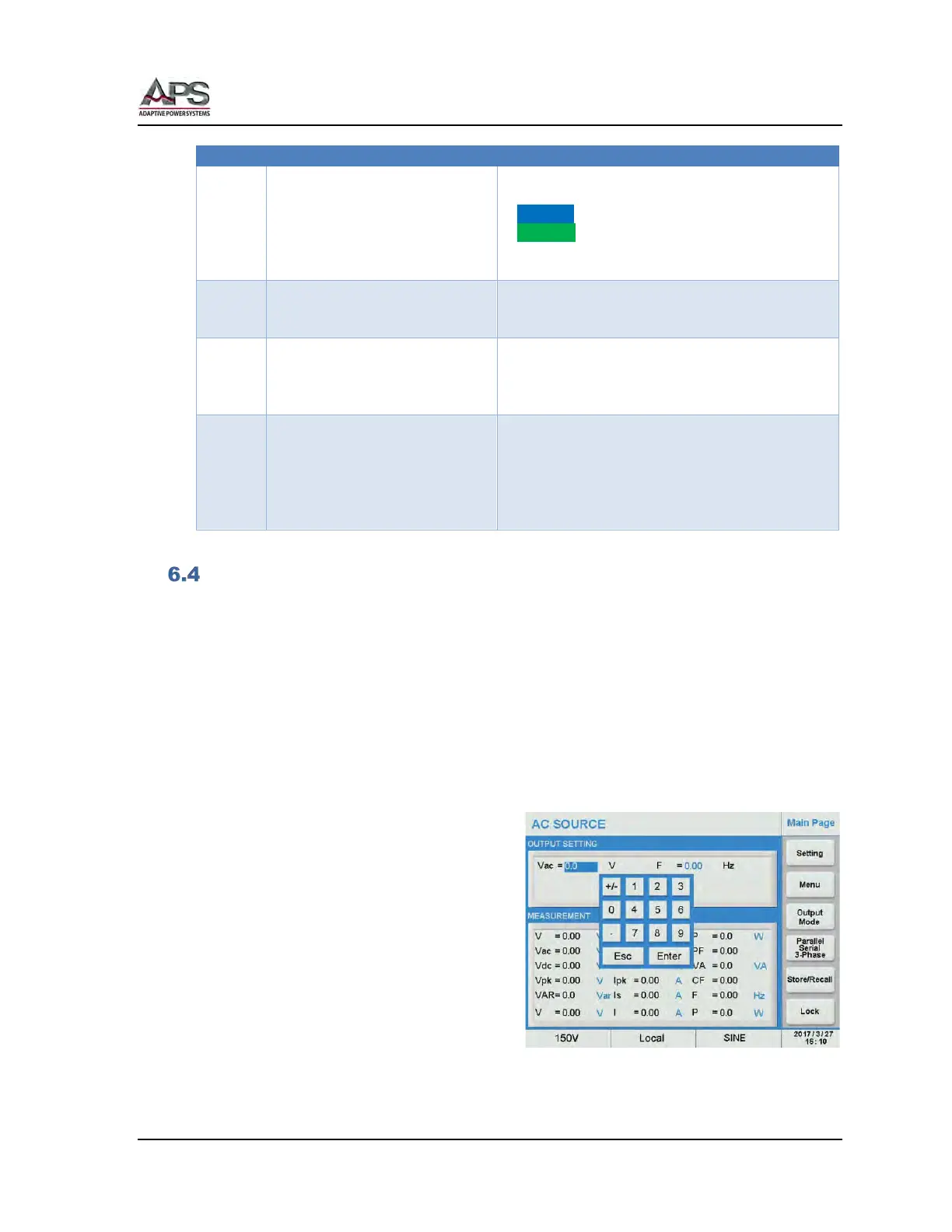
The Color LCD touch screen displays all
setting, measurements, menus and error or
warning messages. It may also be used to
enter parameter values and setting by using
its capacitive touch function. The use can
use his fingers or the built-in touch pen
located inside the front panel directly to the
right of the key on the cursor keypad.
To enter parameter values using the LCD
screen, touch any display parameter or
setting value. An on-screen decimal keypad
will pop up. Touch the relevant number keys


 To Next Page