www.ayyeka.com | +1 (310) 876-8040 | info@ayyeka.com 116
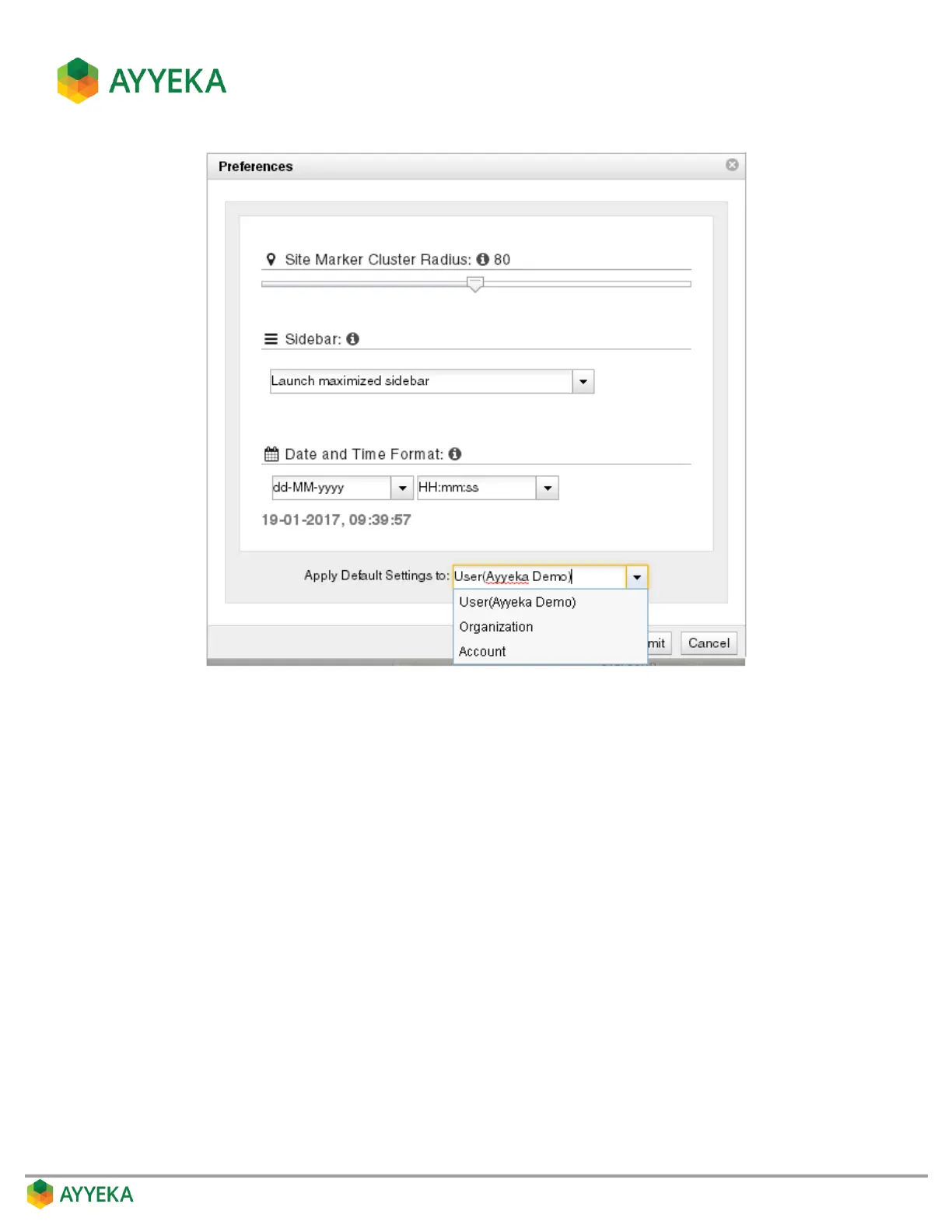
Figure 108: Preferences window
3. In the Site Marker Cluster Radius slider, specify the size of clusters of site markers in the Visualization
map. Lower values dictate smaller clusters of site markers. You must refresh the window for the change
to take effect.
4. In Sidebar, specify the default appearance of the sidebar when the UI is launched: Maximized or
Minimized.
5. In the Date and Time Format fields, specify the format of all date and time fields in the UI. Note that
you can edit the format directly in the window.
6. In Apply Default Settings to, specify to which users these default Preferences apply:
User – The defined Preferences apply to yourself (the logged in user).
Organization – The defined Preferences apply to each of the users of the organization(s) you can
manage, unless a user set his own preferences.
Account – The defined Preferences apply to each of the users of the account(s) you can manage,
unless a user’s organization owner set the organization’s preferences, or the user set his own
preferences.
Therefore, the Preferences that the logged-in user sets, always override any other Preferences settings.


 To Next Page