www.ayyeka.com | +1 (310) 876-8040 | info@ayyeka.com 104
5. Optionally, share sites which you can manage, with all users of this group, using the Assign Group
Shared Site Permissions option. Refer to Sharing Sites with Any User.
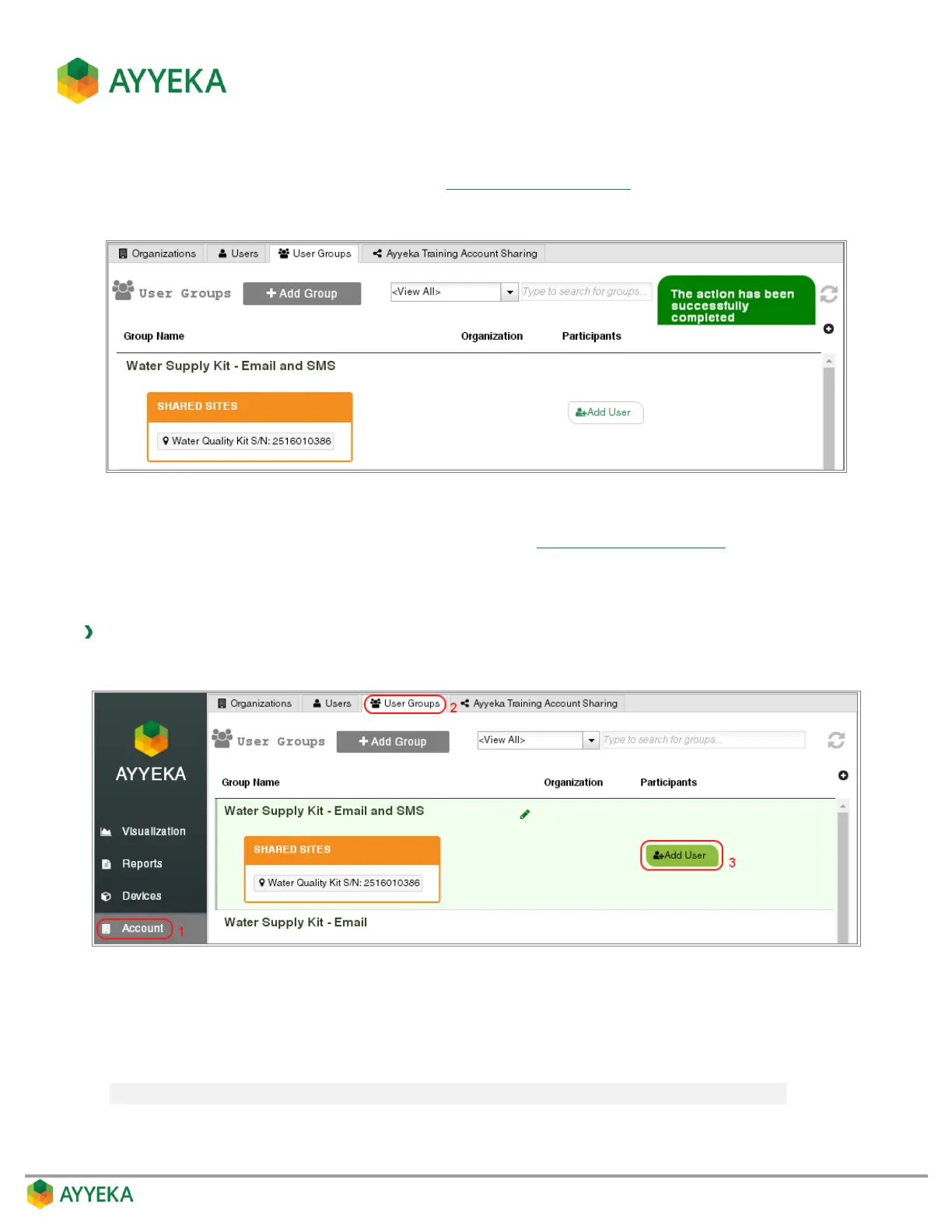
6. Click Submit. The group is added to the groups table, as shown below.
Figure 88: Group successfully added
7. You can now assign users as group members. Refer to Assigning a User to a Group.
Assigning a User to a Group
To assign a user to a group:
1. In the Account > User Groups tab, click Add User adjacent to the name of the group you created.
Figure 89: Selecting to add a user to a group
2. Select a user from the drop-down list. The list of users you can add includes only those users you can
manage, so an organization owner can only select users from his organization. The list includes also the
owner performing the Add User operation, thus an owner can add himself to the group he created.
Note: A user can be a member of more than one group.



 To Next Page