www.ayyeka.com | +1 (310) 876-8040 | info@ayyeka.com 64
Note: All threshold configuration changes will take effect after the device next
communicates with the server.
Changing threshold settings
You can change the following threshold settings:
Changing a threshold’s name
Changing a threshold’s range
Setting a threshold’s False Alarm Filter
Changing a threshold’s name
In a nutshell:
1. Click Devices in the sidebar.
2. In the Sites Tree pane select the stream.
3. In the right pane select the Thresholds tab.
4. If the Thresholds slider is OFF , click it to switch Thresholds to ON .
5. In the threshold definition area, click the current name, adjacent to the flag, and overwrite it with the
new name.
6. Save changes by clicking .
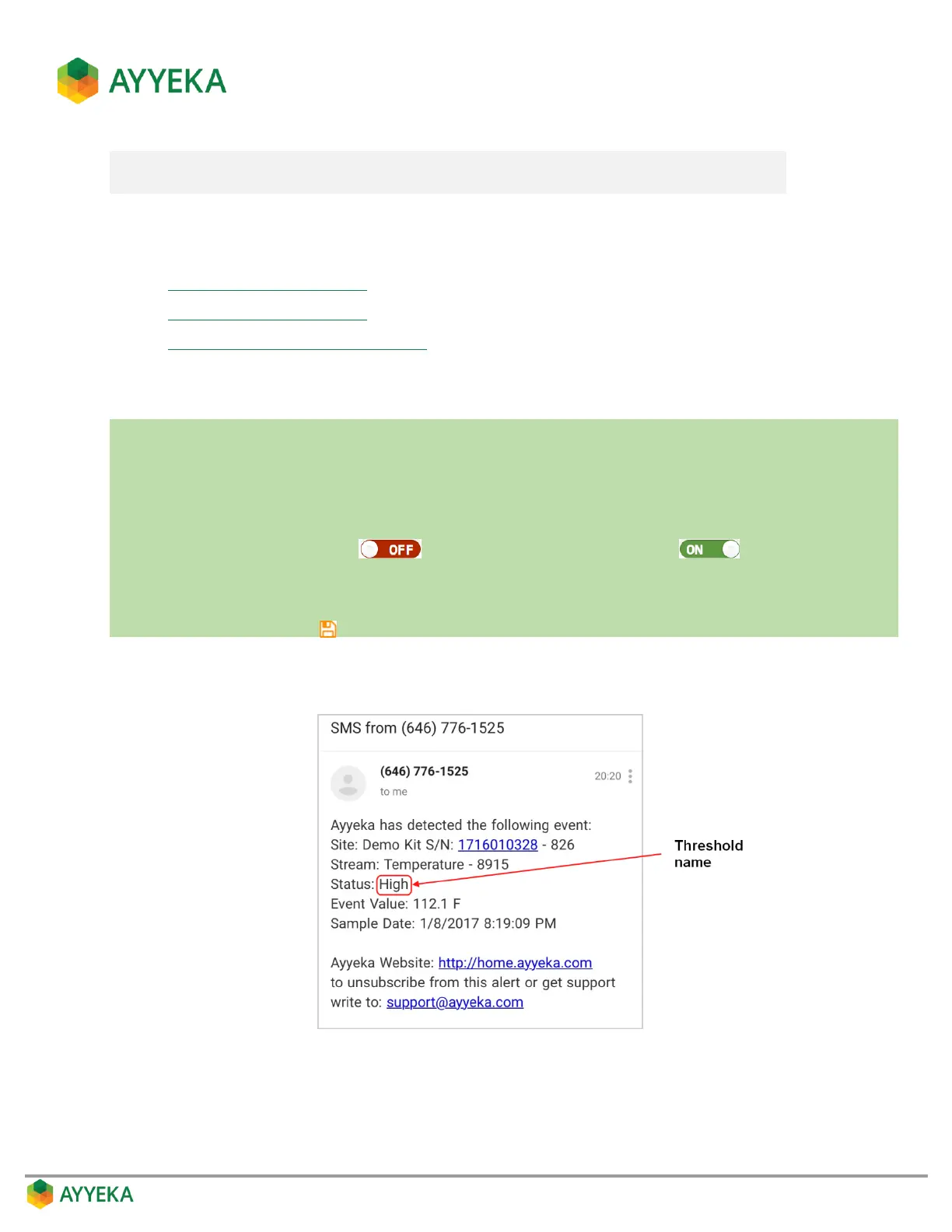
It is recommended to give each threshold an appropriately descriptive name because in the threshold alert text,
the threshold name is the only indication of the reason why the alert was sent, as shown below.
Figure 54: Example alert text


 To Next Page