www.ayyeka.com | +1 (310) 876-8040 | info@ayyeka.com 49
Editing, Deactivating, Reactivating or Deleting a Technical Alert
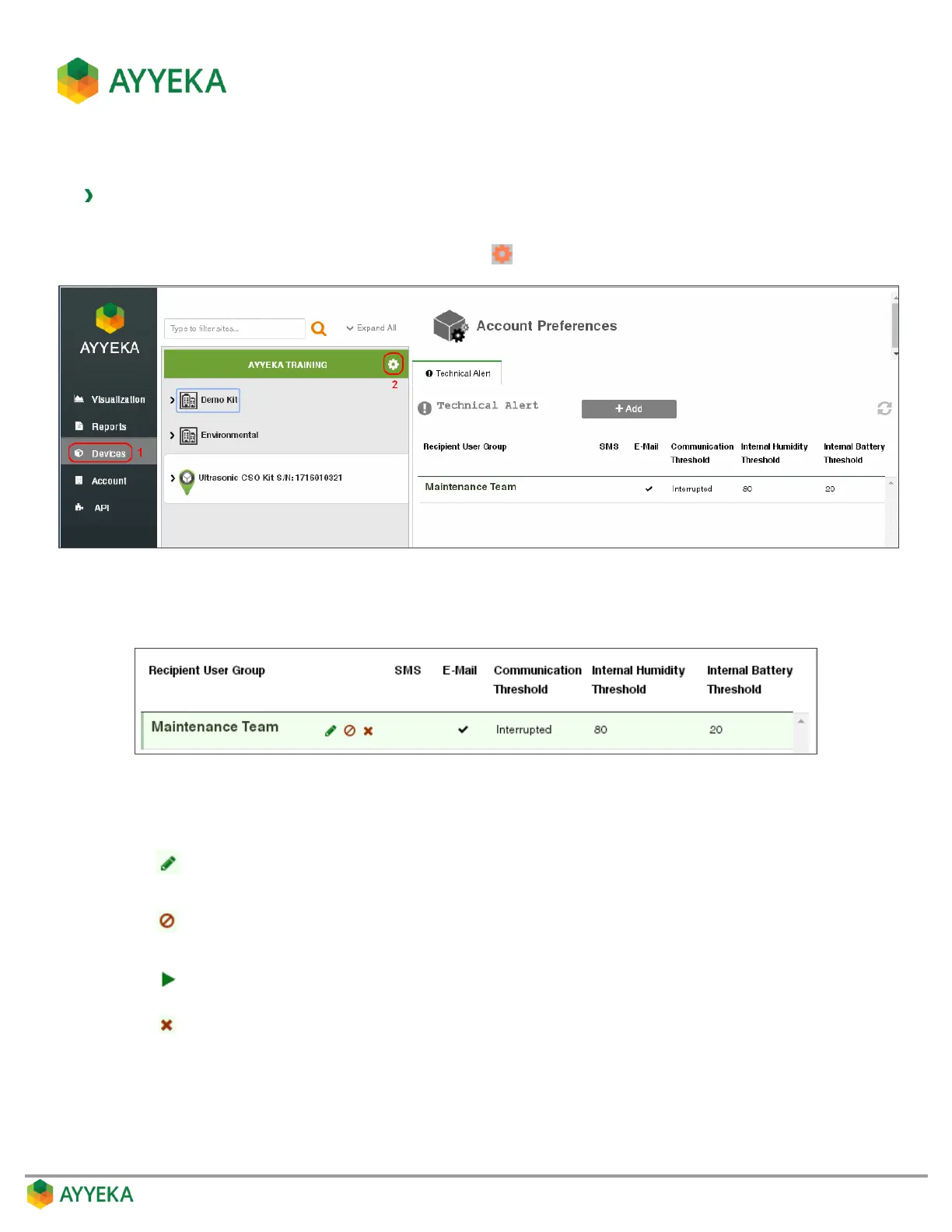
To edit, deactivate, reactivate or delete a device technical alert:
1. Click Devices in the sidebar.
2. In the Sites Tree pane, click the Preferences icon adjacent to the account name.
Figure 38: Technical Alerts table
3. Hover over the line corresponding to the technical alert you wish to modify. Several icons appear.
Figure 39: Options for modifying a technical alert
4. Select the icon corresponding to the action you wish to take:
Deactivate the technical alert. A deactivated technical alert does not trigger any
alerts, but is not deleted from the database.


 To Next Page