www.ayyeka.com | +1 (310) 876-8040 | info@ayyeka.com 61
Hiding Samples in the Samples table
You may wish to change the status of some samples to Hidden, for example because you know they do not
represent the true state of the body being sampled. Hidden samples appear neither in the Visualization window
nor in reports.
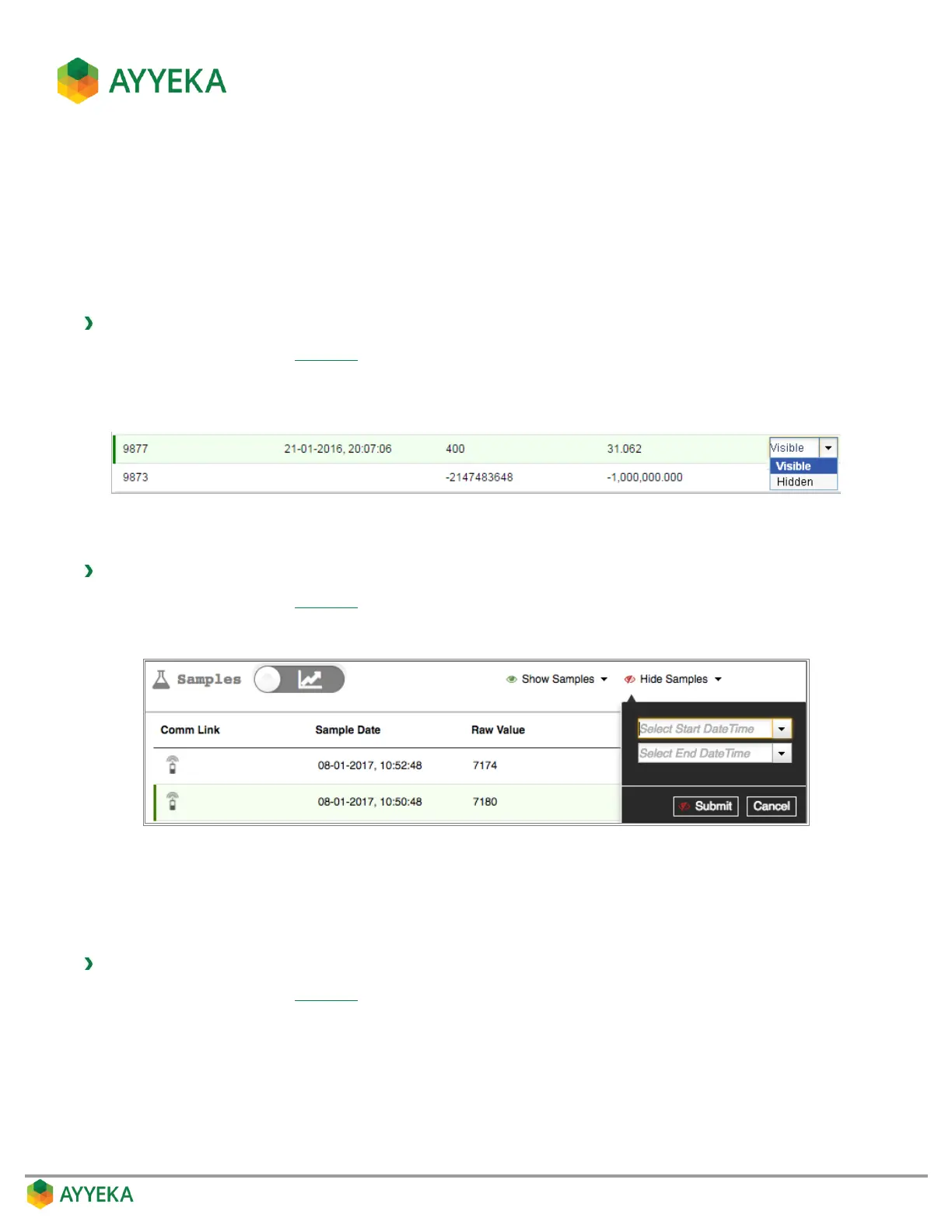
Hiding a single sample
To hide a single sample:
1. In the samples table (Figure 51), double-click the word Visible in the line corresponding to the data point
you wish to hide.
2. In the dropdown menu, select Hidden.
Hiding samples from an entire period
To hide samples from a certain period:
1. In the samples table (Figure 51), select Hide Samples.
2. In the dropdown menu, enter the start and end dates, and click Submit.
Figure 52: Hiding samples
The status of all samples from the specified period changes to Hidden.
Filtering the Samples table
To display samples only from a certain period:
1. In the samples table (Figure 51), select Show Samples.
2. In the dropdown menu, enter the start and end dates, and click Submit.
Only samples from the specific period are displayed in the table.


 To Next Page