www.ayyeka.com | +1 (310) 876-8040 | info@ayyeka.com 112
4. In the Edit Profile Details window you can:
a. Edit your actual first name and last name in the Name fields. Note that you cannot change your own
login name.
b. Edit your Email address and/or your Mobile phone number. Threshold alerts are sent to this
address/mobile number (refer to Defining a Threshold’s Alert Recipients).
c. Specify a Time Zone.
5. Click Submit.
Changing your own password
The logged-in user can change his own password at any time.
To change your own password:
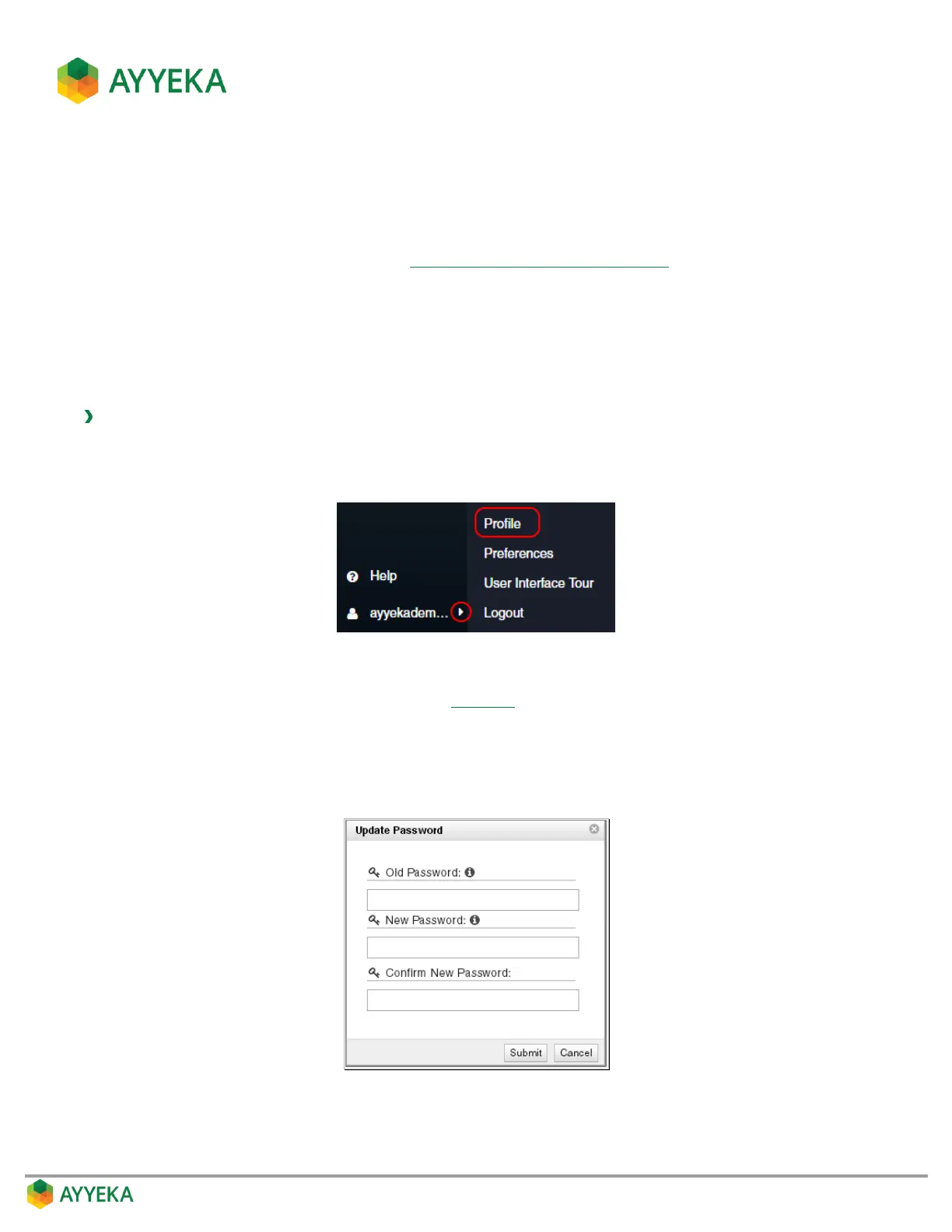
1. At the bottom of the side bar, click the arrow to the right of your login name.
2. Select Profile.
Figure 99: Selecting the Profile option
3. In the Profile Details window that appears (Figure 97), click Edit Password.
4. In the Update Password window that appears, enter the Old Password (=current password), and enter
and confirm the New Password. Note that a green line appearing under the password box indicates a
strong password; an orange line indicates a medium-strength password; and a red line indicates an
insufficiently-strong password.
Figure 100: Update Password window
5. Click Submit.


 To Next Page