www.ayyeka.com | +1 (310) 876-8040 | info@ayyeka.com 45
Viewing Device Cellular Information
To view the device cellular information:
1. Click Devices in the sidebar.
2. In the Sites Tree pane, click the device name.
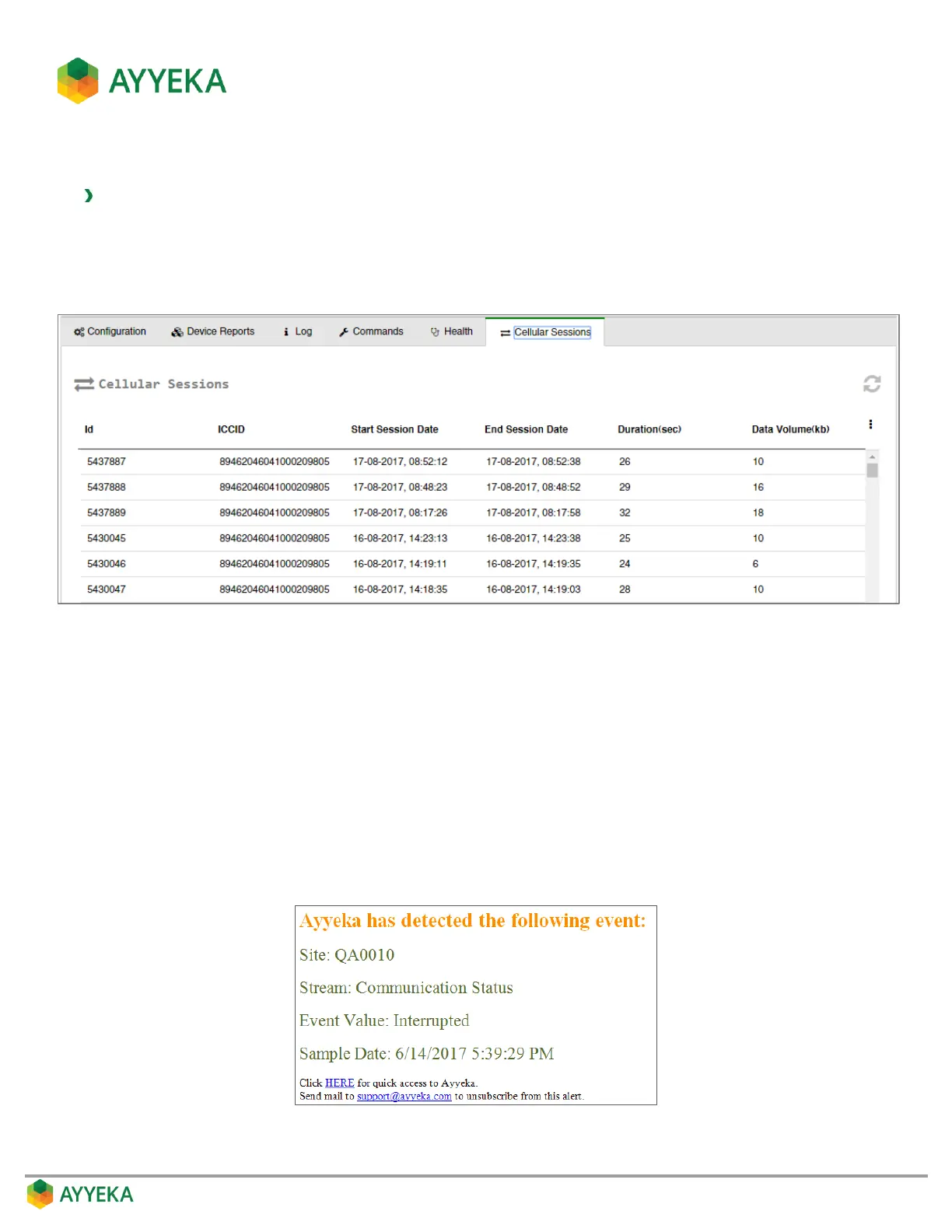
3. In the right pane, click the Cellular Sessions tab.
Figure 33: Device – Cellular Sessions tab
This tab lists information about each data transmission session during which the device transmitted data over the
mobile network.
Managing Device Technical Alerts
Account owners can set device technical alerts that will be sent as SMS and/or email messages if any device
crosses one of the following thresholds: communication-disruption, internal-humidity, or internal battery-level.
Note that device technical alerts are not sent immediately when the configured device thresholds are crossed.
Rather, they are sent once every 3 hours. However, each alert has a timestamp which identifies exactly when the
alert was triggered, as shown in the figure below.
Figure 34: Technical alert contents


 To Next Page