www.ayyeka.com | +1 (310) 876-8040 | info@ayyeka.com 98
Editing, Disabling or Deleting a User
An account owner can edit/disable/delete users at either the account or organization level, while an organization
owner can edit/disable/delete users of his organization only.
To edit, disable or delete a user:
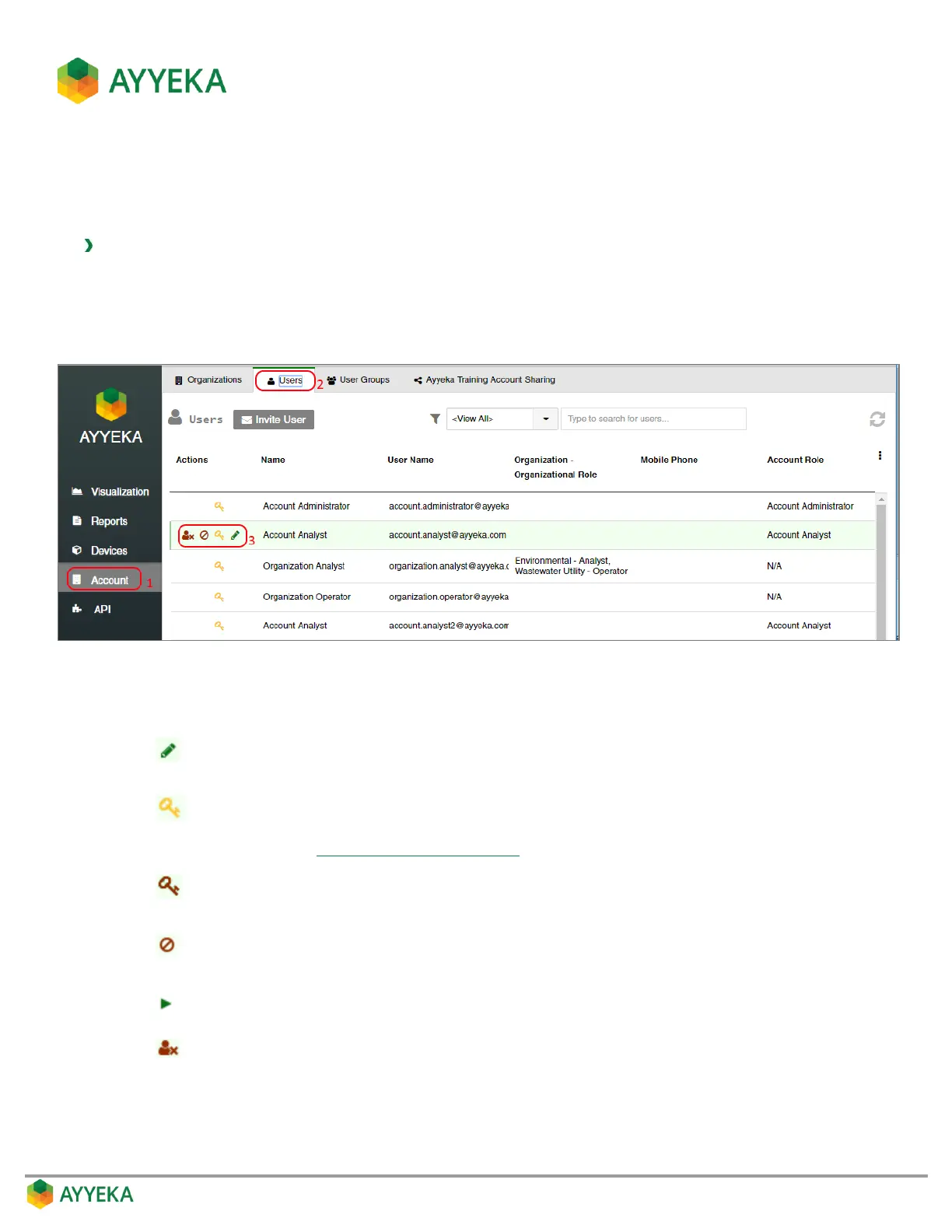
1. Click Account in the sidebar.
2. In the right pane, select the Users tab.
3. Hover over the line of the user you wish to modify. Several icons appear to the left of the user’s Name.
Figure 83: Options for modifying a user
4. Select the icon corresponding to the action you wish to take:
Indicates the user has a valid password. Click this icon to change the existing
password. Note that the logged-in user can change his own password, as
described in Changing your own password.
Deactivate the user. A deactivated user does not receive threshold alerts and
cannot access the UI, but is not deleted from the database.


 To Next Page