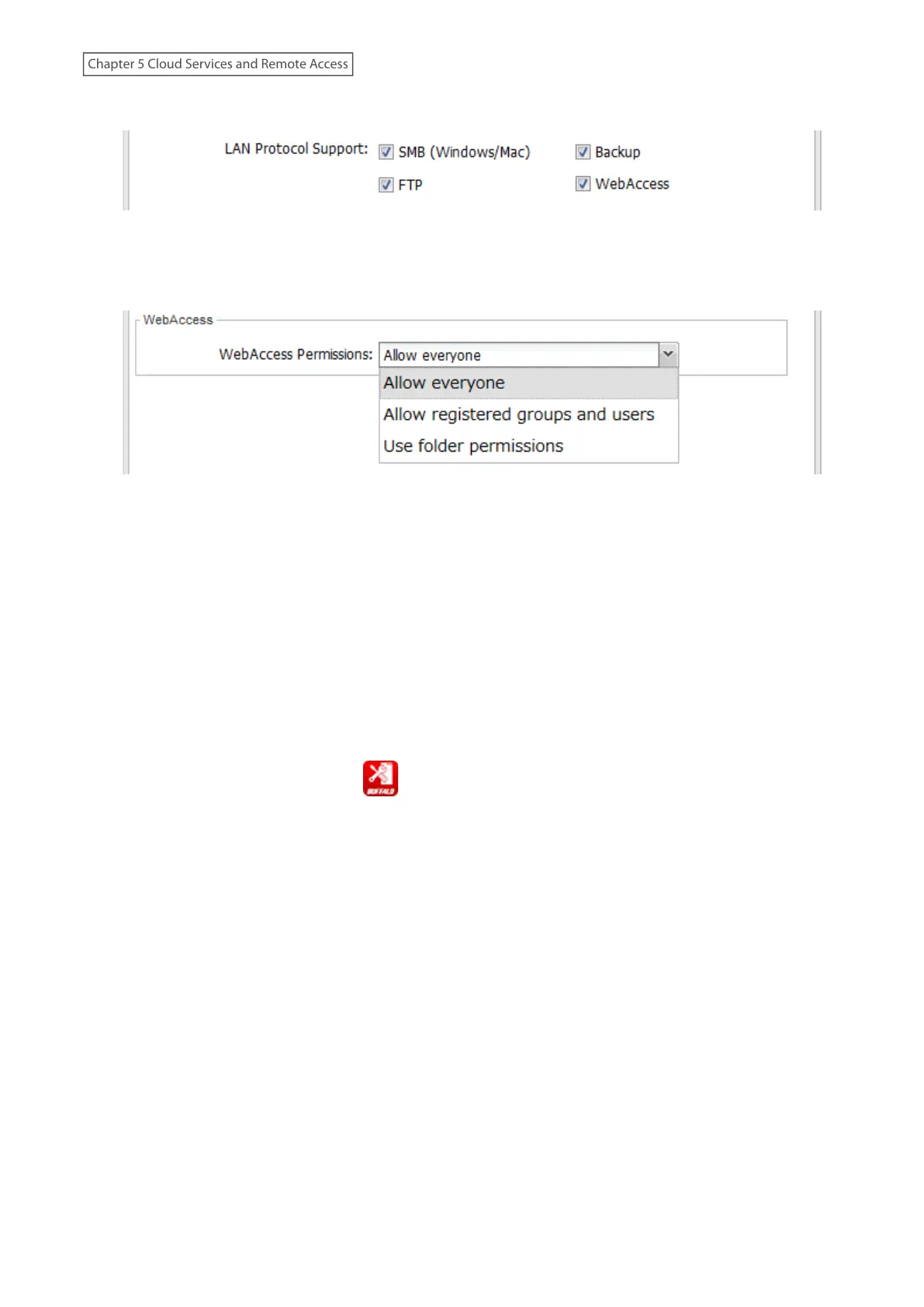
8 Under “LAN Protocol Support”, select the “WebAccess” checkbox on the Basic tab.
9 Click the Option 2 tab.
10 Select the desired WebAccess security level for “WebAccess Permissions”.
Allow everyone: Anyone can access (view) shared folders. (Access restrictions configured for shared folders
will not work.)
Allow registered groups and users: All groups and users registered on the Buffalo NAS device can use
WebAccess. (Access restrictions configured for shared folders will not work.)
Use folder permissions: Users and groups have the same access permissions with WebAccess that they do
locally. If access restrictions are not set for the shared folder, then this option will not be shown.
11 Click OK.
Using a Mobile Device
Note: On your mobile device, download and install the “SmartPhone Navigator” and “WebAccess” apps from App
Store (iOS or iPadOS devices) or Google Play (Android devices).
1 Tap the SmartPhone Navigator icon ( ) on your mobile device.
2 Select the NAS device from the NAS list to configure WebAccess.
125
Chapter 5 Cloud Services and Remote Access











 To Next Page