•
If
the
~
""'"
(print/share) button does not light up even if you completed the user
registration, verify that the
@ icon appears on your computer's desktop toolbar. If it
does not, disconnect the USB cable, restart the computer and connect the
camcorder to the computer again.
~
3.
Once the
button's
blue
light
is
on, press the
.!dJ
v.V
(print/share) button.
• The
~
""'"
button will flash while the copying is
in
progress, and will go off once the
copy is completed.
• The copied disc will automatically be finalized and ejected from the drive.
•
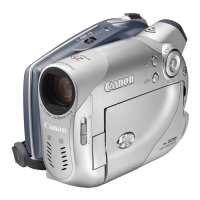
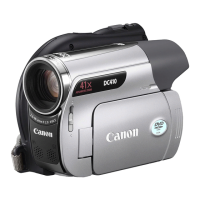
Operation may not work properly if you connect more than one DC10/DC20
camcorder to the computer at the same time.
o
If
the operation is interrupted:
~
"OPERATION CANCELED" will be displayed on the camcorder's screen.
-
To
restart the operation you will need to insert a new blank disc
in
your
computer's DVD drive and restore the connections.
- The operation will be canceled if you eject the disc from the camcorder, open
the disc tray
of
your computer's DVD drive, disconnect the USB cable or run
the Roxio MyDVD for Canon software.
o We recommend powering the camcorder from a household power outlet while it
is connected to the computer.
o The time required to complete the one-touch dubbing will vary depending on
the scene recording conditions and the amount
of
free space remaining on the
source disc.
o
You
need to have DVD playback software installed in your computer
in
order to
play the disc.
o Finalized DVD discs created with MyDVD for Canon cannot be unfinalized
using the camcorder.
o For further details about restrictions when using MyDVD for Canon, refer also to
the "README" section in the software's help modules.
o Refer also to the computer's instruction manual.
Ir~sfe,(tiIJ,g..JieCDJ:djnJgn$".tQc+tlJ,e'0C,o.l)';lgulex~1l09"'}''''''~='5?io"i't
...
·"",
....
·;·"".J
••
k."'·j
You
can transfer the movies and still images recorded on a disc, even one not yet
finalized, to your computer for further editing.
1.
Connect the camcorder to the
computer
and run MyDVD
for
Canon as
previously
described ([IJ 106).
2.
Click on the "DVD-Video"
option
in the New Project tab.
3.
Click on the "Open
Disc"
icon.
4.
Click on the
"Import"
button.
Thumbnails
of
the imported scenes and still images will be displayed
in
the video
project screen.
5.
To
save the project,
click
on
"Save
Project"
from the Project Tasks
palette.
The scenes
and
still images displayed in the main screen will be saved.
IH
Recordings made
in
LP mode
in
Widescreen (16:9 aspect ratio)
on
a DVD-RW
~
that was initialized
in
VR mode cannot be transferred to the computer.
-
107


 To Next Page