FUNC.
DHFECTS
'0
~UNC)
I
~
Ilrl
D.EFFECT
OFF
(OJ
59) .
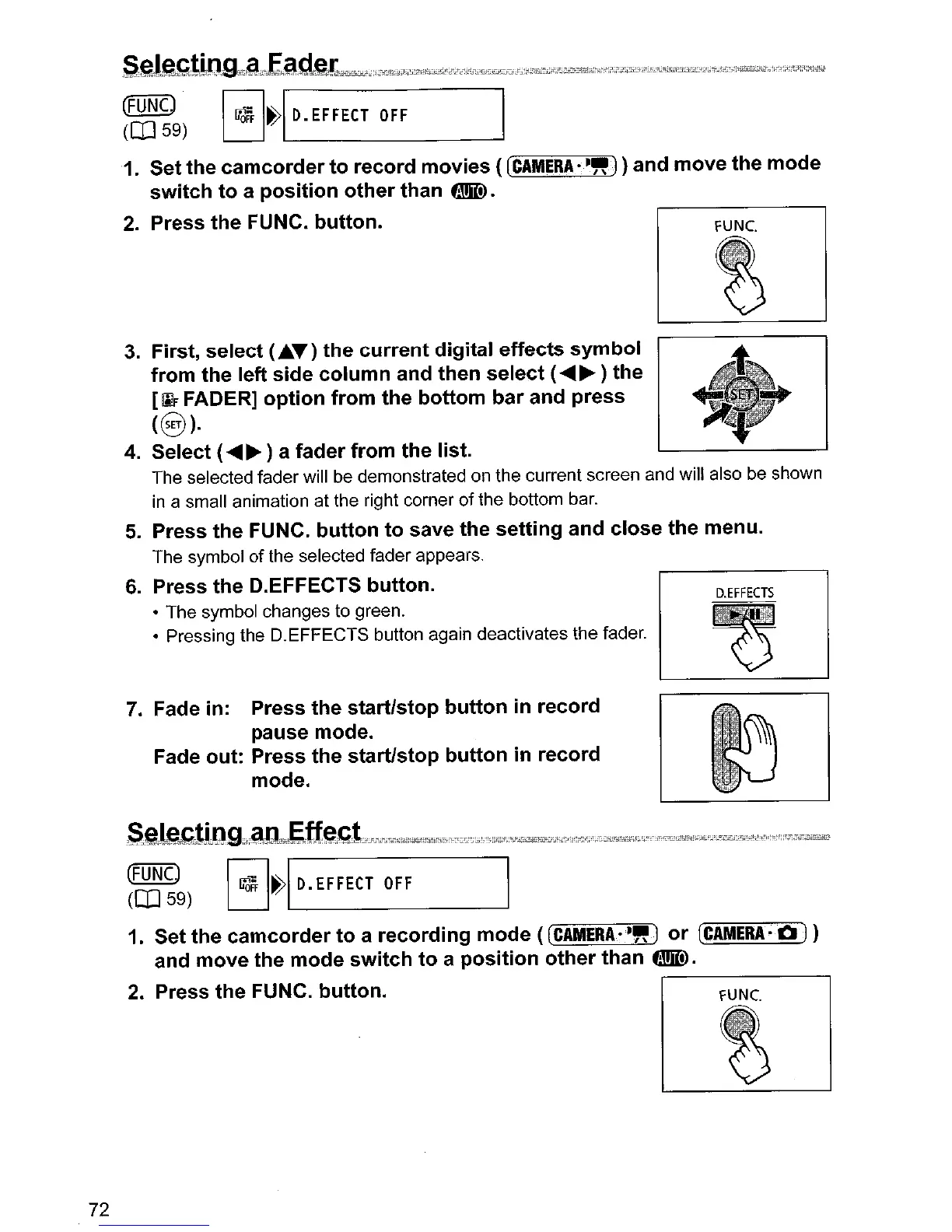
1.
Set the
camcorder
to
record movies (
(CAMERA
••
~)
) and
move
the
mode
switch
to
a
position
other
than
flmID.
2.
Press the FUNC.
button.
3.
First, select
(AT)
the
current
digital effects
symbol
from
the left
side
column
and then
select
(
........
) the
[1ilF
FADER]
option
from
the bottom
bar
and press
(c§).
4.
Select (
........
) a fader from the list.
The selected
fader
will be demonstrated on
the
current screen and will also
be
shown
in a small animation
at
the right corner
of
the
bottom bar.
5.
Press the FUNC.
button
to
save the setting and close the menu.
The symbol
of
the selected fader appears.
6.
Press the D.EFFECTS button.
• The symbol changes to green.
• Pressing the D.EFFECTS button again deactivates
the
fader.
7.
Fade in: Press the start/stop
button
in record
pause mode.
Fade out: Press the start/stop
button
in record
mode
.
72
.
S,e~l~.,C"tigg""g.ll.".Eff~,;;r,tY""";"""':'''''f'!¥'"'''i:f"'
.'i~·
.·.r;.f.'·/i'·i!ZC.2
.•
,
••.•
:tc:f.·e".i'.,,'
•••
·":"CCie:iIi'2,;;,;;':,:C''''·;·''WQo.r,,,,,'.'io:'''::f,.,.,;££,,,,,,.
~UNC)
I
~
Ilrl
D.EFFECT
OFF
(OJ
59)
FF.
1.
Set the
camcorder
to
a recording mode «CAMERA··"')
or
(CAMERA'
0)
)
and move the
mode
switch
to
a
position
other
than
tMID.
2.
Press the FUNC. button.
r---
F
-
U
-
NC
-.---'



 To Next Page