All content © 2017, cmotion GmbH. All specications subject to change without notice. http://www.cmotion.eu
45/112
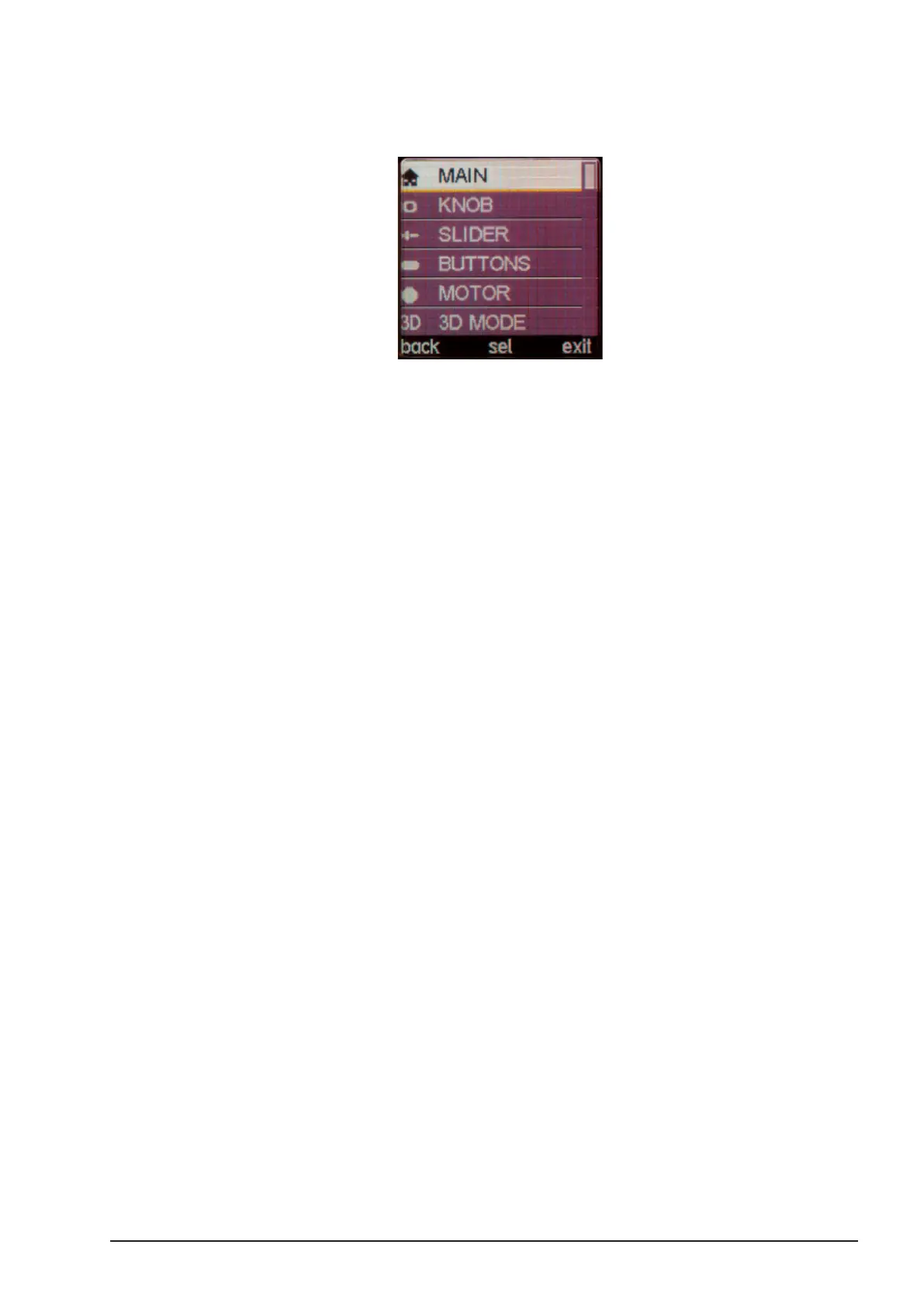
4.2. hand unit Menu
The cvolution hand unit and the camin can be easily congured using the internal menu.
■To enter the menu, press the MENU SELECT WHEEL twice.
■The MENU SELECT WHEEL, LENS or KNOB buttons are context sensitive and
serve dierent functions depending on the menu page.
■Generally, rotating the MENU SELECT wheel cycles through options. Pressing the
MENU SELECT wheel selects or conrms. Pressing the LENS button goes back
one step in the menu and the KNOB button exits the menu.
■For details on menu functions, please refer to the Menu Guide at the end of this
document.
4.2.1. RF Channel Selection
Make sure that all cvolution units that you wish to operate in wireless mode are set to the same
channel.
Note: cvolution lens control systems are tted with one of two wireless
RF modules; Black and White. Not all options given in this section
might apply to your system. For more details refer to section 1.4 on
page 12.
4.2.2. camin
■The channel selector (rotary switch) is located on the Motor side of camin 2M, 4M,
8M and 8M-TC. On the camin 3M this is located on the top.
■Using your ngernail or a coin, rotate the channel selector to your desired channel.
■Note: The channel selector will light up for a moment when camin is powered on
and when the channel is being changed.


 To Next Page