Program interface Control Station Duetto
102 2.0/0518
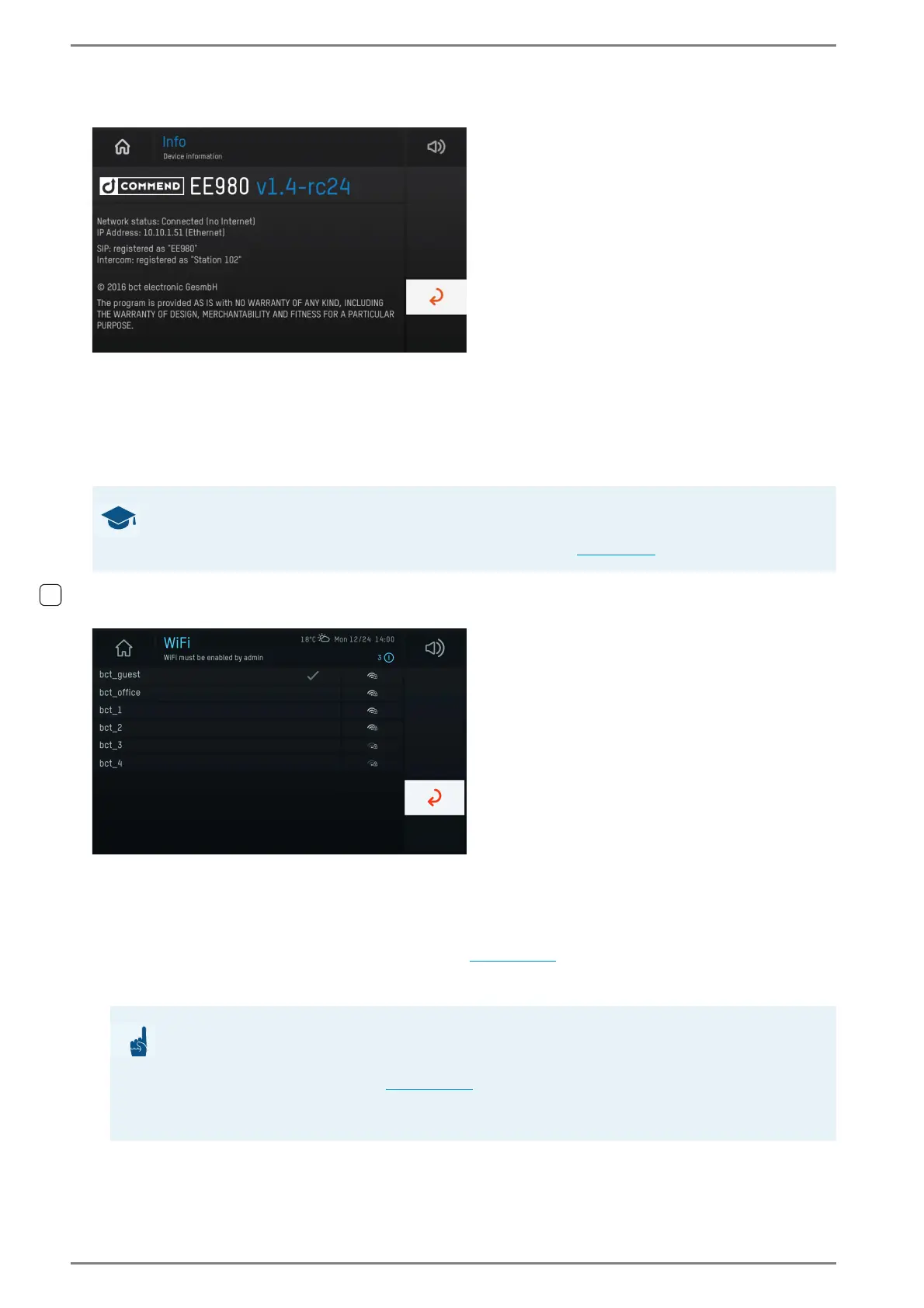
Function menu: Device information
User interface “device information”
In this menu, the following device information will be displayed:
Function menu: Wi-Fi
User interface “Wi-Fi”
In this menu, the DUETTO device can be connected to an available Wi-Fi network (e.g. for data or
speech signal transfer). Carry out the following configuration steps:
Plug in a wireless USB adapter into any USB jack of the DUETTO device. Consider that the respective
USB port has to be activated in the web interface (
see page 94). The driver of the wireless USB adapt-
er will automatically be installed.
Tap on the desired Wi-Fi network in order to connect the DUETTO device with it.
Installed DUETTO firmware version SIP registration status
Network status Intercom registration status
IP address State of fallback connections
GOOD TO KNOW: Information about fallback connections
The state of the fallback connections will only be displayed when the respective connections
have been configured in the web interface at Intercom (
see page 37).
ATTENTION: Test the Wi-Fi connection
This function depends significantly on the used Wi-Fi USB stick, access point, properties of the
room and the requirements of the signal range! Test this function in detail! For information regard-
ing supported Wi-Fi USB sticks, see page 12!
If an Ethernet and Wi-Fi connection is used at the same time as the DUETTO device, different IP
address ranges must be used!


 To Next Page