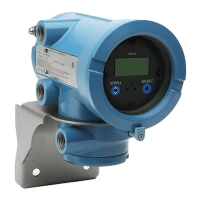
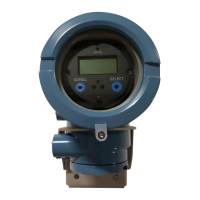
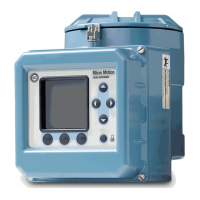
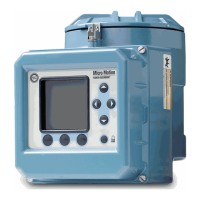
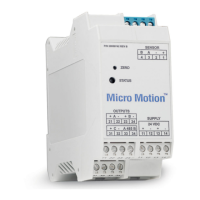
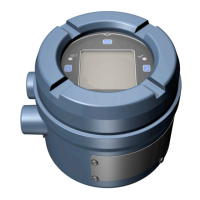
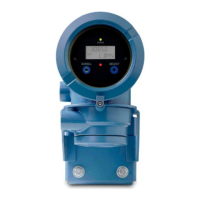
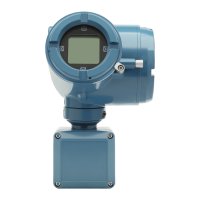
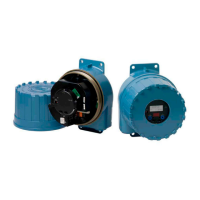
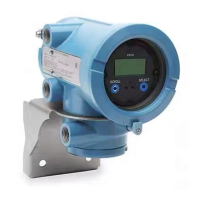
Figure A-4: Optical switches
Procedure
1. Observe the action bar at the bottom of the LCD panel.
The action bar displays Menu⇨.
2. Place your thumb or finger over the ⇨ optical switch to activate it.
The top-level menu is displayed.
3. Navigate the menus using the four optical switches:
• Activate ⇧ or ⇩ to scroll to the previous or next item in the menu.
• Activate and hold ⇧ or ⇩ (approximately 1 second to scroll rapidly through numbers or menu
options, or to move to the previous screen or next screen in a multi-screen display.
• Activate ⇨ to drill down to a lower menu or to select an option.
• Activate and hold ⇨ to save and apply your action.
• Activate ⇦ to return to the previous menu.
• Activate and hold ⇦ to cancel your action.
The action bar is updated with context-sensitive information. The ⇨ and ⇦ symbols indicate the
associated optical switch.
If the menu or the topic is too large for a single display screen, the ⇩ and ⇧ symbols at the bottom and
top of the LCD panel are used to indicate that you must scroll down or up to see more information.
Configuration and Use Manual Using the transmitter display
MMI-20025166 March 2019
Configuration and Use Manual 311


 To Next Page
 Loading...