Maintenance 7. Recovering the HDD
204 RC620 Rev.8
7.2.2 Recovering Windows
CAUTION
■
When the Windows is recovered, all the data in the HDD will be erased. Make
sure to make a back up of data before recovering Windows. The procedure for
backup is described in Maintenance: 4.3 Backup.
When you accidentally start the RC620 controller while the Recovery Disk is being
inserted, the recovery software runs. In this case, see the step (11) below and reject the
Recovery Disk, and then reboot the RC620 controller.
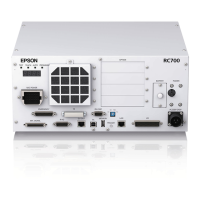
(1) Connect the PS/2 keyboard and the PS/2 mouse to the RC620 controller.
(The USB keyboard and the USB mouse cannot be used in Windows recovery.)
Also, when you use USB DVD-ROM drive, connect it to the RC620 controller.
(2) Power ON the RC620 controller.
(3) Press the <Delete> key and show the BIOS setup menu.
(4) Select “Advanced BIOS Features” and press the <Enter> key. The [Advanced BIOS
Features] window appears.
(5) Record the current setting of “First Boot Device”. Then, change this setting to
“CD-ROM” in case of the embedded DVD-ROM drive, change it to “USB CD-ROM”
in case of the USB DVD-ROM drive.
(6) Press the <ESC> key and return to the BIOS setup menu.
(7) Insert the RC620 Recovery Disk into the DVD-ROM drive.
(8) Select “Save & Exit Setup” and press the <Enter> key.
(9) The [Save to CMOS and Exit (Y/N)?] dialog appears. Press the <Y> key.
(10) The recovery software runs and [License] dialog appears. Check the “I accept the
terms in the License Agreement” check box and click the <Accept> button.


 To Next Page