Once you have connected to a device, it will show up in the top bar. You can connect to multiple
H90s at once and select each device this way. Click the arrow icon to detach the device’s tab and
view it in a separate window.
Click the Add Device button to add your H90 to be able to connect to it.
Click the Bluetooth icon to begin the Bluetooth pairing process.
Click the X icon to remove a device.
The device information for your H90 can be seen here. Click “connect” to start editing parameters
on your H90. You can also view the H90’s serial number, software version, and whether it uses a
USB or Bluetooth connection.
Click the cloud icon when an update is available for your H90.
View what version of H90 Control you are using here.
H90 Control connection tips:
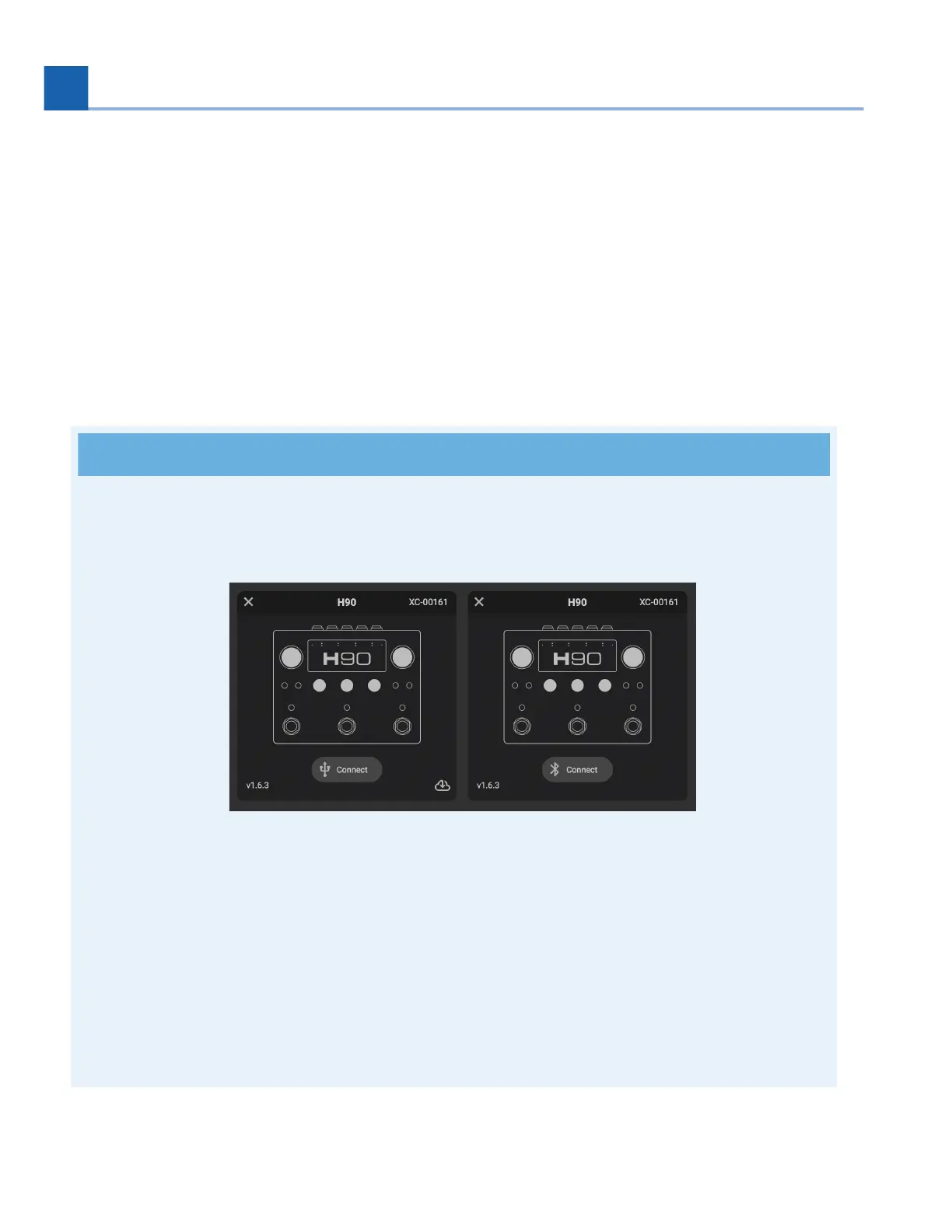
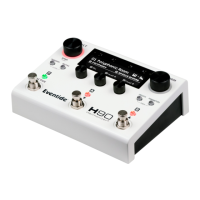
Your H90 will show up as two devices in H90 Control depending on the connection method: USB
or Bluetooth. This will be indicated by the connection icon below the device’s image.
Fig. 10.2 The USB Device can be seen on the left, while the Bluetooth device can be seen
on the right.
You cannot update your H90 via Bluetooth; you must use a USB connection to update. Click the
cloud icon in the bottom right corner of the USB device to update.
Do not connect your H90 to multiple devices running H90 Control via Bluetooth and USB
simultaneously.
2.
3.
4.
5.
6.
7.
8.
•
•
•
10. H90 CONTROL






 To Next Page