To map a HotSwitch:
Press the Parameters Button to enter Parameters Edit Mode.
Press and hold the P, A, or B LED Button to map its respective HotSwitch.
Press a Quick Knob to assign the parameter to the HotSwitch. Turn the Quick Knob to change the
value of that parameter.
Turn the Select Knob to view other Preset or Program-level parameters to be mapped.
Press the P/A/B LED Button to jump to other groups of Preset or Progam-level parameters to be
mapped.
Press the Quick Knob of a mapped parameter to un-map it.
Press and hold another LED Button to map a different HotSwitch without exiting the mapping menu.
Press the Perform Knob to exit the HotSwitch mapping menu.
6.4.4. Tempo Sync
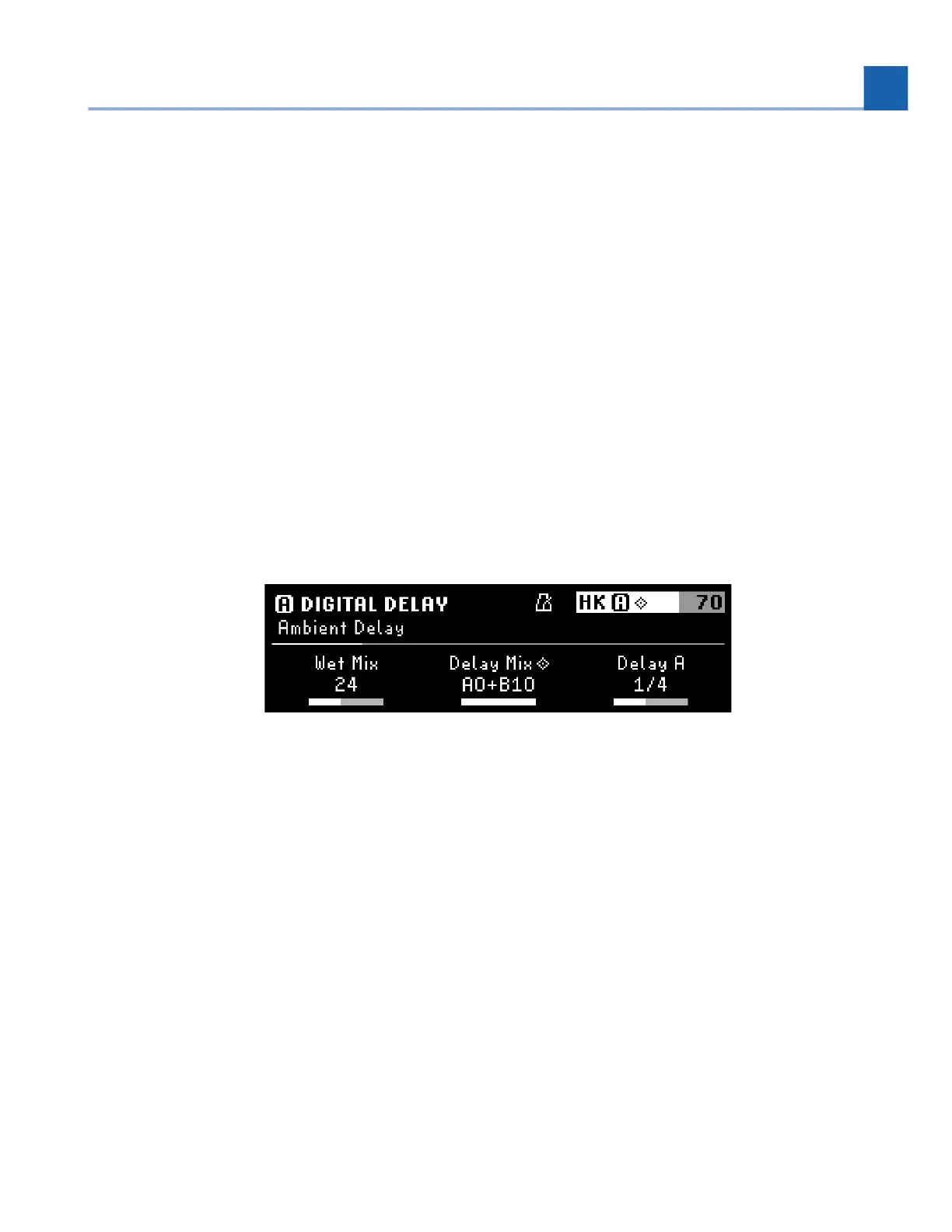
Press the Presets and Parameters Buttons together to toggle Tempo Sync on/off.
Fig. 6.31 A metronome icon will indicate that Tempo Sync has been enabled.
Tempo Sync determines whether certain parameters will display tempo-synced subdivisions, or a
continuous range of rates. For example, UltraTap’s Length parameter can display milliseconds or
subdivisions, while UltraTap’s Speed parameter can display Hertz (cycles per second) or subdivisions.
Tempo Sync can be applied to the entire Program, or to individual Presets within a Program.
Toggling Tempo Sync while a Preset’s parameter group is selected will enable/disable Tempo Sync
for that individual Preset.
Toggling Tempo Sync while the Program’s parameter group is selected will enable/disable Tempo
Sync for both Presets.
•
•
•
•
•
•
•
•
•
•
6. EDIT MODES






 To Next Page