Press the Parameters Button to cycle through the different parameter view pages, and this will
determine which HotKnob is being used. Note that in Perform Mode, HotKnob P will always be used.
To map a parameter to a HotKnob:
Follow the above instructions to map a parameter and select a HotKnob as the control source.
If you selected HotKnob P, press the P LED to view the Program parameters page, and turn the
Perform Knob to control HotKnob P.
If you selected HotKnob A or B, press the A or B LED to view that Preset’s parameters page, and
turn the Perform Knob to control HotKnob A or B.
Tip
A HotKnob can also be mapped to internal or external controllers. This can be useful for mapping
both HotKnobs A and B to HotKnob P and control both HotKnobs simultaneously, or mapping a
HotKnob to an expression pedal for easy control. You can also map a HotKnob to a Quick Knob using
the Quick Knob Assignments menu.
6.4.3. HotSwitch
A HotSwitch can be thought of as a snapshot of a group of parameters. If the chorus of your song needs
higher gain and more delay, map those parameters to a HotSwitch and engage it for the chorus. Then,
disengage to go back to the previous parameters, or activate another HotSwitch with different
parameters for the second verse.
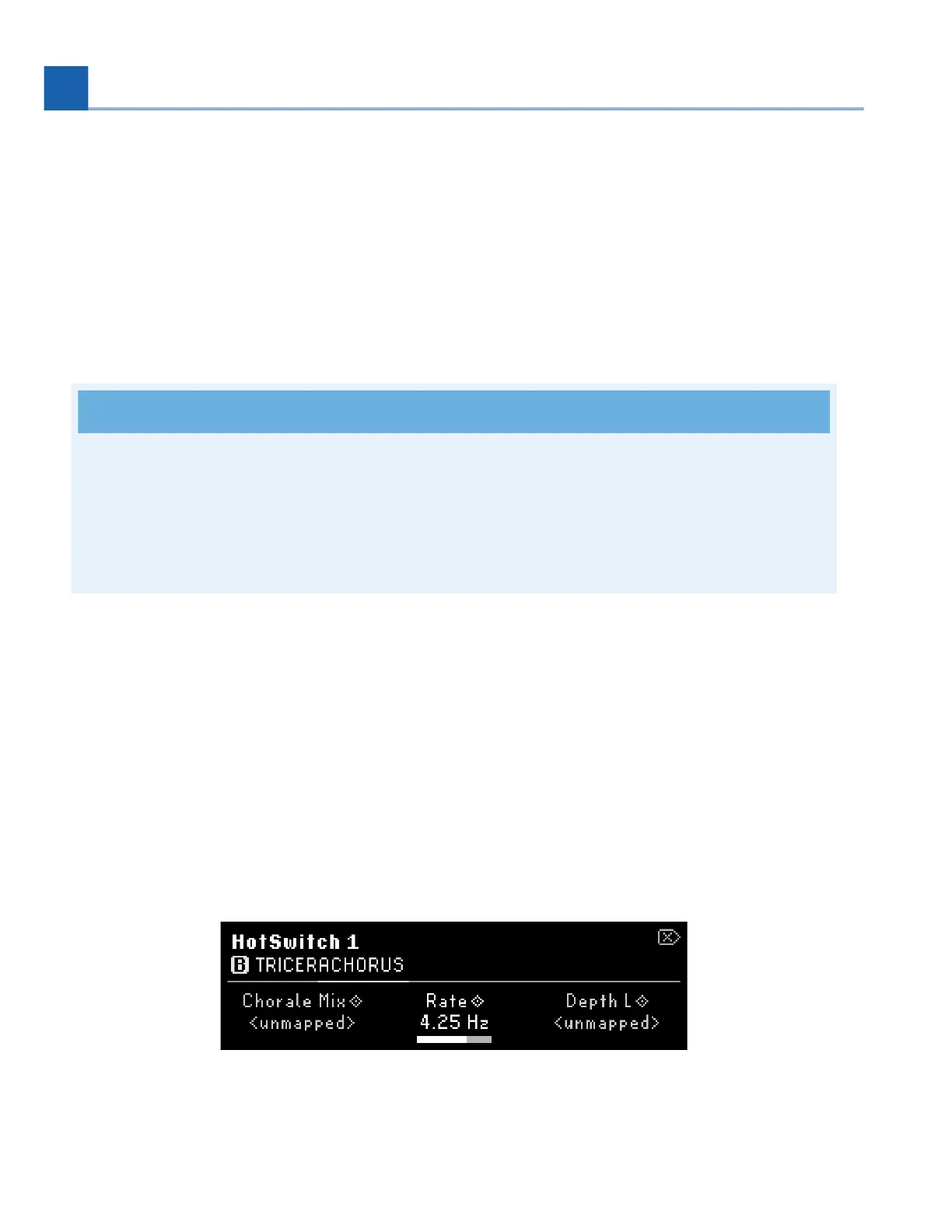
There are three HotSwitches, one for each P, A, and B Footswitch. Mapping parameter values to a
HotSwitch allows you to use a Footswitch in Perform Mode to toggle those mapped values. Note that only
one HotSwitch can be active at a time.
Fig. 6.30 HotSwitch mapping menu displaying the parameters for HotSwitch 1
•
•
•
6. EDIT MODES






 To Next Page