Quick Knob 2 selects the Effect Type for which to search.
Quick Knob 3 selects the Algorithm filter.
Turn the Select Knob to scroll through the filtered List, which auto-loads each Preset into the selected A
or B slot for quick auditioning. The original Preset will remain in the List regardless of the filters, until you
save the Program.
Press the P LED Button to activate/bypass the Program. Press the A or B LED Button to activate/bypass
each Preset within the Program.
Press any Footswitch to exit Presets Edit Mode.
6.3.1. Saving Presets
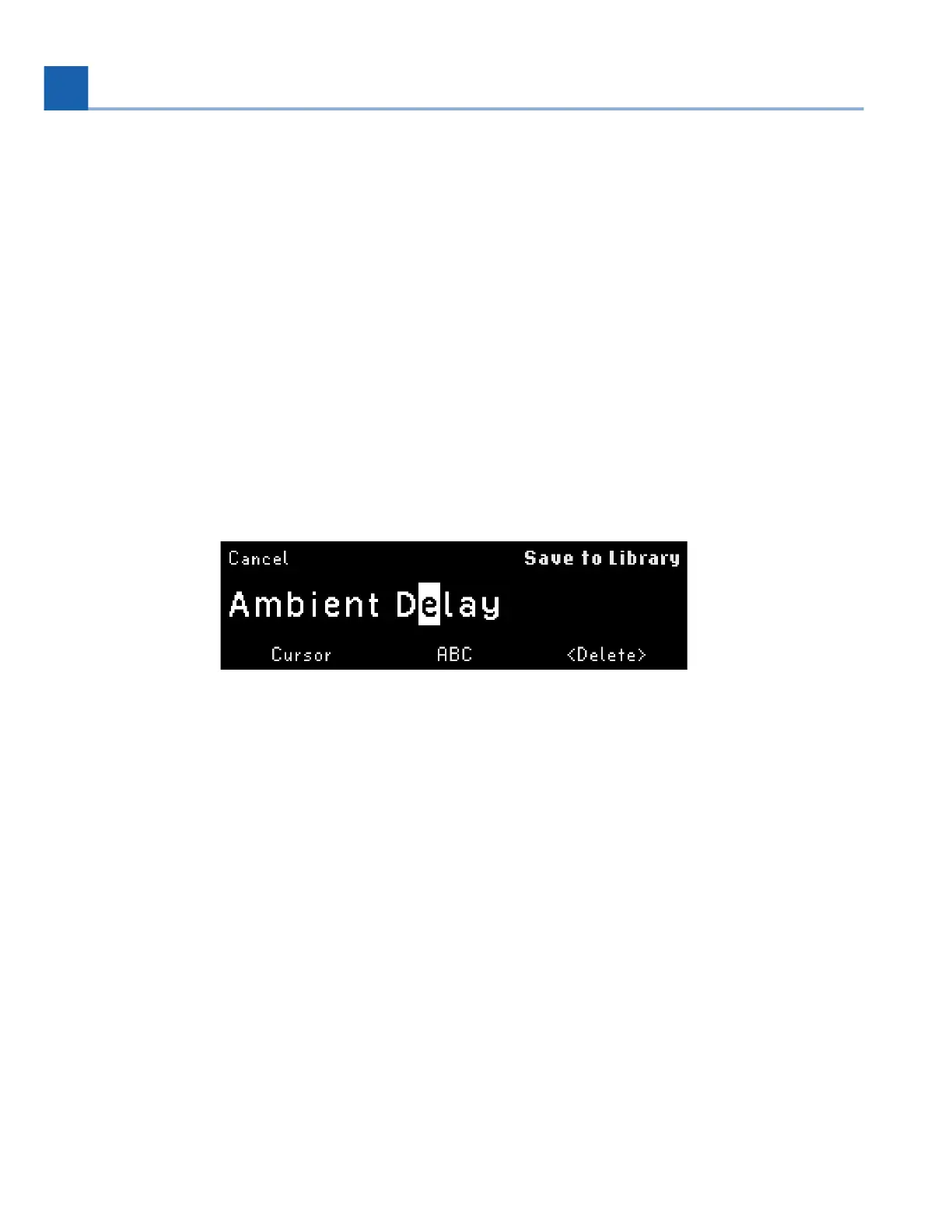
Press and hold the Presets Button to save a Preset.
Fig. 6.23 Preset save display
Renaming Presets works the same way as renaming Programs.
Move the cursor by turning the Select Knob or Quick Knob 1. Pressing Quick Knob 1 moves the
cursor to the right.
Select the character by turning the Perform Knob or Quick Knob 2. Pressing Quick Knob 2 cycles
the character set through lowercase, uppercase, numbers, and symbols.
Delete a character by pressing Quick Knob 3.
Press the Perform Knob to save your preset to the Preset Library, which can be searched through in
Presets Edit Mode.
Press the Select Knob to cancel.
If a preset already exists with the name you have chosen, you will be prompted to overwrite the existing
preset.
•
•
•
•
•
•
•
6. EDIT MODES






 To Next Page