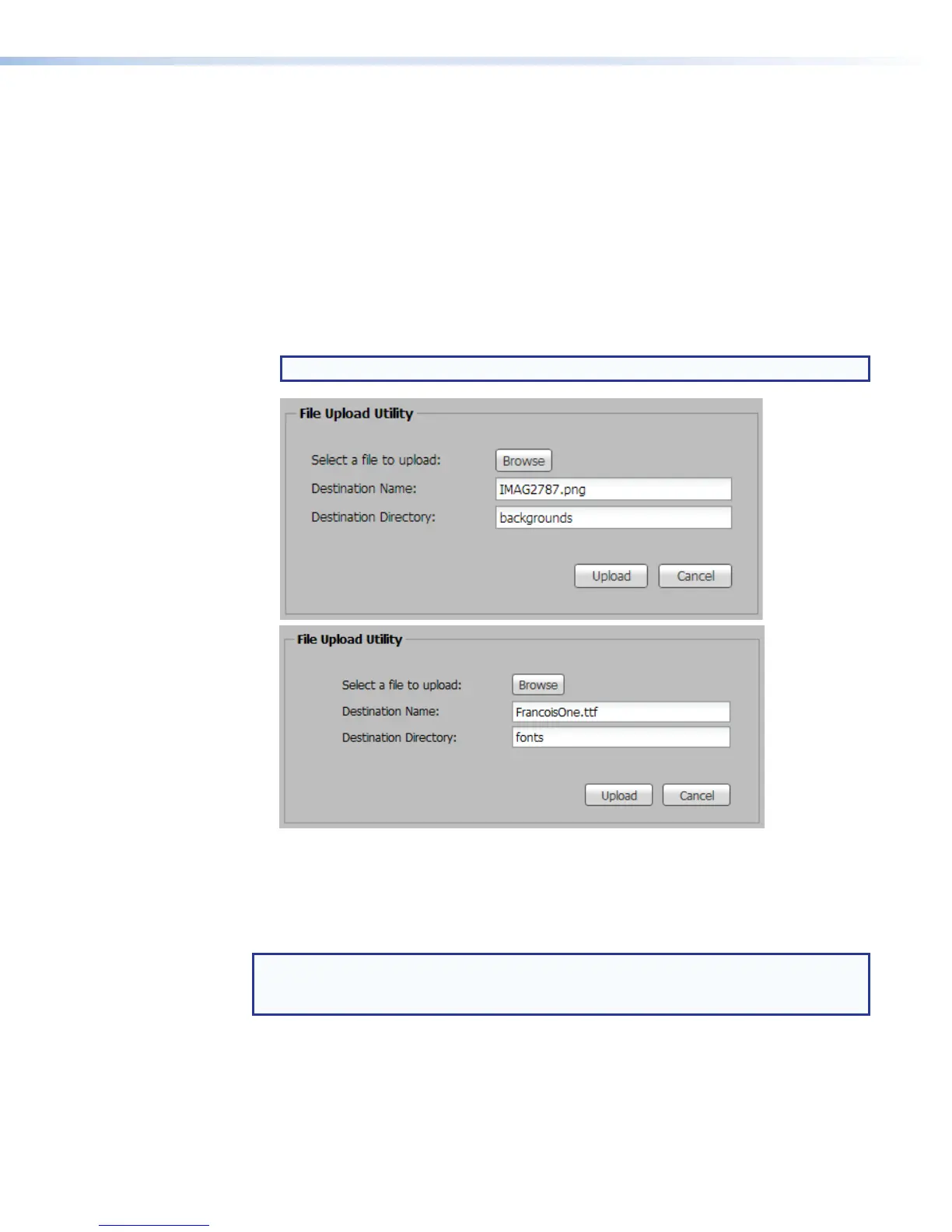
3. In the Open dialog box, browse to and select the desired file:
• Background images must be in .png file format.
• Font files must be in .ttf or .otf file format.
4. Click Open. The dialog box closes. The file name is in the Destination Name: field.
5. If desired, edit the text in the Destination Name: field. The destination name is the
file name and extension, not a directory path.
6. Perform one of the following:
• Enter the name of the directory folder in which the file will be stored into the
Destination Directory: field.
• Click on the desired folder in the File Directory panel. The directory (folder)
name appears in the Destination Directory: field.
NOTE: For fonts, select fonts as the destination directory.
7. Click Upload. The file is copied into the designated folder.
Delete a File or Folder
Once a file folder or a file, such as a background image or font, is stored in the SMP, you
can remove it as follows:
NOTE: Folders and files in the /recordings/ folder are read-only and cannot be deleted
from the File Management page. Recordings must be deleted via the Scheduled
Events page.
1. In the File Directory panel, click the + adjacent to a folder to expand it and locate
the desired file or folder.
2. Right-click the file or folder and select Delete. The Permanently Delete
Confirmation dialog box opens.
3. Click Delete to permanently remove the file or folder.
SMP351 • Web-Based User Interface 132



 To Next Page