Copyright © 2016 Frontier Communications. All Rights Reserved.
3. Use one of the following methods:
• If your wireless client device has a WPS button, press the WPS button
on your Gateway, then click the WPS button on your wireless
device (client) to start the WPS registration process.
• If your client device has a WPS PIN, locate the PIN printed on the
client’s label or in the client documentation.
COMPUTER NETWORK CONFIGURATION AND
MAIN SCREEN
Enter the PIN number in the Client WPS PIN field. The Client WPS PIN
field is located in the section B - PIN Enrollment on the user interface.
Click Register.
• Alternatively, you can enter the Gateway’s PIN shown on this screen
into the WPS user interface of your device, if this PIN mode is
supported by your wireless device.
4. After pressing the WPS button on your Gateway, you have two
minutes to press the WPS button on the client device before the WPS
session times out.
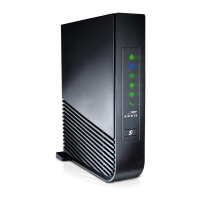
When the WPS button on your Gateway is pressed, the Wireless light
on the front of your Gateway begins flashing white. The flashing
continues until WPS pairing to the client device completes successfully.
At this time, the Wireless light turns solid white.
If WPS fails to establish a connection to a wireless client device within
two minutes, the Wireless light on your Gateway flashes red for two
minutes to indicate the WPS pairing process was unsuccessful. After
flashing red, the light returns to solid white to indicate that Wi-Fi is on.


 To Next Page