Appendix F Software Management Software Upgrade Manager
© 2012 Harmonic Inc. 200 ProView 7000 v.2.6, Rev. E
F.2 Software Upgrade Manager
Use the EMS Software Upgrade Manager to perform a software version upgrade for all
selected devices.
CAUTION: The BOOTP software upgrade option should be turned off when using the EMS to upgrade the
ProView 7000™ device. See 7.11.5 Device Software Upgrade Properties.
To open the Software Upgrade Manager:
❖ Select Tools > Firmware Software Upgrade Manager.
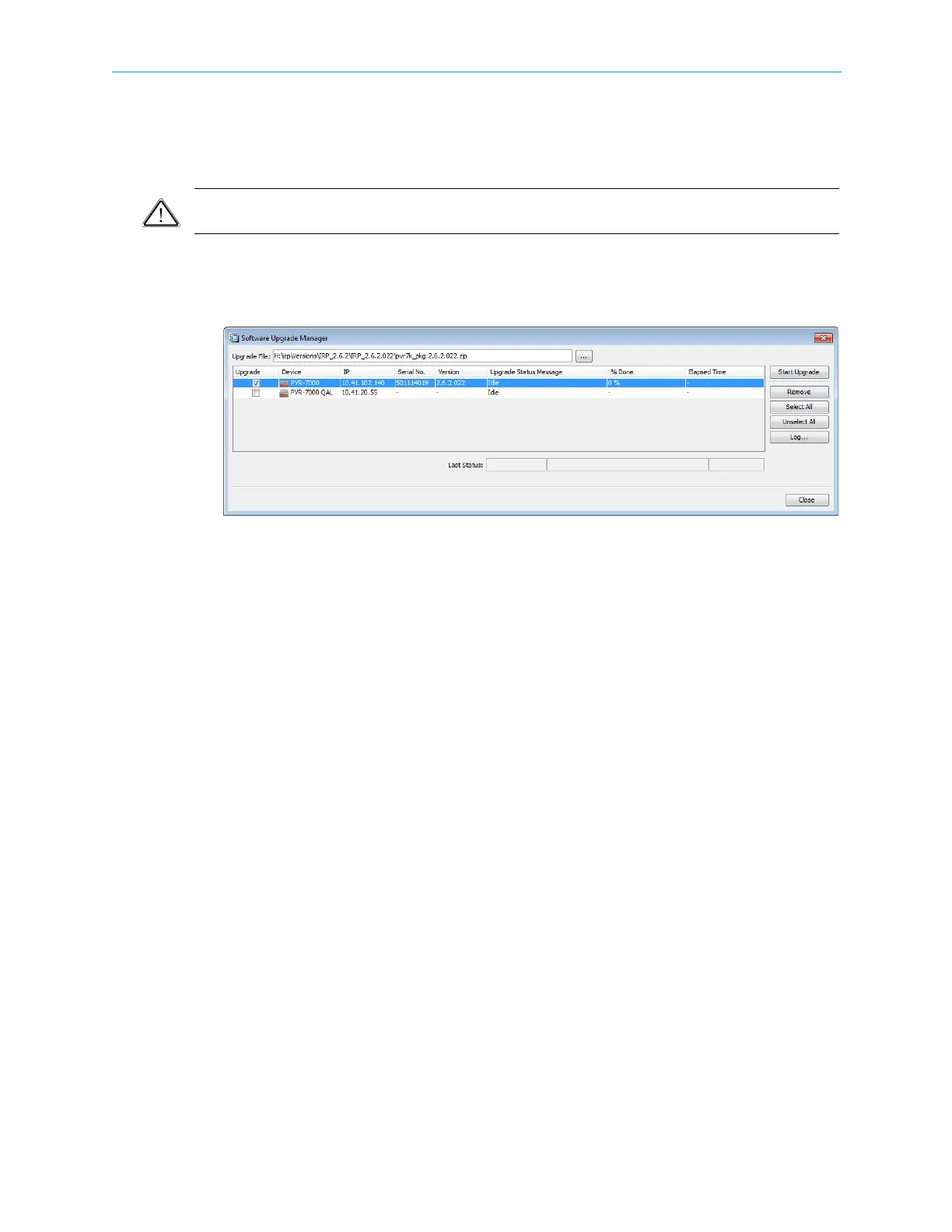
The Software Upgrade manager enables you to select the update file source.
The manager lists all ProView 7000™ devices currently managed by the EMS and provides a
checkbox to the left of each device name for you to select which devices to upgrade.
The manager lists the following information for each device:
■ Device communication status (color coded):
❑ Disconnected (gray)
❑ No communication (red marked)
❑ Not logged-in (half red marked)
❑ Communicating (full colors)
■ Device IP, Serial number and Version number.
■ Upgrade status (idle or active), % of upgrade done and upgrade time.
At the right of the Software Upgrade manger dialog, a group of buttons are provided to
manage the upgrade operation:
■ [Start Upgrade] button – starts the upgrade session.
■ [Remove] button – remove a device from the displayed list.
■ [Select all] button – selects all devices for upgrade.
■ [Unselect all] – clear all devices from upgrade.
■ [Log…] button – displays the upgrade log.
■ [Close] button – closes the upgrade dialog.



 To Next Page