Chapter 7 Device Configuring Using EMS Physical Input Ports and Slots
© 2012 Harmonic Inc. 87 ProView 7000 v.2.6, Rev. E
7.1.5 CAM Properties
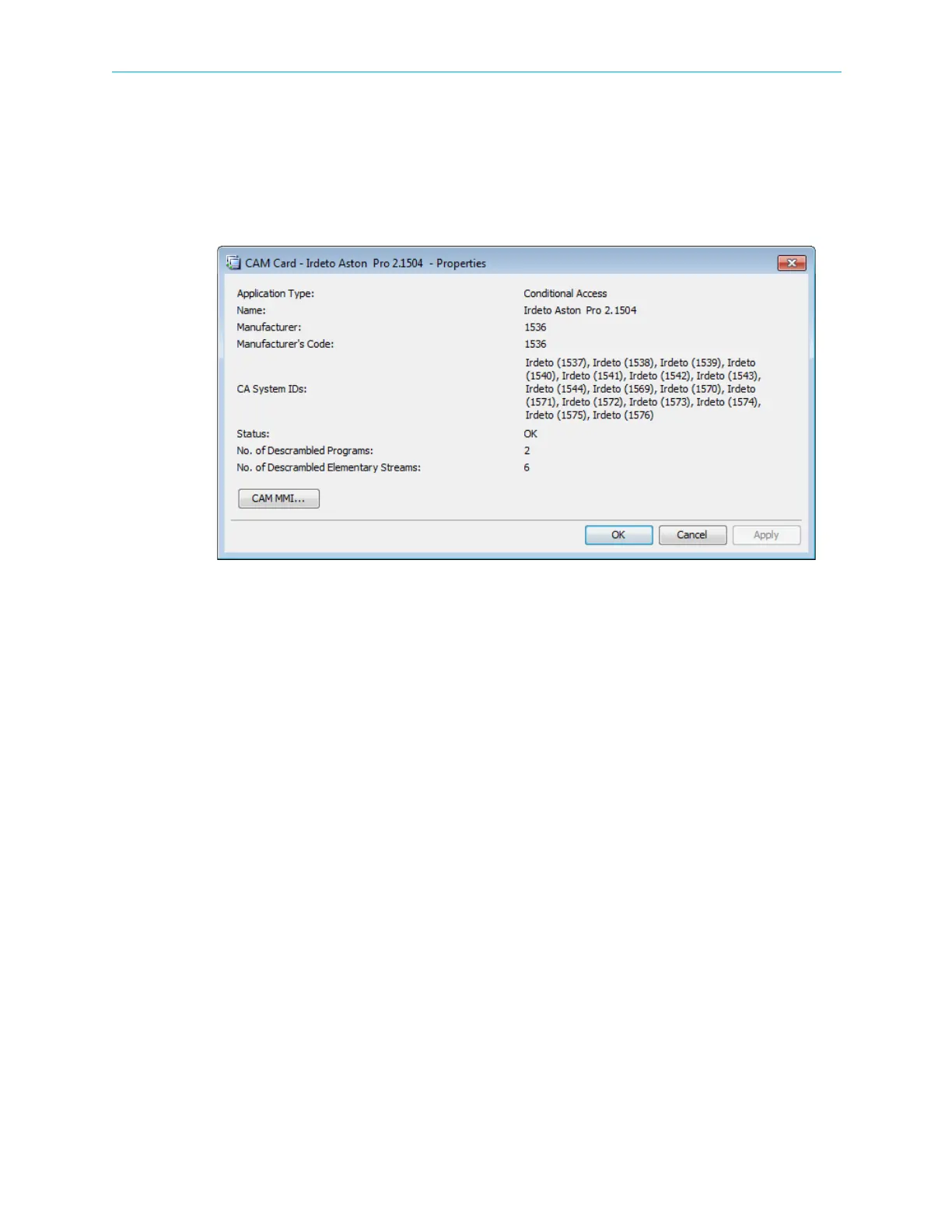
The CAM Card Properties dialog displays the properties of the selected CAM element.
To display the CAM properties:
1. Select the required CAM icon in the Input Physical box on the Device Explorer tab.
2. Click Properties on the EMS toolbar.
Figure 7–8: CAM Card properties dialog
The information displayed by the CAM Card Properties dialog includes the following:
■ CAM application type
■ CAM manufacturer name, number and code
■ Conditional Access System IDs
■ CAM operational status
■ Number of descrambled programs and elementary streams



 To Next Page