Chapter 7 Device Configuring Using EMS Physical Input Ports and Slots
© 2012 Harmonic Inc. 86 ProView 7000 v.2.6, Rev. E
7.1.4.2 CAM Slot Properties
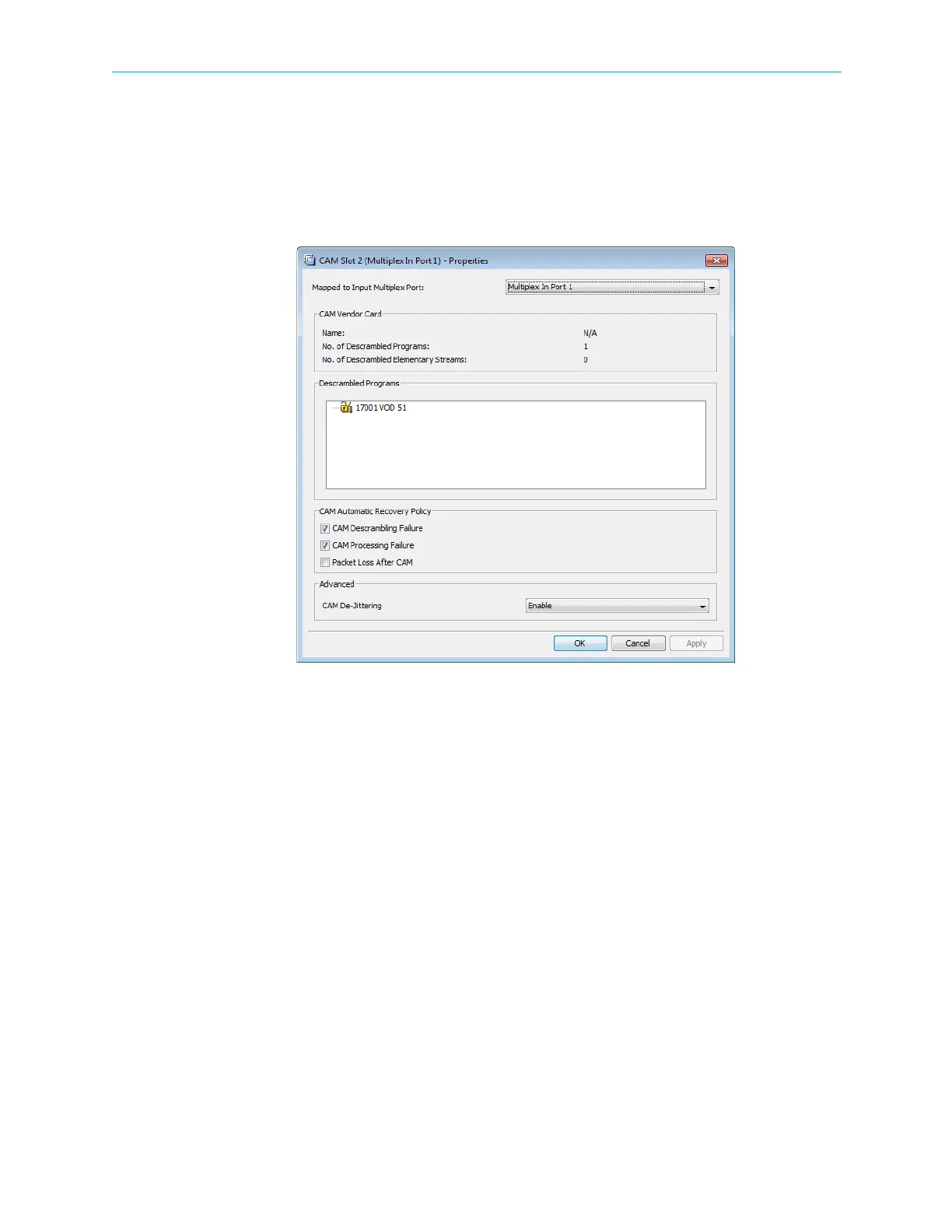
Use the CAM Slot properties dialog to monitor and manage individual CAM slots.
To display the properties dialog for a CAM slot:
1. Select a CAM slot in the Physical Input box on the Device Explorer tab.
2. Click Properties on the EMS toolbar.
Figure 7–7: CAM Slot Properties dialog
The CAM Slot Properties dialog includes the following:
■ Mapped to Input Multiplex Port – Displays the current association status of the CAM slot
and enables you to re-associate the CAM slot to an available multiplex input. You can only
re-associate the CAM when no services are configured for the CAM.
■ CAM Vendor Card – Provides the following information for the CAM card in the slot:
❑ Vendor name
❑ Number of descrambled programs
❑ Number of descrambled elementary streams
■ Descrambled Programs – Displays the program PIDs descrambled by the CAM.
■ CAM Automatic Recovery Policy – You can configure the ProView 7000™ to reset the CAM
when one of the following alarms is raised:
❑ CAM Descrambling Failure – Enabled by default.
❑ CAM Processing Failure – Enabled by default.
❑ Packet Loss after CAM – Disabled by default.
■ Advanced
❑ CAM De-Jittering – Enable or disable.



 To Next Page