Selecting an 'Account Mode'5.4
How to Display and Change the 'Account Mode'
See also
•
Guidelines to Setup an Account on page 91 .
To display and change the 'Account mode':
1. As supervisor (see How to Log in as Supervisor on page 148 ):
Press and type 5.1 or select the path:
Account Management Account Mode Selection
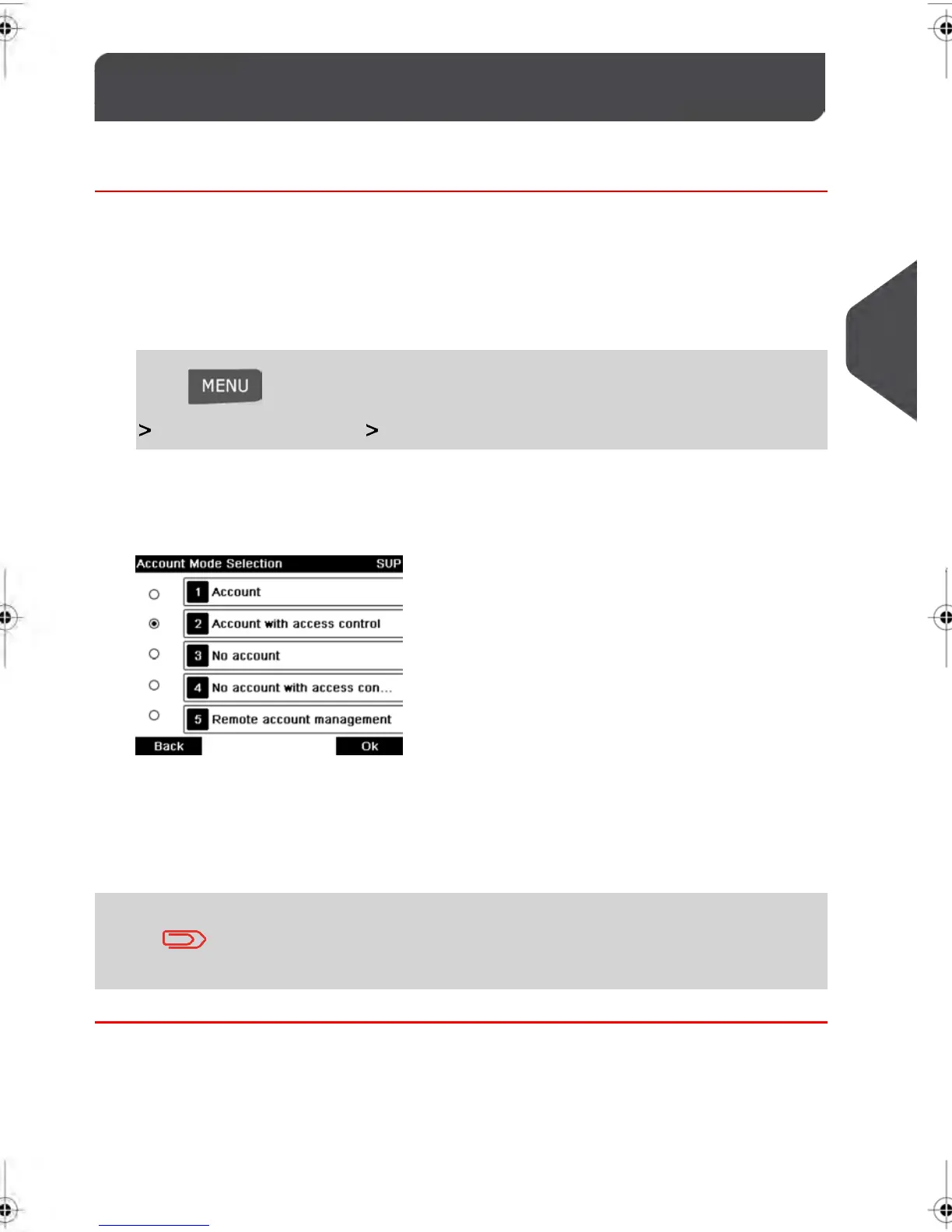
The Account Mode Selection screen is displayed with the current 'Account Mode'
shown.
2. Select another 'Account mode'.
3. Press [OK] to confirm.
4. If required, enter the PIN code and press [OK] .
The Mailing System then confirms that the 'Account Mode' has been changed.
If you have selected the 'Remote account management' Mode, a
connection process to the PC application begins. If the connection
fails, the previous account mode remains active.
97
| Page 97 | | feb-14-2014 12:06 |
5
Managing Accounts and Assigning Rights


 To Next Page