Brevera Breast Biopsy System User Guide
Chapter 4: User Interface - Imaging Display
MAN-04303-002 Revision 006 Page 43
4: User Interface - Imaging Display
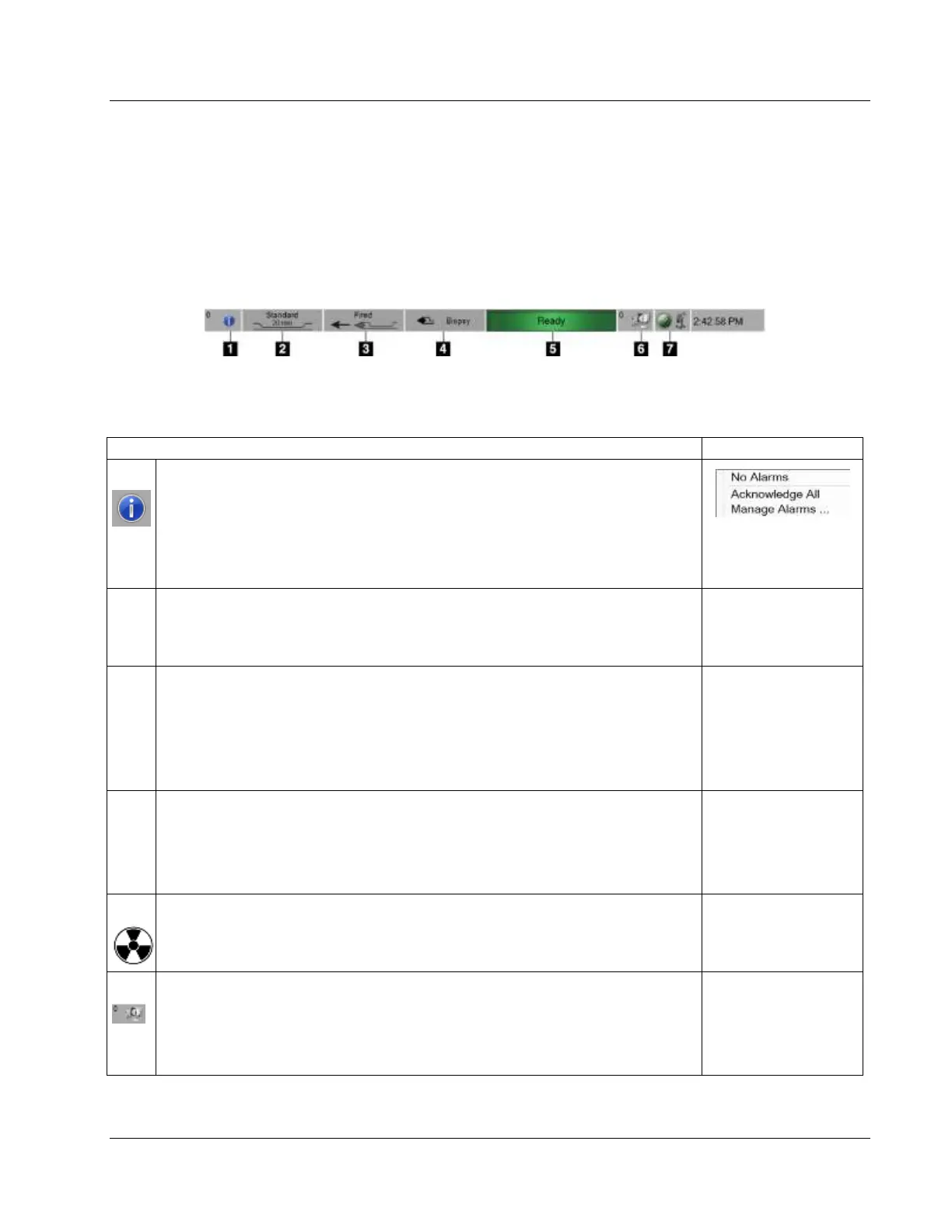
4.1 About the Taskbar
The taskbar at the bottom of the screen displays additional icons. For some of the icons,
you can select the icon to access information or perform system tasks.
Information Icon
Select the Information icon to display a menu.
This section of the taskbar flashes a yellow color if an alarm exists.
Select Acknowledge All to remove the flashing indication. Select the Manage
Alarms option to display and close any open alarms.
Aperture Status Indicator
When a biopsy device is connected to the system, this section indicates if the
aperture on the biopsy needle is standard or petite.
Needle Status Indicator
When a biopsy device is connected to the system, this section indicates if the
biopsy needle is armed or fired.
Note: Arming and firing of the biopsy device is controlled with the remote
control.
Mode Indicator
This section indicates the current mode for the biopsy system.
Note: The mode is changed with the buttons on the remote control or the
buttons on the Technologist display.
X-ray Status Indicator
Ready, Not Ready, or X-ray in progress.
Output Device Icons
Select this icon to display a menu.
Manage Queues displays the status of jobs in the queue and job information
for the selected output, and allows you to filter the queue display.













 To Next Page