Brevera Breast Biopsy System User Guide
Chapter 4: User Interface - Imaging Display
Page 54 MAN-04303-002 Revision 006
4.4.3 How to Use the On-Demand Outputs
The On-Demand Outputs are: Archive, Export, or Print. You can manually Archive,
Export, or Print an image until the patient is closed.
When you select an On-Demand Output button, you have the option to send the image
to any of the configured Outputs.
How to Export
The export function sends data to a mapped drive such as a local hard drive, a USB
device connected to the console, or a network drive.
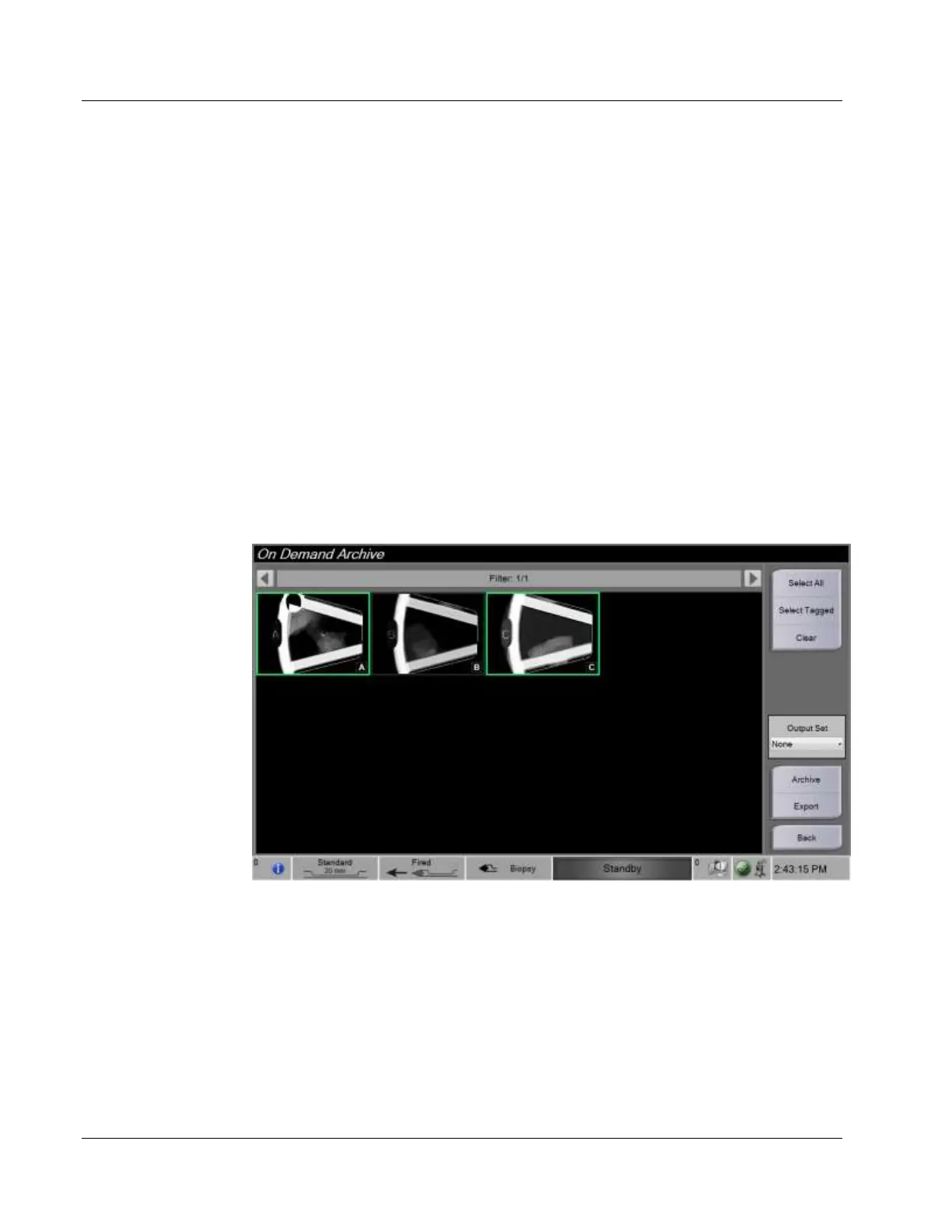
1. Select the Archive/Export button. The images from the current procedure appear in
the main window.
• The archive function sends data to a PACS device.
2. Touch one or more images to select the images to archive or export. Touch again to
deselect an image. Use the Select All button to select all of the images for the current
procedure. Use the Select Tagged button to select only the images marked with a
green check mark.
3. Select the Export button. The Export dialog box opens.
4. In the Export dialog box, select the destination from the options in the drop-down
list.
• To make the patient-related information not known during the export, select the
Anonymized check box.
5. Select the Start button to export the images, or select the Cancel button to cancel the
export.













 To Next Page