Micromate Operator Manual – 721U0201 Revision 6 25
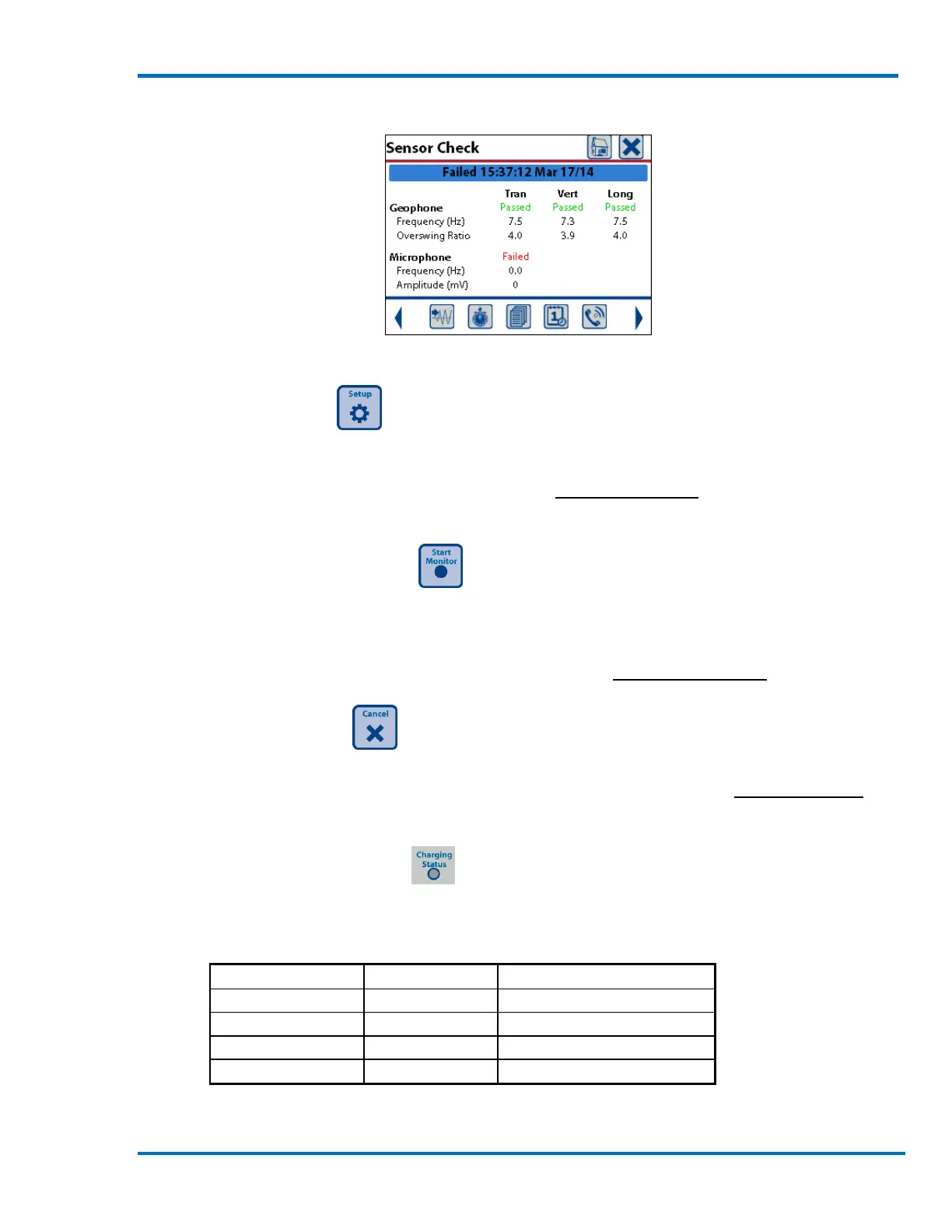
The most common reason for the microphone to fail the sensor check is an improper connection.
Ensure the microphone is attached to the proper connector and the cable has not been damaged.
Failing Microphone Sensor Check
8.3. Setup Button
The Setup button will allow the user to access the five different setup menus in the Micromate
program. These menus are used to configure how the Micromate will monitor and record data as
well as perform routine maintenance. Refer to section 11 Menu Structure for additional
information.
8.4. Start Monitor Button
The Start Monitor button is used to place the Micromate into the configured record mode. The
Micromate will display the record mode, the record length of the event and or interval and the
trigger level(s). Once an event or interval has been recorded, the peak and frequency of the
vibration and overpressure will be displayed. Refer to section 11.1.3 Record Mode.
8.5. Cancel Button
The Cancel button is used to exit the current screen and return to the previous screen. It is also
used to discard any modification made in the current screen. Refer to section 9.1.3 Cancel Icon for
additional information.
8.6. Charging Status LED
The Charging Status LED will only be illuminated if an external power supply has been connected to
the 5 V DC mini USB port. The color of the LED will indicate the charging status of the battery.
Battery not being charged
Problem with charge circuit



 To Next Page