Micromate Operator Manual – 721U0201 Revision 6 27
9. TOUCH SCREEN DISPLAY
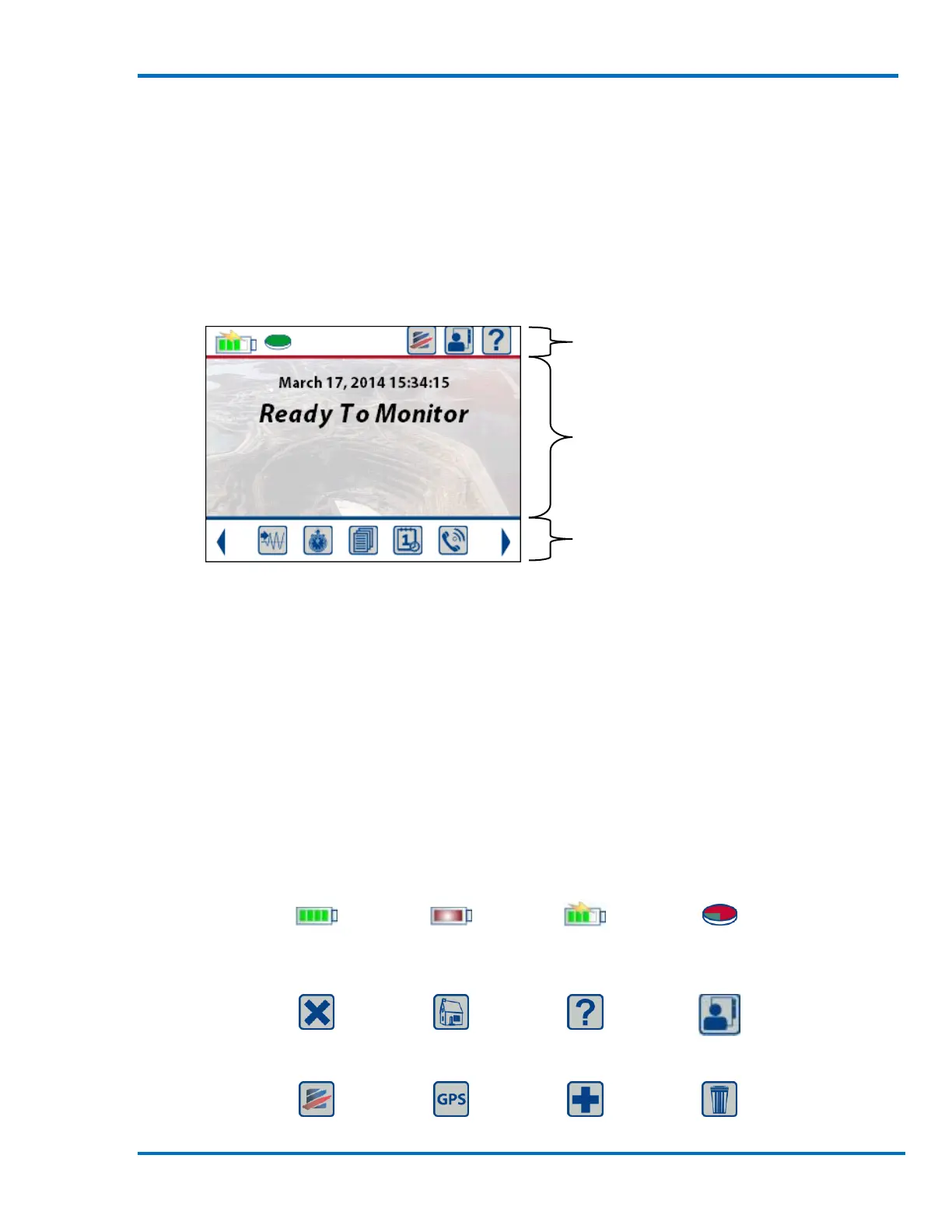
The Micromate has a color touch screen display used for configuring the unit and displaying the
event results. The screen functionality has been divided into three Sections (see the picture
below). The icons in Section #1 are context sensitive and will change depending on the currently
open screen. Section #2, the main display Section, will display the current state of the unit as well
as user changeable data. Section #3 provides short cuts to the most commonly used functions or
menus within the Micromate program.
Section #1 Context sensitive icons
Section #2 Main display area
Section #3 Short cut icons
WARNING: DO NOT use hard objects, such as pens or hard-tipped styluses to navigate the screen
as they may damage the display.
9.1. Context Sensitive Icons
The context sensitive icons are the icons in Section #1 at the top of the display. These icons will
change depending on the current screen and are used to:
1) Display information about the Micromate such as battery level, memory usage, owner or
Instantel information and context sensitive help.
2) Perform specific actions such as save, print, delete events, add a new operator name, read
GPS coordinates or return to the home screen.
3) Cancel and discard any edits made in the current menu, exit the current menu and return to
the previous screen.



 To Next Page