Micromate Operator Manual – 721U0201 Revision 6 49
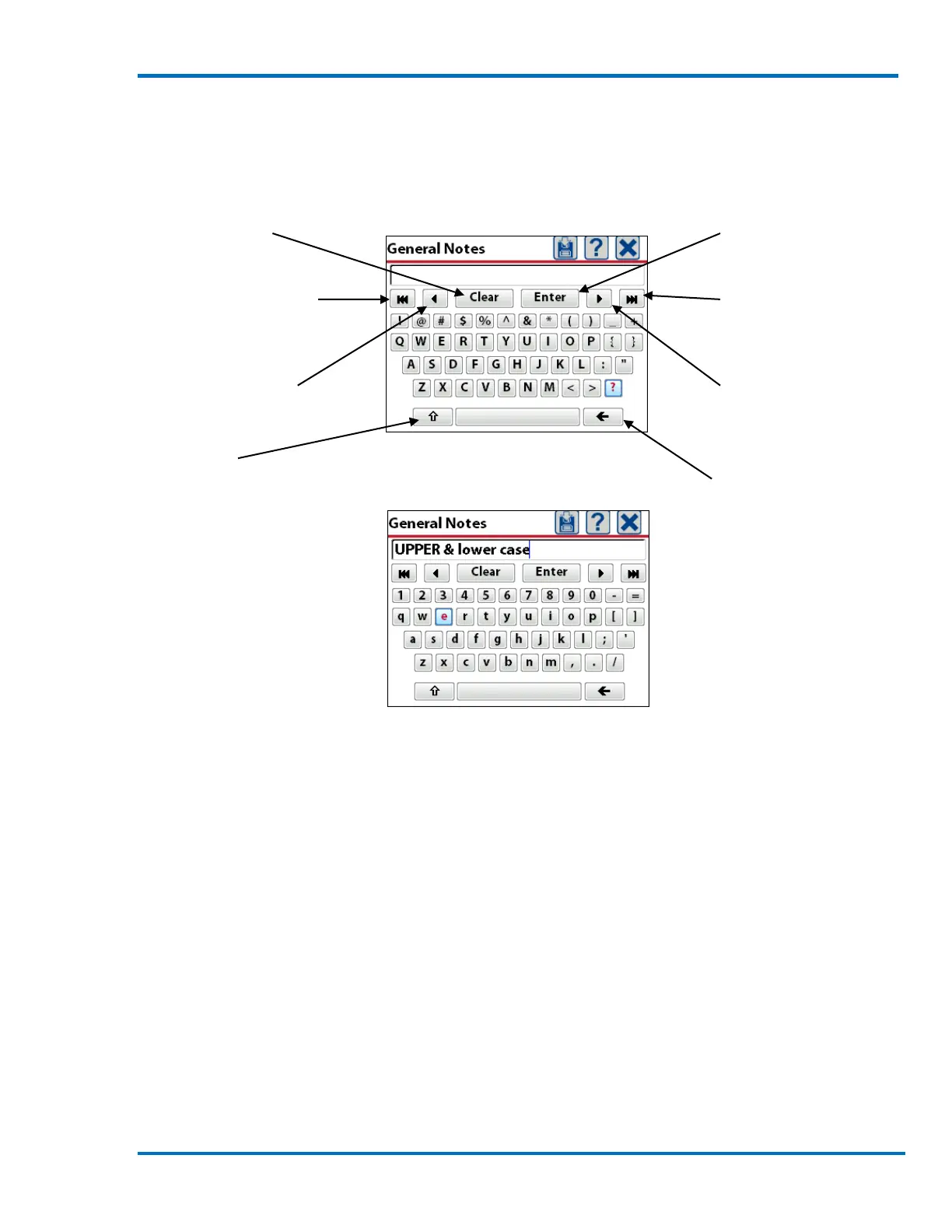
When entering text data like General Notes a full QWERTY keyboard will be presented. The current
character will be highlighted in blue (the “?” in the example below). The characters are entered by
using the navigation keys to highlight the desired character and pressing the Check Mark key or by
using your finger to touch each character. Pressing the shift key at the bottom left will switch
between upper and lower case text.
Micromate QWERTY Keypad
Sample Text String
Each character selected will be displayed in the text box at the top of the screen. Once all of the
information has been typed on the screen, pressing the save icon or the Enter key on the display
will save this information.
NOTE: Special Characters are keyboard entries that are not alphanumeric, such as @, %, ^. Some
text entry fields, such as Rename Setup File or Save to New File, do not allow the use of Special
Characters, other than underscore, space and dash (–, , _ ). The unit will not respond to attempts
of entering these characters.
Clear the text string
Move cursor to the
beginning of text string
Move cursor left one
character
Shift key
Enter/save the text
string
Move cursor to the
end of text string
Move cursor right
one character
Backspace key



 To Next Page