9.5. Page Length Adjustment
After inserting new material (e.g. paper) this function is used to adjust the printer to
the new page length.
Alternatively, the printer itself is able to measure the label length. See next sections.
Please execute this length adjusting after you have successfully adjusted the
Sync sensors and the Sync.Sens.Offset. (See previous sections).
Notes
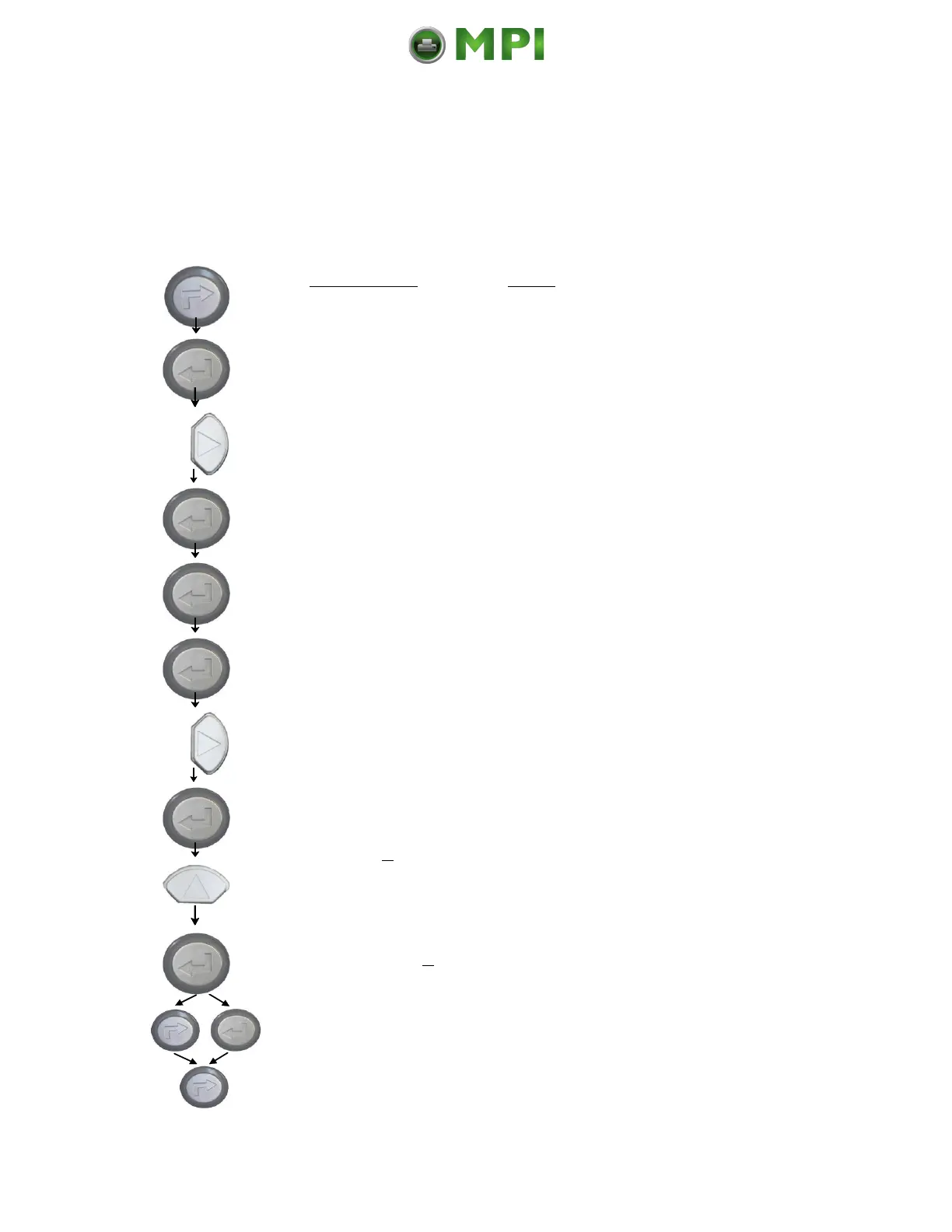
Turn the printer OFF LINE with this key.
The ENTER key gives the user access to the menu
structure.
Press the NEXT or PREVIOUS key until
[Paper Menu ] is displayed.
Press the ENTER key to select the paper menu.
Press the ENTER key to select the paper size
menu.
Press the ENTER key to adjust the page length.
Press the NEXT or PREVIOUS key if you want to
adjust the page length manually:
mm = currently selected measuring unit.
(Alternative the units inch or dot can be chosen
with NEXT or PREVIOUS).
Pressing the UP or DOWN key changes the value
of the current digit (Digit4 = left position, in this
example: 1). Pressing the NEXT key moves you to
the next digit (the PREVIOUS key combination
moves you back, if need be).
The page length is changed to 149.5 mm.
In addition this new value can be saved as setup
value (using the ENTER key).
After this decision turn the printer ONLINE again:
Press the ONLINE key longer than 2 seconds.



 To Next Page