MOOR INSTRUMENTS moorLDI2 RESEARCH USER MANUAL
106
18.3 LOSS OF COMMUNICATION WITH COMPUTER
1. If an USB-RS232 converter is used make sure that the USB Serial port is set between COM1
to COM9. If the USB Serial port is set above COM9 the software will not work. The port
setting needs to be changed (in Device Manager under Control Panel) before using with the
software.
2. If the imager fails to respond to software commands this can be either real or apparent. An
apparent loss of communications occurs when many images have been acquired or reviewed
and left open when there is too little computer memory available. This can slow down
program operation severely. To restore normal operation close down all moorLDI2
programs and then restart them.
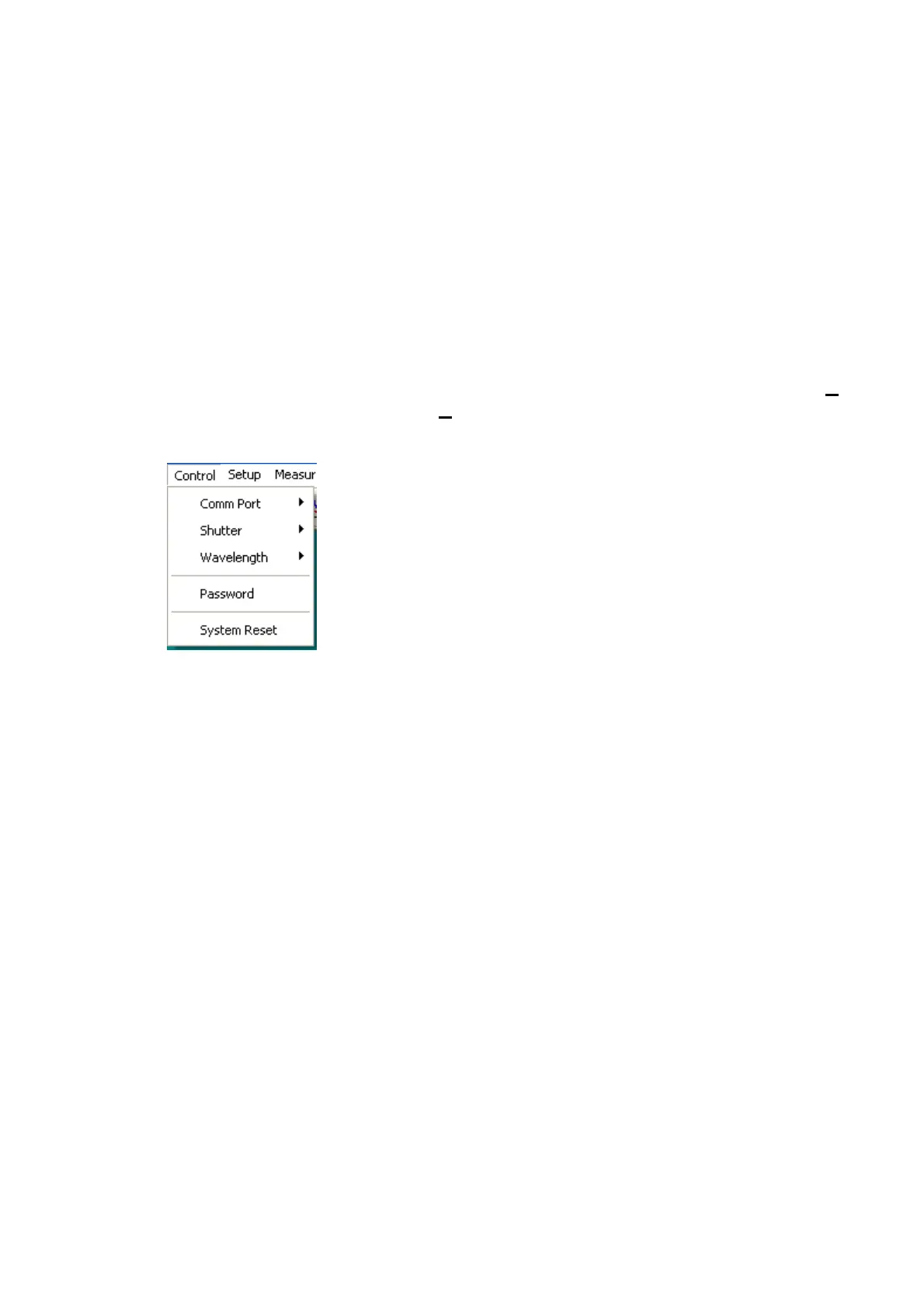
If a real loss of communication occurs it is re-established by issuing a
System Reset
command. This item is found in the
Control
menu from the menu bar at the top of the display
window. You will be asked to confirm the operation before a reset is executed.
3. If there is still loss of communication then:
a. Close down the moorLDI2 application program.
b. Switch off the moorLDI2 controller unit.
c. Switch off the PC.
d. Check all connections.
Now turn on the PC and then turn on the controller unit. If the communiction is ok
you will hear a ‘De-la De-la’ sound generated in the control unit. The laser beam
moves to its central position. If these events do not occur the problem could be either:-
1.
the NVR is corrupted (NVR Non Volatile Ram which stores data for motor
control etc).
2.
Poor connection (one or other of the connecting leads may be faulty)
3.
A control motor or encoder has failed.
1 and 3 can be checked using the diagnostics window in the moorLDI Measurement program. This is
found in the Help menu.
Poor connections and/or faulty leads can be checked both by eye for damage and using a multimeter
for continuity checks and shorts to the common earth terminal or screen.


 To Next Page