MOOR INSTRUMENTS moorLDI2 RESEARCH USER MANUAL
39
5.2
GETTING STARTED WITH the moorLDI2
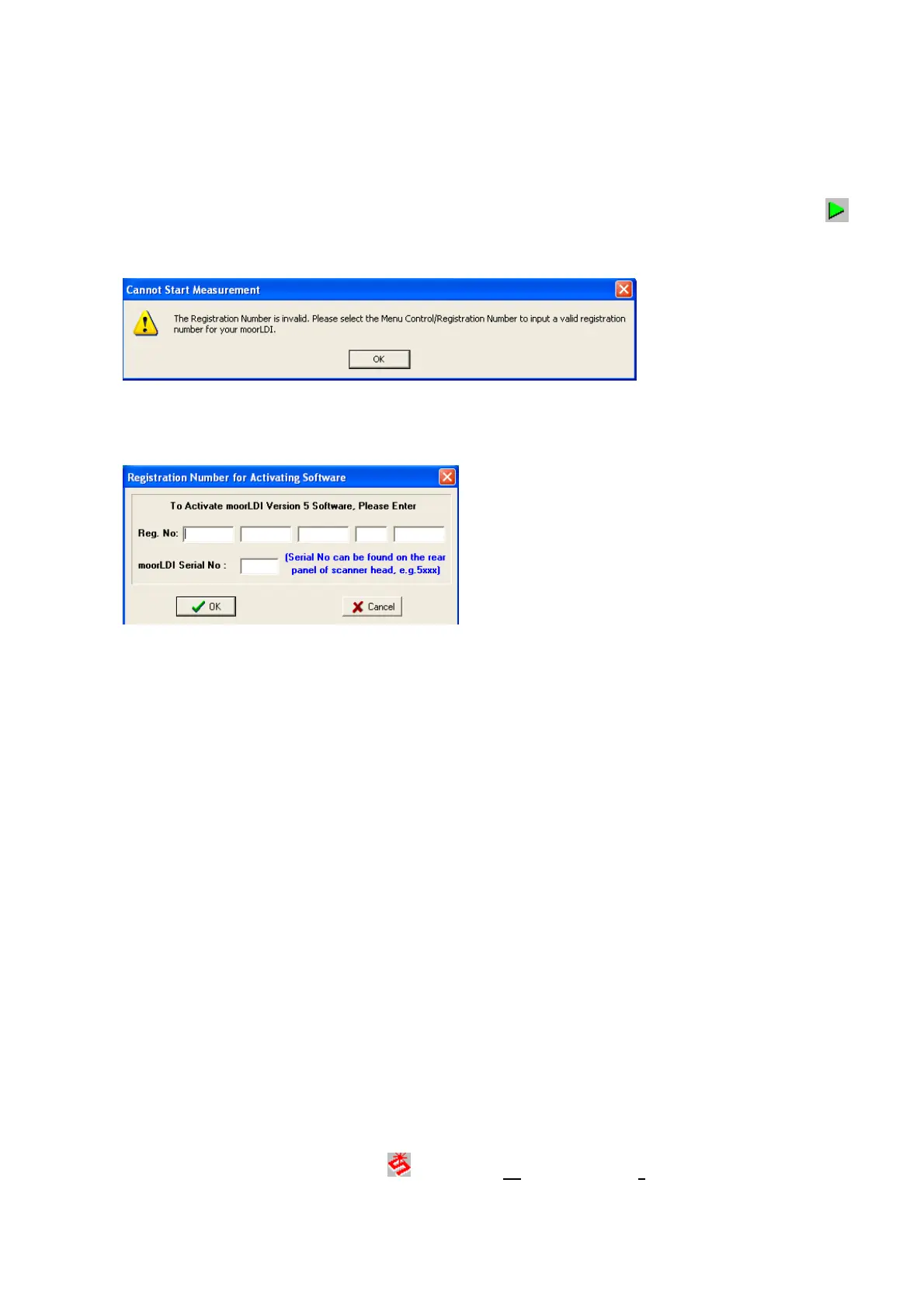
For some early versions of the moorLDI instrument it is necessary to input a
registration number
and the serial number of the scanner.
For these instruments an error message will be displayed when the green start button is clicked
(see item 8 below).
The registration number can be entered by selecting the
Control
menu and then registration.
Note that in general you will need to set up the operating conditions for the moorLDI2 imager (see
section
6
moorLDI2 SETUP
on the following page). Here you are just getting an idea of how
images are taken and recorded. If the images you get at this first attempt are not as you wanted or
expected do not be discouraged!
1. Turn on the computer so the WINDOWS program is operating.
2. Turn on the
moorLDI
2 controller by the mains switch at the rear of the control unit.
3.
Load the moorLDI Main Menu program from the moorLDI2 application window. The
software will automatically detect the com port and system type. An error message (Moor
LDI is not ready, please make sure that the system is on, all cables are properly connected,
then choose the correct comm port and the menu item control / system reset) will be displayed
if the system is not ready or the software is not compatible with the system.
4.
Choose the Measurement option.
5. Direct
moorLDI
2 scan head to a tissue surface at a distance of about 30cm from the optical
window (distance mark on the scanner head). This will scan an area of 7.5 x 7.5cm
2
(approximately 3cm x 3cm for a High Resolution imager) at a resolution of 256 x 256 pixels.
The duration of measurement will be just under 5 minutes if the imager has defaulted to the
fast scan mode of 4ms/pixel.
6. Click on the image scan icon
or
select:
Measurement
->
Image Scan


 To Next Page